

- How to configure webhook tools to run asynchronously
- How to use the Add Messages API to inject context mid-conversation
- How to combine both features for powerful async workflows
Overview
Traditional webhook tools block the conversation until they complete. This works fine for fast operations, but creates awkward pauses for slow backend queries. Async tools solve this by letting the assistant continue the conversation while operations run in the background. If your backend responds within a few seconds and you’d prefer to keep using sync webhooks, filler messages offer a simpler alternative — scripted phrases that play at timed intervals to fill silence while the webhook executes.The two building blocks
These features are orthogonal—each is useful on its own, but they become especially powerful when combined.Combined workflow
When used together, these features enable a new pattern:- Assistant triggers an async webhook (e.g., order lookup)
- Assistant continues chatting with the customer
- Backend processes the request (5, 10, 30 seconds later)
- Backend calls Add Messages API to inject the results
- Assistant naturally incorporates the new information
Async webhooks
Theasync flag on webhook tools tells the assistant not to wait for the response. The webhook fires, and the assistant immediately continues the conversation.
Configuring an async webhook
Setasync: true in your webhook tool configuration:
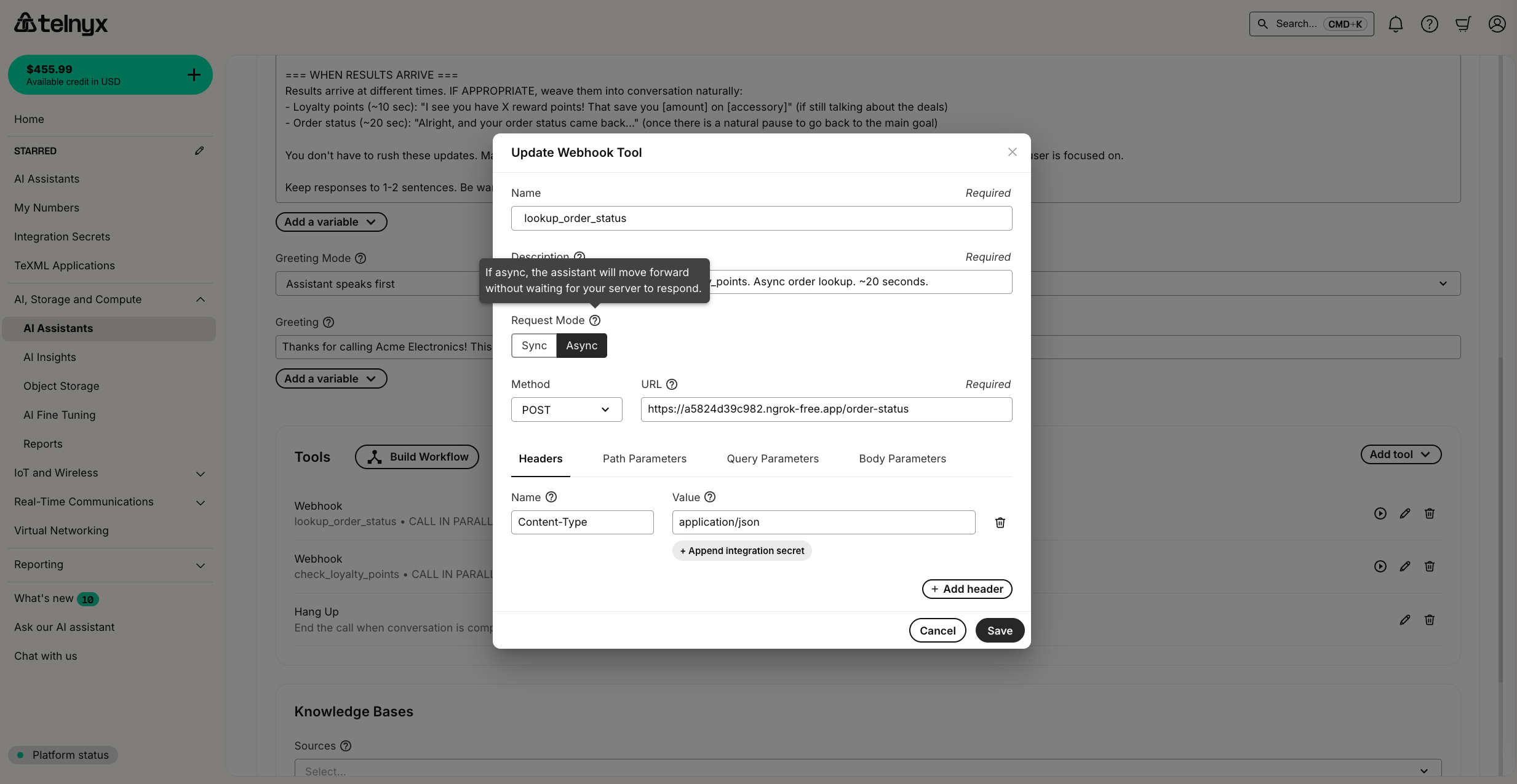
Key configuration options
For the complete webhook tool schema, see the Create Assistant API reference.
What your backend receives
When the assistant triggers an async webhook, your endpoint receives:- The configured body parameters (e.g.,
order_id) - The
x-telnyx-call-control-idheader identifying the active call
The
x-telnyx-call-control-id header is critical—you’ll need it to inject results back into the conversation using the Add Messages API.Add Messages API
The Add Messages API lets you inject new messages into an active conversation from outside the call flow. This is useful for delivering async results, supervisor interventions, or external triggers.API endpoint
Request format
Message roles
Standalone use cases
The Add Messages API is valuable even without async webhooks:- Supervisor intervention: A human supervisor injects guidance during a difficult call
- Scheduled reminders: External system reminds the assistant about time-sensitive information
- Cross-system triggers: CRM or ticketing system pushes updates to an active call
- Escalation prompts: Monitoring system detects frustration and injects de-escalation guidance
Combining async webhooks with Add Messages
The real power comes from combining these features. Here’s a complete example of an async order lookup system.Architecture
Step 1: Configure the assistant
Create an assistant with async webhook tools. Notice how the instructions tell the assistant to continue engaging while waiting:Step 2: Build the backend service
Your backend receives the webhook, processes the request, and calls the Add Messages API when done:Step 3: Test the flow
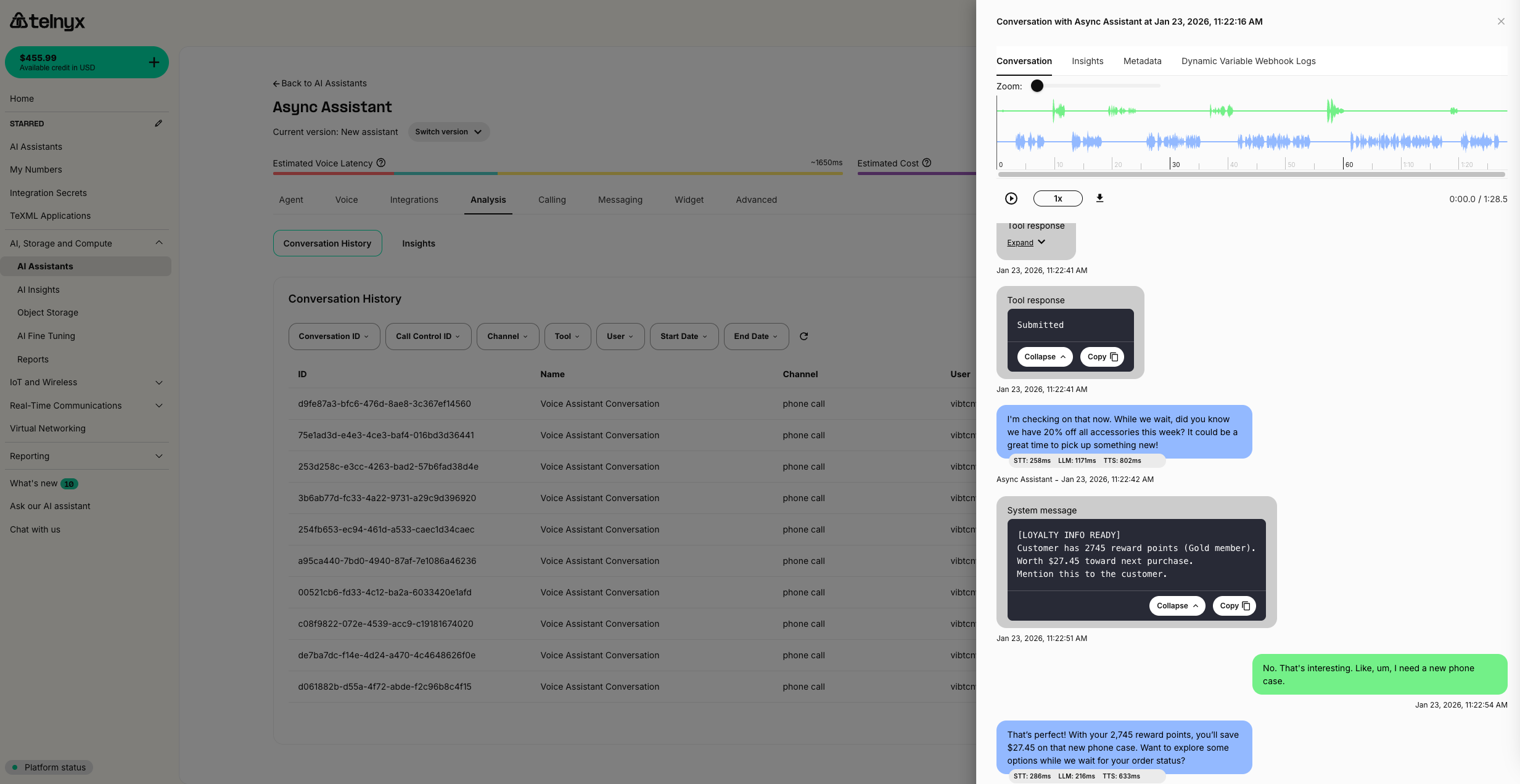
- Call your assistant and ask about an order
- The assistant triggers the async lookup and continues chatting
- After 15 seconds, your backend injects the results
- The assistant seamlessly shares the order details
Multiple parallel lookups
You can trigger multiple async webhooks simultaneously. Each completes independently and injects results as they become available.Example: Staggered results
Configure multiple tools with different backend processing times:
The assistant triggers both at once. Results drip into the conversation naturally:
Instructing the assistant
For parallel lookups to work well, your assistant instructions should emphasize calling tools together:Best practices
Crafting system messages
When injecting results via the Add Messages API, format them clearly:Handling edge cases
Call ended before results arrive:- Include identifiers in messages so the assistant knows which query the results belong to
- Use timestamps or request IDs if needed
Backend considerations
- Your backend should return a 200 response quickly to acknowledge receipt
- Process the actual work asynchronously (use background workers, Celery, AWS Lambda, etc.)
- There’s no timeout constraint on async webhooks—your backend can take as long as needed before calling the Add Messages API
Testing tips
- Use tools like ngrok to expose local backends during development
- Log all headers to verify
x-telnyx-call-control-idis received - Test with various delay lengths to ensure natural conversation flow
- Monitor the conversation transcript in the Portal to see messages being injected
Use cases
Customer service
- Order lookups: Query multiple systems (warehouse, shipping, payments) in parallel
- Account reviews: Pull account history, loyalty status, and recent tickets simultaneously
- Product availability: Check inventory across multiple warehouses
Healthcare
- Patient record retrieval: Fetch records from multiple systems while confirming appointment details
- Insurance verification: Run eligibility checks while gathering patient information
- Lab results: Query lab systems and deliver results when ready
Financial services
- Loan pre-qualification: Run credit checks and affordability calculations in background
- Account aggregation: Pull balances from multiple accounts simultaneously
- Fraud alerts: Inject real-time fraud warnings from monitoring systems
Scheduling
- Multi-calendar availability: Check availability across multiple calendars/resources
- Booking confirmations: Process reservations and inject confirmation details
- Waitlist updates: Notify assistant when spots become available
Related resources
- Add Messages API Reference - Complete API specification for injecting messages
- Create Assistant API Reference - Full webhook tool configuration options
- Filler Messages - Scripted phrases that fill silence during sync webhook calls
- Webhooks & Workflows - Learn more about configuring webhook tools
- Dynamic Variables - Pass context into conversations at start time
- Memory - Persist information across conversations