

- How filler messages work and when to use them
- How to configure message types and timing
- How to set them up via the API and Mission Control Portal
Video tutorial
Overview
When an AI assistant calls a synchronous webhook tool, it waits for the response before speaking again. If your backend takes several seconds to respond, the caller hears silence — creating an awkward experience. Filler messages solve this by playing scripted phrases at the start of the request and at timed intervals while the assistant waits. Messages are scripted per tool, not generated by the LLM — you control the exact wording, timing, and brand voice.Filler messages work with synchronous webhook tools and MCP tool calls only. Async webhooks return immediately and don’t produce dead air. If your backend consistently takes more than a few seconds, consider async tools as an alternative.
Filler message types
There are two types of filler messages, each triggered at a different point during the webhook call.
You can configure multiple
request_response_delayed messages at different delay thresholds to keep the caller engaged during longer operations.
Configuration
API schema
Add amessages array to your webhook tool configuration:
Key fields
Mission Control Portal
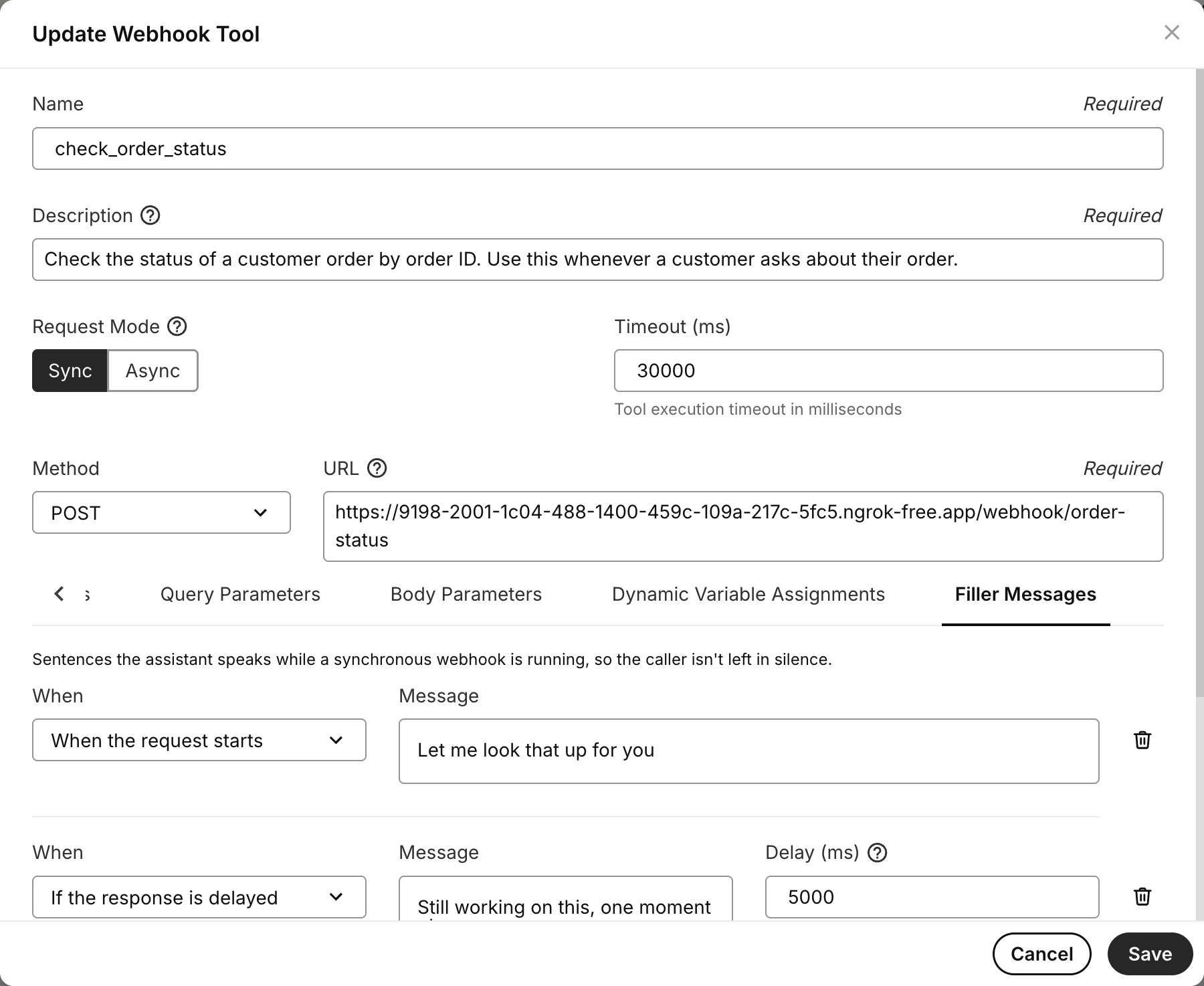
You can also configure filler messages through the Portal:- Navigate to AI > Assistants
- Select your assistant and edit a webhook tool
- Set the tool to Sync mode
- Open the Filler Messages tab
- Add your messages and timing thresholds
Example: tiered filler messages
This example shows a billing lookup tool with three filler messages that escalate in reassurance as the wait grows:Use cases
- Customer support: Query billing or CRM systems mid-call without silence
- AI receptionists: Book appointments via webhook while keeping the caller engaged
- Voice agents calling external LLMs: Fill silence while a third-party LLM or RAG pipeline processes a request
- Appointment scheduling: Check availability across calendar systems with natural wait phrases
Filler messages vs. async tools
Both features address the same problem — slow backend responses — but take different approaches.
Use filler messages when your backend is reasonably fast and you want simple, predictable caller reassurance. Use async tools when backends are slow or you want the assistant to have a free-flowing conversation while waiting.
Related resources
- Create Assistant API Reference - Full webhook tool configuration options including
messages - Async Tools & Deferred Context - Alternative approach for long-running backend operations
- Webhooks & Workflows - General webhook tool configuration