

- Template your AI assistant configuration with dynamic variables.
- Supply the values via an outbound API request or the dynamic variable webhook.
Overview
Dynamic variables enable you to create a single AI assistant configuration that can handle personalized conversations for different users and contexts. Instead of creating multiple assistants for different scenarios, you can use placeholders that get filled with specific values at runtime.How dynamic variables work
The dynamic variable lifecycle follows these steps:- Define: Create placeholders in your assistant’s instructions, greeting, or tools using
{{variable_name}}syntax. - Inject: Provide values through API calls, webhooks, SIP headers, or default configurations.
- Resolve: Telnyx replaces placeholders with actual values when the conversation starts.
- Use: Your assistant uses the personalized content throughout the conversation.
Key benefits
- Scalability: One assistant configuration serves multiple use cases.
- Personalization: Each conversation can be tailored to specific users or contexts.
- Efficiency: Reduce configuration overhead and maintenance complexity.
- Flexibility: Update values dynamically without modifying the assistant.
Common use cases
- Customer Service: Personalize greetings with customer names and account details.
- Appointment Scheduling: Include facility names, departments, and contact information.
- Account Management: Reference specific account numbers, balances, or service details.
- Healthcare: Customize interactions with patient names, appointment types, and provider information.
Best practices
Following these best practices will help you implement dynamic variables effectively and avoid common pitfalls.Variable naming and organization
- Use descriptive names: Choose clear, meaningful variable names like
customer_nameinstead of generic names likename. - Follow consistent conventions: Use snake_case for variable names (
facility_name,account_number). - Group related variables: Organize logically related variables together (
facility_name,facility_department,facility_contact). - Avoid reserved namespaces: Don’t use the
telnyx_prefix, which is reserved for system variables.
Implementation strategy
- Start with defaults: Set default values in the Assistant builder for testing and as fallback values.
- Use API injection for dynamic data: Pass call-specific values through the
AIAssistantDynamicVariablesparameter in API calls. - Leverage webhooks for complex lookups: Use the dynamic variables webhook for real-time data retrieval or database lookups.
- Implement graceful degradation: Ensure your assistant can handle scenarios where variables fail to resolve.
Security and data handling
- Protect sensitive information: Be cautious about including sensitive data in variables that may appear in logs.
- Validate webhook data: Implement proper validation for data returned from webhook endpoints.
- Consider data retention: Review your data retention and privacy requirements for variable content.
- Handle timeouts gracefully: Webhook responses must return within the configured timeout (default 1.5 seconds, up to 10 seconds via
dynamic_variables_webhook_timeout_ms) or the call proceeds with fallback values.
Performance and reliability
- Optimize webhook response time: Keep webhook responses fast (well under your configured timeout; the default is 1.5 seconds).
- Implement error handling: Plan for scenarios where webhooks fail or return invalid data.
- Use caching strategies: Cache frequently accessed data to improve response times.
- Test across channels: Verify variable resolution works consistently across phone calls, web calls, and SMS.
Testing and debugging
- Test with Portal defaults: Use the Assistant builder’s default values to test variable behavior during development.
- Monitor webhook logs: Use the conversation transcript and webhook logs in the Portal to debug variable resolution issues.
- Validate fallback behavior: Ensure unresolved variables (displayed as
{{variable_name}}) don’t break conversation flow. - Test transfer scenarios: Verify that variables pass correctly when using transfer tools with SIP headers.
Cross-channel considerations
- Ensure universal compatibility: Test that your variables work across phone calls, web calls, and SMS channels.
- Handle channel-specific data: Consider how variables might behave differently across conversation channels.
- Plan for transfer scenarios: When transferring calls, use SIP headers to pass variable data to the receiving assistant.
Dynamic variables syntax
Dynamic variables are placeholders surrounded by double curly braces. For example:- Instructions
- Greeting
- Tools
Telnyx system variables
Telnyx also provides these system variables:Date and time variables
In addition to the default{{telnyx_current_time}}, Telnyx provides a family of reserved date/time variables. Use these to give the assistant timezone-aware context, convenient shorthands, or a fully custom format. The timezone variants and shorthands use the same default formatting as {{telnyx_current_time}} — a different format is only used when you explicitly specify one with the date filter.
The shorthand variables (
telnyx_current_date, telnyx_current_time_of_day, telnyx_current_weekday, telnyx_current_month, telnyx_current_day, telnyx_current_year) are evaluated in UTC. To render them for a specific timezone, use the _<tz> variants or the date filter described below.
Timezone variants
Append an IANA timezone name totelnyx_current_time_ or telnyx_current_time_of_day_ to render the value in that zone. These use the same default formatting as {{telnyx_current_time}}:
{{telnyx_current_time_America/New_York}}→Monday, February 24 2025 11:04:15 AM EST{{telnyx_current_time_Australia/Sydney}}→Tuesday, February 25 2025 03:04:15 AM AEDT{{telnyx_current_time_of_day_Europe/London}}→04:04:15 PM GMT
Custom formatting with the date filter
The default format is used everywhere unless you explicitly request a different one. For full control over formatting, pipe telnyx_current_time through the date filter. The filter takes a standard strftime format string and an optional IANA timezone. These are the same %-style codes used by strftime across most languages (C, Python, Ruby, and others):
When the timezone argument is omitted, the value is formatted in UTC.
Common format codes
These are the most usefulstrftime codes for the date filter. For the complete list, see any standard strftime reference:
Combine codes with any literal text, e.g.
%A, %B %d at %I:%M %p %Z.
If a timezone is unknown, a format string is invalid, or a variable is unrecognized, the template placeholder is left untouched rather than rendered to an empty or error value.
Customer-defined dynamic variables
You can also define your own variables. There are several ways to resolve a customer-defined dynamic variable before a conversation. They follow this order of precedence.On a realtime WebSocket conversation, pass the values in a
session.update frame as your first message instead of on an outbound API call. The webhook and assistant-level defaults below still apply.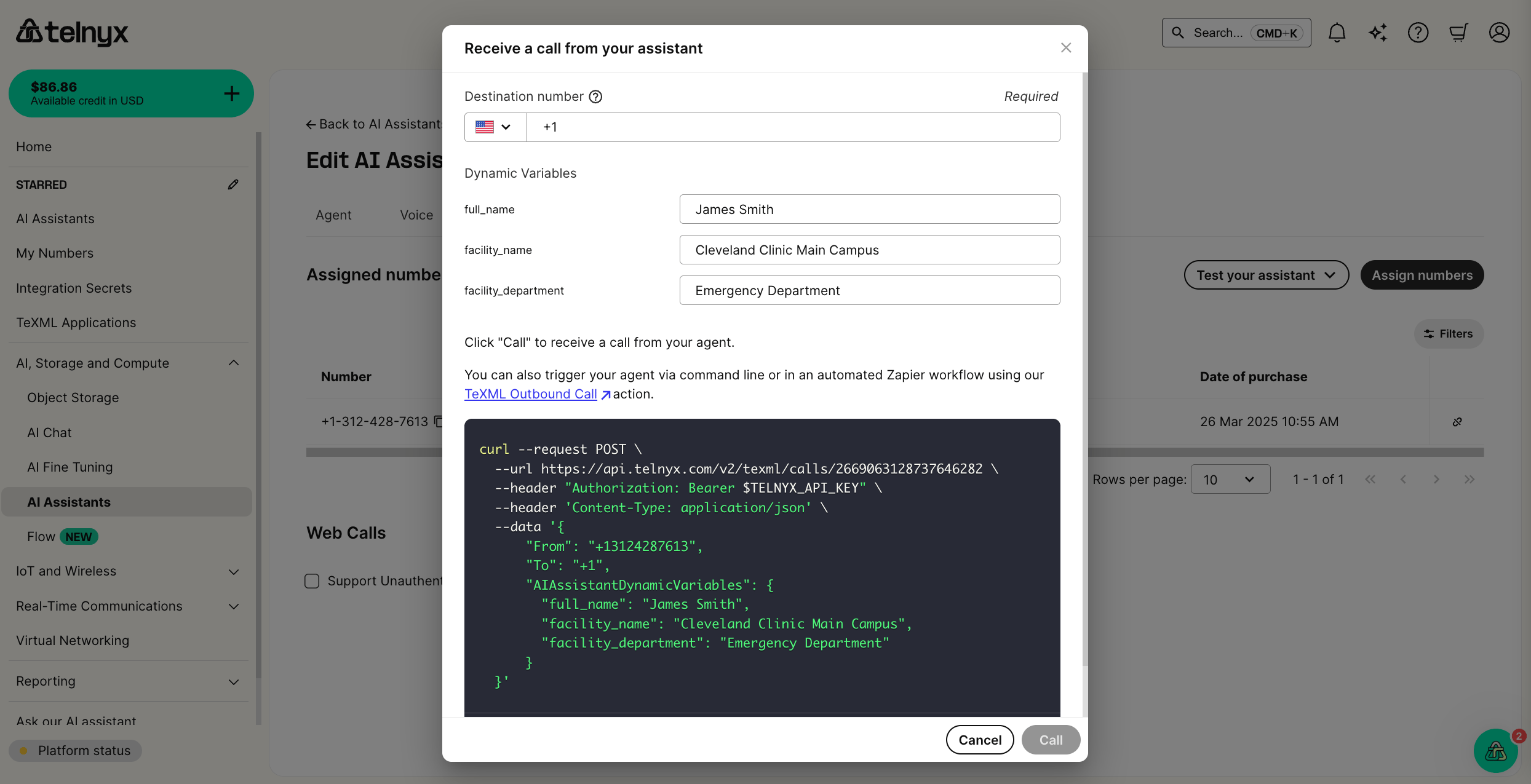
X- prefix will be mapped to dynamic variables. Header names are case-insensitive, and - in the header names will be replaced by _ in the variable names.
For instance, X-Full-Name will be resolved as {{full_name}}.
Telnyx reserves the
{{telnyx_}} namespace for system variables, meaning SIP headers beginning X-Telnyx will not be resolved to dynamic variables.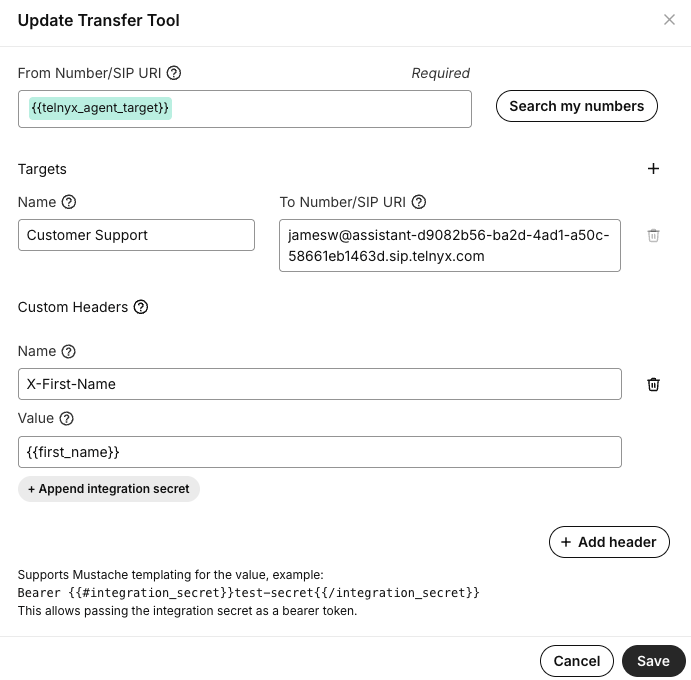
dynamic_variables_webhook_url is set for the assistant, we will POST the following payload at the start of the conversation. Telnyx will sign this webhook so that the authenticity of the request can be verified.
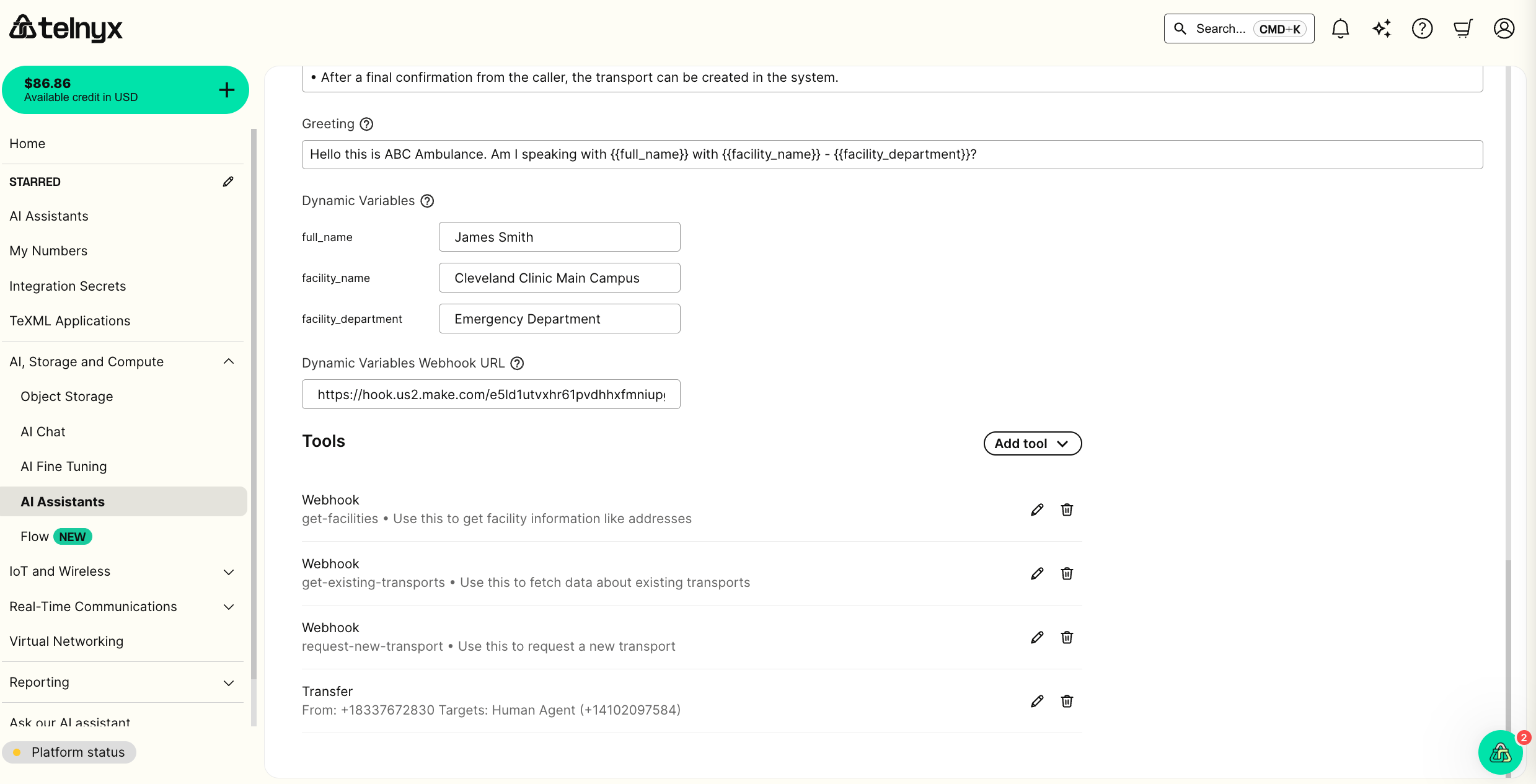
For inbound phone calls to an assistant, the
telnyx_end_user_target_verified field will be set to true if the call has Full (A) STIR/SHAKEN attestation and Telnyx was able to verify the authenticity of the PASSporT token.dynamic_variables_webhook_timeout_ms field on the assistant), the call will proceed “best effort” with the alternatives listed below.
All fields (dynamic_variables, memory, conversation, and encrypted_dynamic_variables) are optional. The dynamic_variables field sets the values for the specified dynamic variables.
You can read more about the memory and conversation fields in our tutorial on Memory.
To pass a credential that differs per caller — an MCP bearer token or a tool webhook credential belonging to the end user — return it encrypted in the
encrypted_dynamic_variables section instead. See Per-Caller Credentials. Values in dynamic_variables are substituted into prompts and are not suitable for secrets.{{full_name}}).
Troubleshooting
Dynamic variables can sometimes fail to resolve or behave unexpectedly. This section provides comprehensive guidance for identifying and resolving common issues.Common issues
Variables not resolving
When variables appear as raw text ({{variable_name}}) in conversations, check these potential causes:
- Webhook timeout: Your webhook endpoint took longer than the configured timeout (default 1.5 seconds) to respond, causing fallback to defaults.
- Variable name mismatch: Typos or case sensitivity differences between variable definition and usage.
- Incorrect precedence: Understanding the resolution order (API > SIP headers > webhook > defaults).
- Missing configuration: Variable not defined in any resolution method.
Incorrect formatting
Variables may not work correctly due to formatting issues:- Invalid JSON: Webhook responses contain malformed JSON syntax.
- Wrong data types: Sending numbers instead of strings or vice versa.
- Missing required fields: Webhook response missing
dynamic_variablesobject. - Template syntax errors: Incorrect mustache template usage (
{variable}instead of{{variable}}).
Timeout issues
Webhook timeouts are a common source of variable resolution failures:- Slow database queries: Optimize database lookups in webhook endpoints.
- Network connectivity: Check firewall rules and network connectivity to webhook URLs.
- External service delays: Implement proper timeout handling for third-party API calls.
- Processing overhead: Minimize computation time in webhook response generation.
Debugging checklist
Follow this step-by-step process to diagnose variable issues:1. Verify variable definition
- Check variable name spelling and case sensitivity.
- Confirm variables are used in supported fields (
instructions,greeting,tools). - Validate mustache syntax:
{{variable_name}}. - Ensure variable names don’t use reserved
telnyx_prefix.
2. Check resolution priority
Test variables using the resolution hierarchy:- Verify SIP header format for transfer scenarios:
X-Variable-Namebecomes{{variable_name}}. - Confirm webhook endpoint is reachable and responding correctly.
- Set default values in Assistant builder as fallback.
3. Validate webhook implementation
- Test webhook endpoint independently using tools like Postman.
- Verify JSON response format matches expected structure.
- Check response time (must be under the configured timeout; default is 1.5 seconds).
- Validate all required payload fields are present.
4. Test in Portal
- Use Assistant builder default values for initial testing.
- Review conversation logs for variable resolution behavior.
- Check webhook logs for errors, timeouts, or unexpected responses.
Webhook debugging
Using webhook logs effectively
To facilitate troubleshooting webhook issues, logs are viewable per conversation in the portal alongside the conversation transcript and insights.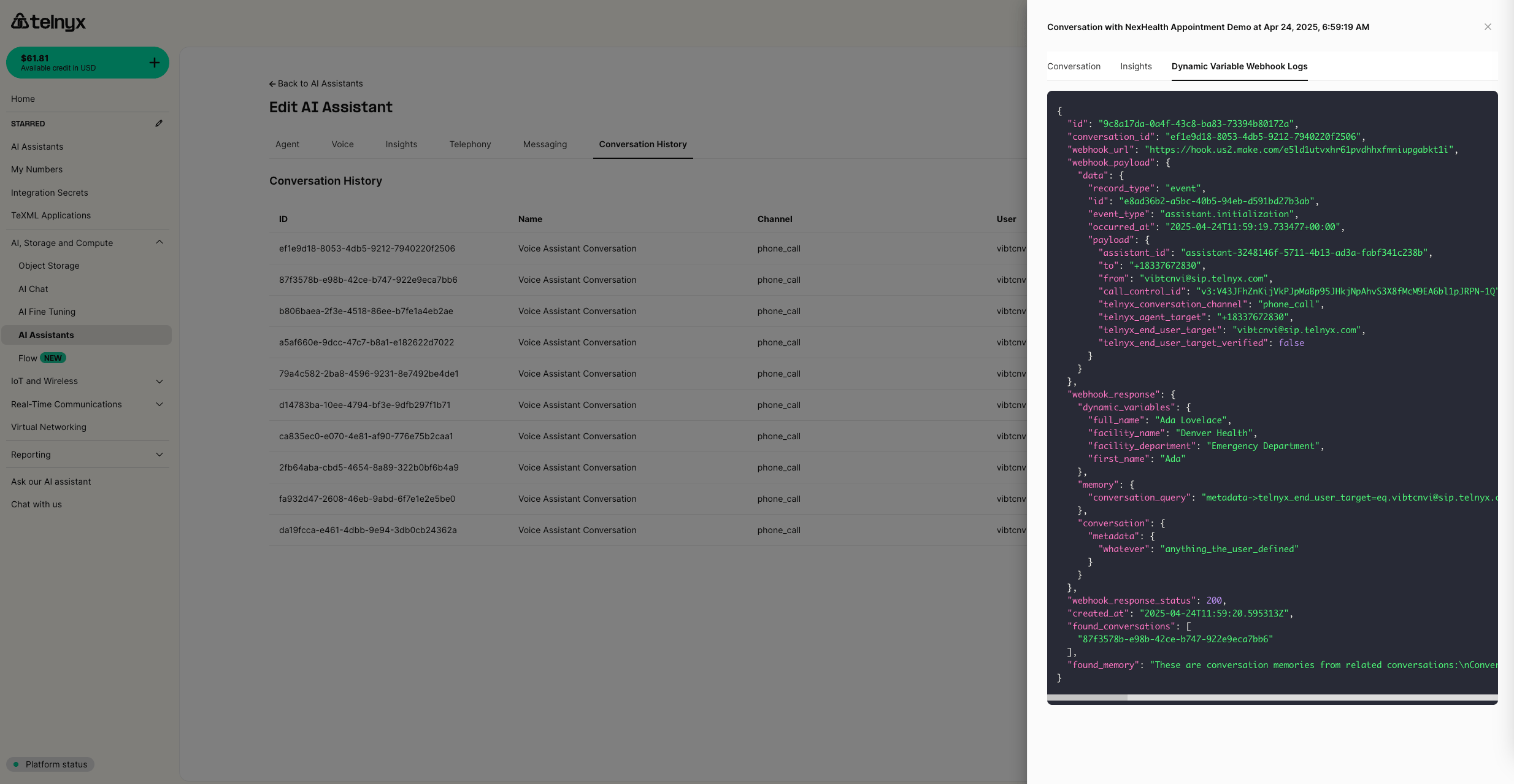
- Request logs: Show the exact payload Telnyx sent to your webhook
- Response logs: Display your webhook’s response and any errors
- Timing information: Reveals if responses exceeded the configured timeout
- Error details: Provide specific error messages for failed requests
Common webhook issues
Authentication failures:Testing webhook endpoints
Independent webhook testing:Variable validation
Input validation
Sanitize variable values:- Escape quotes and backslashes in variable content.
- Validate data types match expected formats.
- Provide meaningful defaults for empty or null values.
Response format validation
Ensure proper JSON structure:Testing scenarios
Cross-channel testing:- Verify variables work consistently across phone calls, web calls, and SMS.
- Test variable behavior in transfer scenarios using SIP headers.
- Validate fallback behavior when webhook endpoints are unavailable.
- Test webhook endpoint performance under expected call volumes.
- Verify response times remain under your configured timeout (default 1.5 seconds) during peak usage.
- Monitor for memory leaks or performance degradation over time.