

- Add an Invite tool so your assistant can invite another participant to the current call.
- Design assistant instructions for multi-participant conversations.
- Use the Skip Turn tool so the assistant can stay silent while people talk to each other.
- Review a multi-participant call in Conversation History.
- Configure the same behavior through the Portal or the Assistants API.
How multi-participant calls work
A multi-participant Voice AI call starts like any other voice assistant call. The assistant speaks with the main caller, then uses an Invite tool when it needs to bring another participant into the conversation. Once the new participant joins, the assistant can:- Tell whether the main user or an invited participant is speaking.
- Respond to either participant when appropriate.
- Use its configured tools, memory, dynamic variables, and integrations.
- Stay silent when the participants are talking to each other.
- Resume when someone addresses the assistant again.
By default, an assistant will respond to every turn it receives. For natural multi-participant calls, add a Skip Turn tool and describe when the assistant should remain silent.
Requirements
Before you start, create a voice assistant by following the Voice Assistant Quickstart. You can configure assistants and tools in the Portal or through the Assistants API. You also need:- A phone number or SIP URI for the assistant.
- A phone number or SIP URI for each participant the assistant may invite.
- Any tools the assistant should use after the participant joins, such as a calendar, CRM, or booking integration.
Step 1: Add an Invite tool
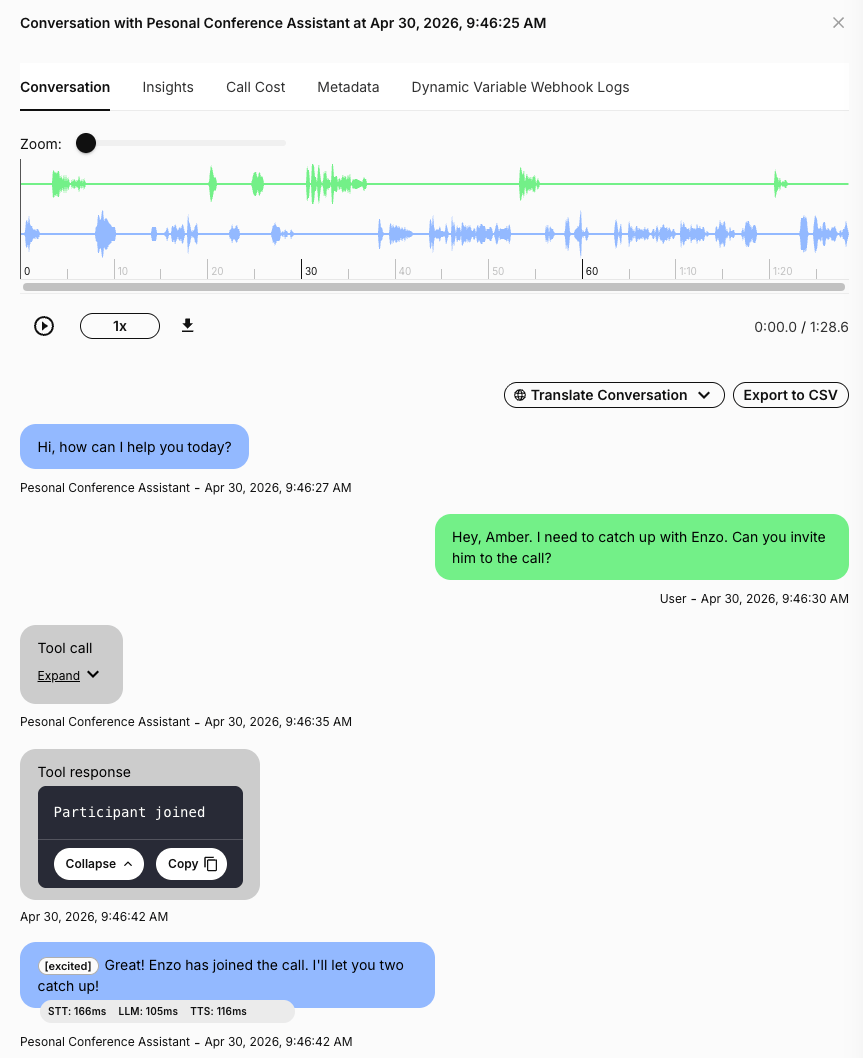
The Invite tool lets your assistant invite another participant into the current call.- In the Mission Control Portal, open your assistant.
- Go to the assistant’s Tools section.
- Add an Invite tool.
- Configure the invite target with the participant’s phone number or SIP URI.
- Save the assistant.
Participant joined response, then confirms that Enzo has joined.
Step 2: Give the assistant multi-participant instructions
Your assistant should know that the conversation may include multiple people. Add instructions that tell the assistant how to behave when participants are speaking to each other. Example instructions:Step 3: Add a Skip Turn tool
In a one-to-one call, an assistant usually responds after every user turn. In a multi-participant call, that can feel unnatural because the assistant may interrupt people who are talking to each other. The Skip Turn tool lets the assistant intentionally remain silent for a turn. Add a Skip Turn tool when you want the assistant to:- Stay silent while invited participants talk to the main user.
- Avoid responding to side conversations.
- Wait until someone directly addresses the assistant.
- Let humans confirm details with each other before the assistant takes action.
skip_turn with the reason James and Enzo are talking to each other, not addressing me.
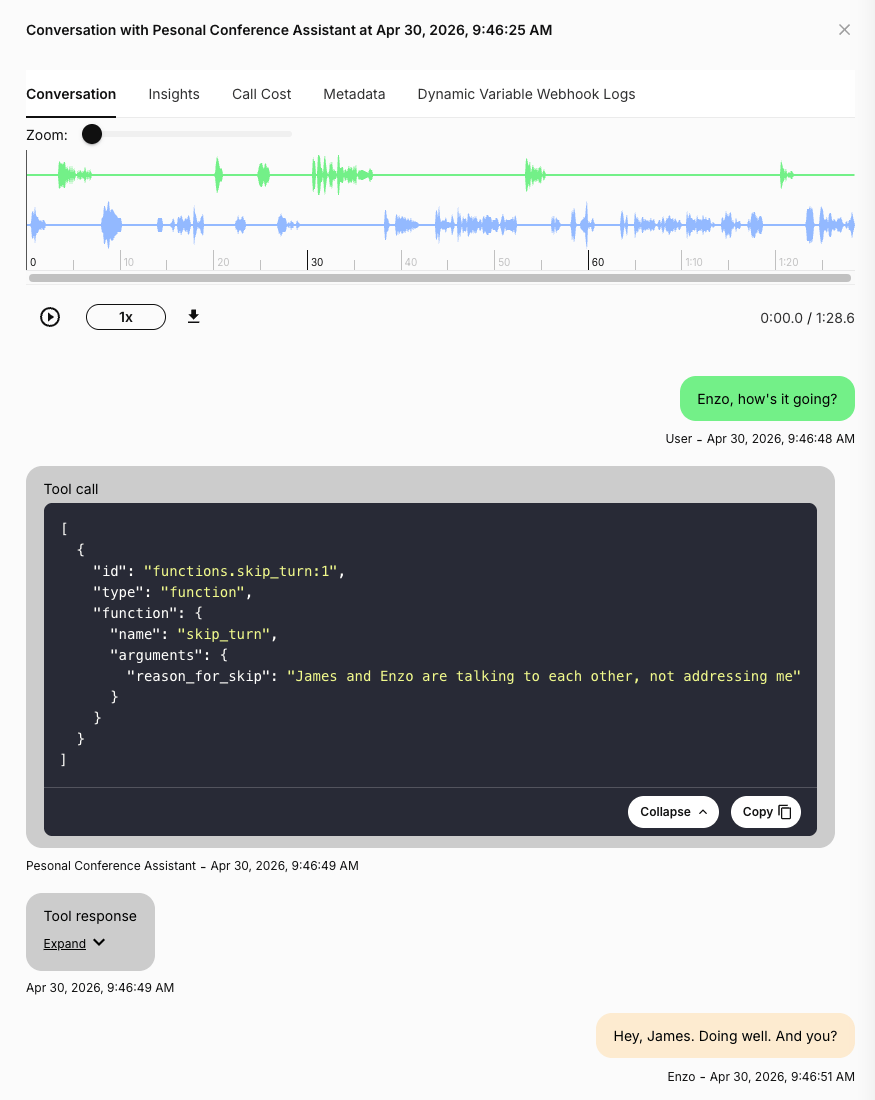
Skip Turn does not end the call or disable the assistant. It only tells the assistant not to speak for that turn. The assistant can respond again when a participant addresses it.
If your assistant should only respond when a specific name is spoken, or you know the participant names ahead of time, add those names to Keyterm Boost on the assistant’s Voice tab. Boosting the names improves transcription accuracy on those exact words, which makes name-based Skip Turn rules far more reliable.Keyterm Boost accepts a comma-separated list, for example 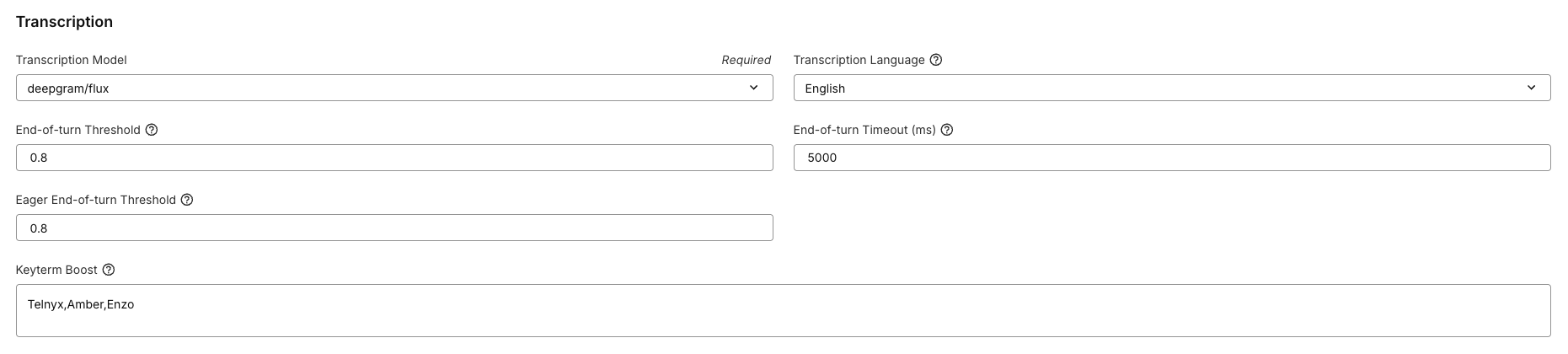
Telnyx,Amber,Enzo. It also supports dynamic variables, so you can pass participant names or other caller-specific terms at conversation start, for example Telnyx,{{participant_names}}. It is supported by deepgram/flux and deepgram/nova-3. See the Transcription Settings guide for details.Step 4: Use other assistant tools during the call
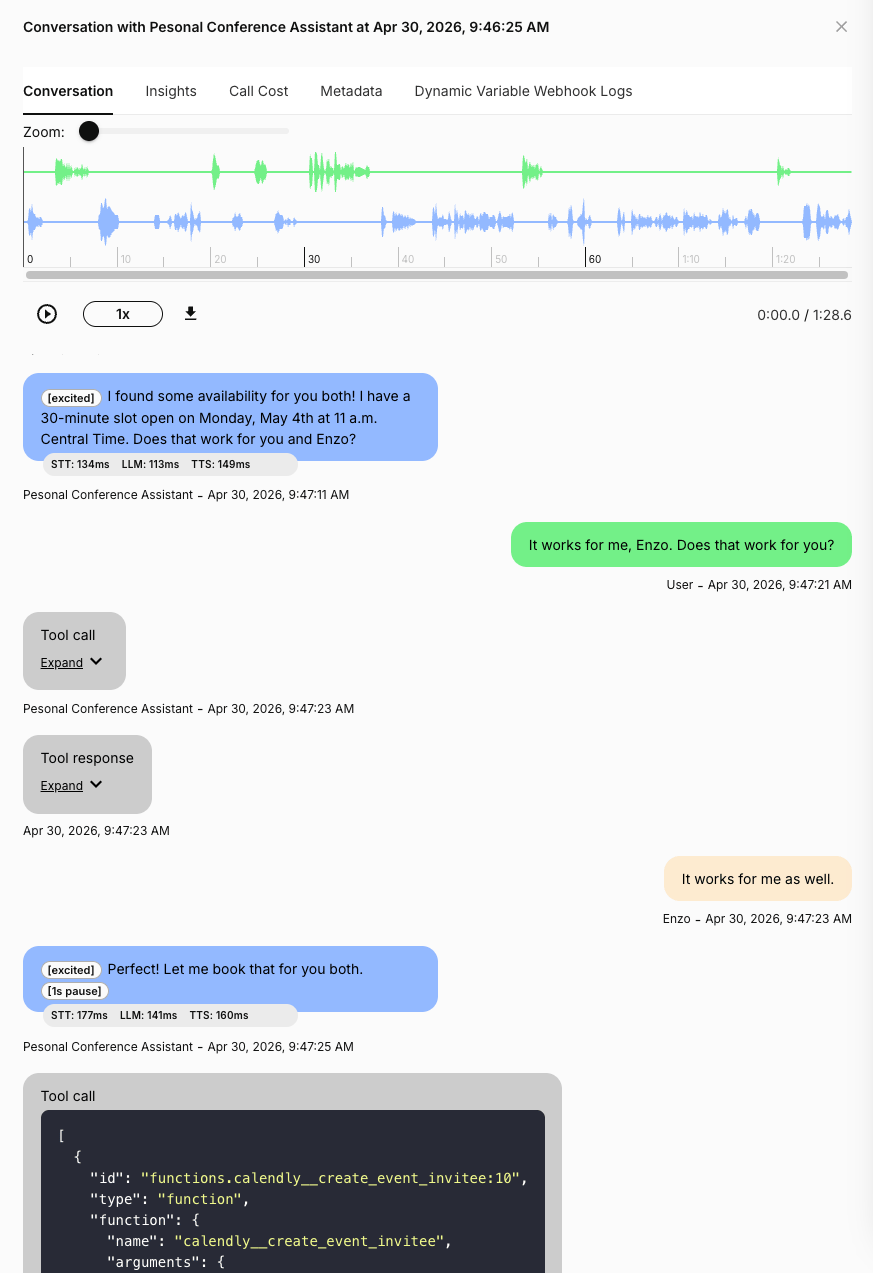
After a participant joins, the assistant can do everything it can do in a one-to-one voice call. It can call APIs, look up information, schedule meetings, update records, send messages, and more. In this example, James asks the assistant to schedule time with Enzo. The assistant checks calendar availability, proposes a time, waits while James confirms with Enzo, then books the meeting.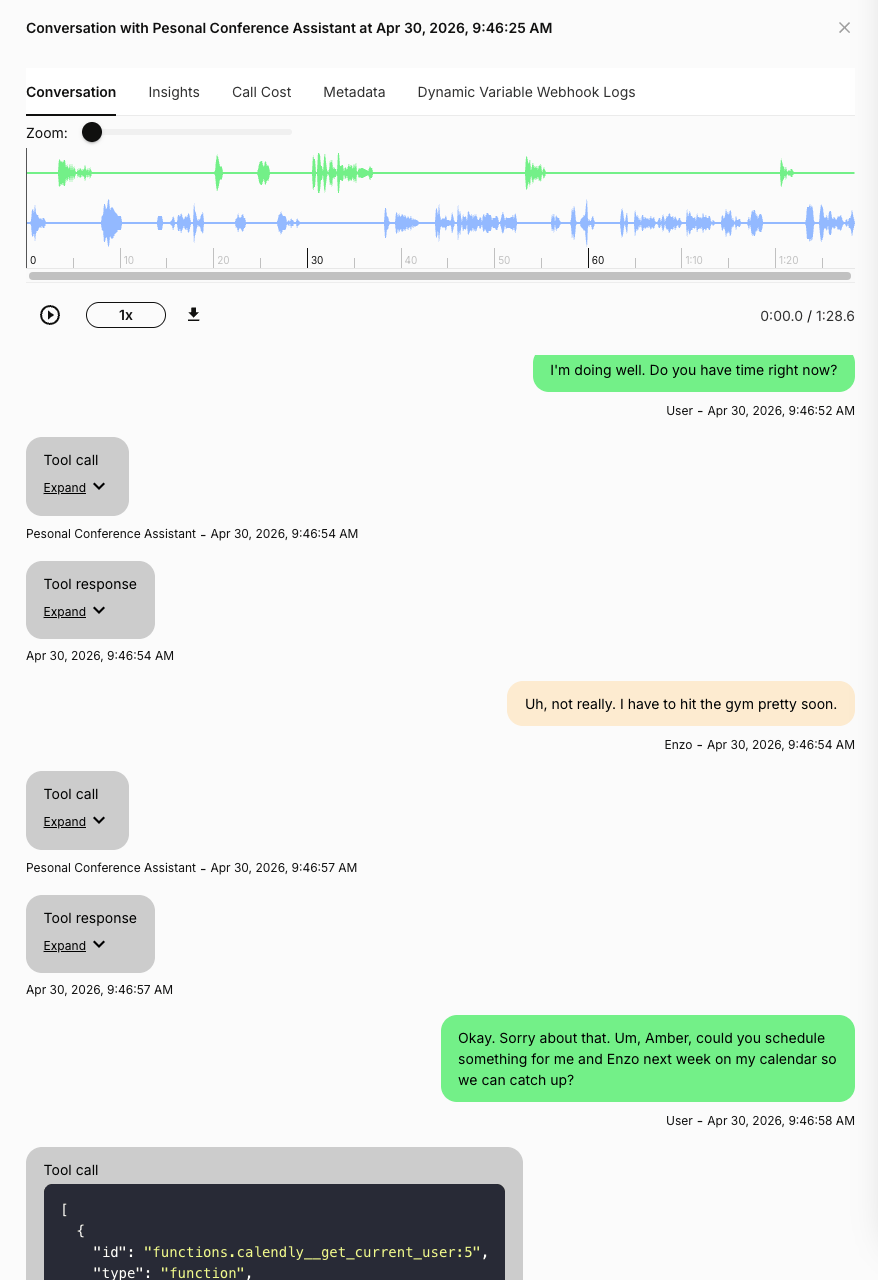
- The assistant checks availability.
- The assistant proposes a time to both participants.
- The main user asks the invited participant whether the time works.
- The assistant stays silent while the invited participant answers.
- The assistant books the meeting after the participants confirm.
Best practices
Be explicit about when to speak
Tell the assistant when it should respond and when it should stay silent. Multi-participant calls work best when the assistant has clear turn-taking rules. Good instruction:Review calls in Conversation History
Use Conversation History to inspect the transcript, audio, tool calls, and tool responses. This is especially useful when tuning Skip Turn instructions because you can see why the assistant decided to speak or remain silent.Next steps
- Build your first assistant with the Voice Assistant Quickstart.
- Add reusable tools from the Tools Library.
- Use dynamic variables to personalize calls.
- Review production calls with Agent Observability.