Async tools allow your AI assistant to trigger long-running operations without blocking the conversation. Combined with the Add Messages API, you can inject results back into the conversation whenever they’re ready—whether that’s 5 seconds or 5 minutes later. In this guide, you will learn:
  • How to configure webhook tools to run asynchronously
  • How to use the Add Messages API to inject context mid-conversation
  • How to combine both features for powerful async workflows

Overview

Traditional webhook tools block the conversation until they complete. This works fine for fast operations, but creates awkward pauses for slow backend queries. Async tools solve this by letting the assistant continue the conversation while operations run in the background.

The two building blocks

These features are orthogonal—each is useful on its own, but they become especially powerful when combined.
FeatureWhat it doesUse alone
Async webhook flagLets the assistant continue talking while the webhook executesFire-and-forget operations (logging, notifications)
Add Messages APIInjects new context into an active conversationExternal triggers, scheduled reminders, supervisor interventions

Combined workflow

When used together, these features enable a new pattern:
  1. Assistant triggers an async webhook (e.g., order lookup)
  2. Assistant continues chatting with the customer
  3. Backend processes the request (5, 10, 30 seconds later)
  4. Backend calls Add Messages API to inject the results
  5. Assistant naturally incorporates the new information
This creates a seamless experience where the assistant stays engaged while slow operations complete in the background.

Async webhooks

The async flag on webhook tools tells the assistant not to wait for the response. The webhook fires, and the assistant immediately continues the conversation.

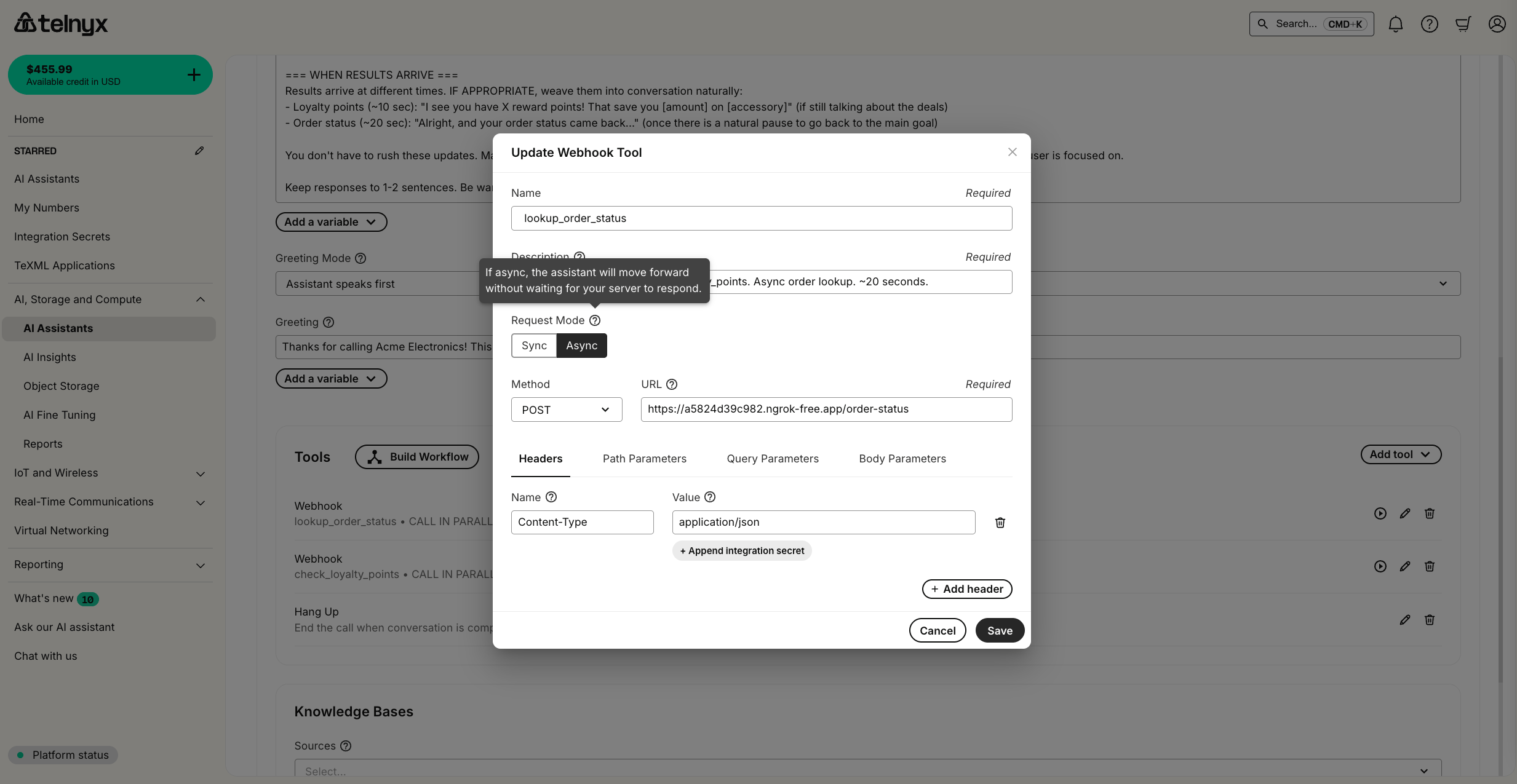
Configuring an async webhook

Set async: true in your webhook tool configuration:
{
  "type": "webhook",
  "webhook": {
    "name": "lookup_order_status",
    "description": "Triggers an async order status lookup. Results will be delivered automatically when ready.",
    "url": "https://your-backend.com/order-lookup",
    "method": "POST",
    "async": true,
    "headers": [
      {"name": "Content-Type", "value": "application/json"}
    ],
    "body_parameters": {
      "type": "object",
      "properties": {
        "order_id": {
          "type": "string",
          "description": "The customer's order ID"
        }
      },
      "required": ["order_id"]
    }
  }
}
Async webhook configuration in Portal

Key configuration options

FieldDescription
asyncWhen true, the assistant continues without waiting for a response
urlYour backend endpoint that will process the request
methodHTTP method (typically POST)
body_parametersJSON schema defining the parameters the assistant should provide
For the complete webhook tool schema, see the Create Assistant API reference.

What your backend receives

When the assistant triggers an async webhook, your endpoint receives:
  • The configured body parameters (e.g., order_id)
  • The x-telnyx-call-control-id header identifying the active call
POST /order-lookup HTTP/1.1
Content-Type: application/json
x-telnyx-call-control-id: v3:abc123def456...

{
  "order_id": "ORD-12345"
}
The x-telnyx-call-control-id header is critical—you’ll need it to inject results back into the conversation using the Add Messages API.

Add Messages API

The Add Messages API lets you inject new messages into an active conversation from outside the call flow. This is useful for delivering async results, supervisor interventions, or external triggers.

API endpoint

POST /v2/calls/{call_control_id}/actions/ai_assistant_add_messages

Request format

curl -X POST "https://api.telnyx.com/v2/calls/{call_control_id}/actions/ai_assistant_add_messages" \
  -H "Authorization: Bearer $TELNYX_API_KEY" \
  -H "Content-Type: application/json" \
  -d '{
    "messages": [
      {
        "role": "system",
        "content": "Order ORD-12345 status: SHIPPED. Tracking: 1Z999AA10123456784. Estimated delivery: Tomorrow. Share this with the customer now."
      }
    ]
  }'
For the complete API specification, see the Add Messages API reference.

Message roles

RoleUse case
systemInstructions or context for the assistant (recommended for async results)
userSimulate user input
assistantInject assistant responses

Standalone use cases

The Add Messages API is valuable even without async webhooks:
  • Supervisor intervention: A human supervisor injects guidance during a difficult call
  • Scheduled reminders: External system reminds the assistant about time-sensitive information
  • Cross-system triggers: CRM or ticketing system pushes updates to an active call
  • Escalation prompts: Monitoring system detects frustration and injects de-escalation guidance

Combining async webhooks with Add Messages

The real power comes from combining these features. Here’s a complete example of an async order lookup system.

Architecture

┌─────────────┐     1. Trigger async webhook      ┌─────────────────┐
│             │ ──────────────────────────────────▶│                 │
│  Assistant  │                                    │  Your Backend   │
│             │◀────────────────────────────────── │                 │
└─────────────┘     4. Add Messages API            └─────────────────┘
       │                    ▲                              │
       │                    │                              │
       ▼                    │                              ▼
  2. Continue          3. Process request           Query databases,
  conversation         (5-30 seconds)               external APIs, etc.

Step 1: Configure the assistant

Create an assistant with async webhook tools. Notice how the instructions tell the assistant to continue engaging while waiting:
{
  "name": "Customer Service Agent",
  "instructions": "You are a helpful customer service agent for Acme Electronics.\n\nWhen a customer asks about an order, trigger the lookup_order_status tool. This runs asynchronously—results will arrive automatically in 10-20 seconds.\n\nAfter triggering the lookup, keep the customer engaged:\n- Mention current promotions\n- Ask about their experience\n- Offer to help with anything else\n\nWhen results arrive, naturally incorporate them: \"Great news, I have your order info now!\"",
  "tools": [
    {
      "type": "webhook",
      "webhook": {
        "name": "lookup_order_status",
        "description": "Async order lookup. Results delivered automatically when ready.",
        "url": "https://your-backend.com/order-lookup",
        "method": "POST",
        "async": true,
        "body_parameters": {
          "type": "object",
          "properties": {
            "order_id": {"type": "string", "description": "Order ID to look up"}
          },
          "required": ["order_id"]
        }
      }
    }
  ]
}

Step 2: Build the backend service

Your backend receives the webhook, processes the request, and calls the Add Messages API when done:
import os
import time
import requests
from flask import Flask, request, jsonify

app = Flask(__name__)
TELNYX_API_KEY = os.environ.get("TELNYX_API_KEY")

@app.route("/order-lookup", methods=["POST"])
def order_lookup():
    data = request.get_json(silent=True) or {}

    # Get the call control ID from headers
    call_control_id = request.headers.get("x-telnyx-call-control-id")
    order_id = data.get("order_id")

    if not call_control_id:
        return jsonify({"error": "Missing call control ID"}), 400

    # Simulate slow backend query (replace with real logic)
    time.sleep(15)

    # Build the result message
    result = {
        "status": "SHIPPED",
        "tracking": "1Z999AA10123456784",
        "delivery": "Tomorrow"
    }

    system_message = f"""[ORDER LOOKUP COMPLETE]
Order {order_id}: {result['status']}
Tracking: {result['tracking']}
Estimated delivery: {result['delivery']}
Share these details with the customer now."""

    # Inject results back into the conversation
    inject_message(call_control_id, system_message)

    return jsonify({"status": "sent"})


def inject_message(call_control_id: str, message: str):
    """Send a message to an active conversation via Add Messages API."""
    url = f"https://api.telnyx.com/v2/calls/{call_control_id}/actions/ai_assistant_add_messages"

    response = requests.post(
        url,
        headers={
            "Authorization": f"Bearer {TELNYX_API_KEY}",
            "Content-Type": "application/json"
        },
        json={
            "messages": [{"role": "system", "content": message}]
        }
    )

    return response.json()


if __name__ == "__main__":
    app.run(host="0.0.0.0", port=8000)

Step 3: Test the flow

  1. Call your assistant and ask about an order
  2. The assistant triggers the async lookup and continues chatting
  3. After 15 seconds, your backend injects the results
  4. The assistant seamlessly shares the order details
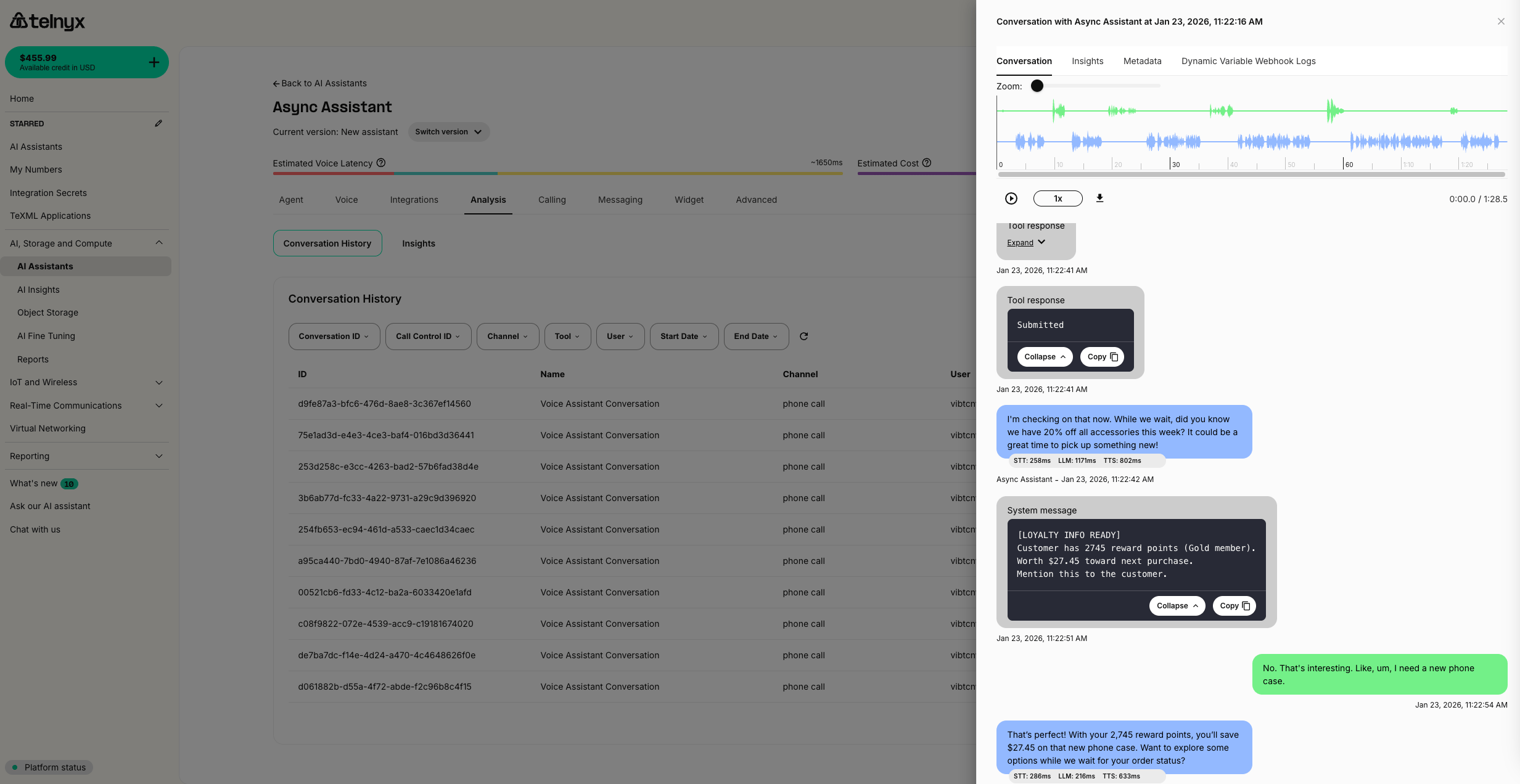
Conversation transcript showing async message injection

Multiple parallel lookups

You can trigger multiple async webhooks simultaneously. Each completes independently and injects results as they become available.

Example: Staggered results

Configure multiple tools with different backend processing times:
ToolProcessing timeInformation returned
check_loyalty_points~10 secondsPoints balance, membership tier
lookup_order_status~20 secondsOrder status, tracking, delivery estimate
The assistant triggers both at once. Results drip into the conversation naturally:
Customer: "Where's my order 12345?"

Agent: [Triggers both lookups] "Let me pull that up for you! By the way,
       we're running 20% off all accessories this week."

[10 seconds pass - loyalty results arrive]

Agent: "Oh nice, I see you have 2,500 reward points - that's Gold status!
       You've got $25 to use on your next purchase."

[20 seconds pass - order results arrive]

Agent: "And here's your order info - order 12345 is out for delivery!
       Tracking number is 1Z999AA10123456784, should arrive tomorrow."

Instructing the assistant

For parallel lookups to work well, your assistant instructions should emphasize calling tools together:
When a customer asks about an order, trigger BOTH lookup tools at the same time:
1. check_loyalty_points
2. lookup_order_status

Do not wait for one to complete before calling another. Call both immediately.
Results will arrive automatically as each lookup completes.

Best practices

Crafting system messages

When injecting results via the Add Messages API, format them clearly:
# Good - Clear, actionable
system_message = """[ORDER LOOKUP COMPLETE]
Order ORD-12345: SHIPPED
Tracking: 1Z999AA10123456784
Estimated delivery: Tomorrow
Share these details with the customer now."""

# Avoid - Ambiguous
system_message = "The order was found in the system."

Handling edge cases

Call ended before results arrive:
response = inject_message(call_control_id, message)
if response.get("status_code") == 404:
    # Call has ended, log and move on
    print(f"Call {call_control_id} already ended")
Multiple results for same lookup:
  • Include identifiers in messages so the assistant knows which query the results belong to
  • Use timestamps or request IDs if needed

Backend considerations

  • Your backend should return a 200 response quickly to acknowledge receipt
  • Process the actual work asynchronously (use background workers, Celery, AWS Lambda, etc.)
  • There’s no timeout constraint on async webhooks—your backend can take as long as needed before calling the Add Messages API

Testing tips

  • Use tools like ngrok to expose local backends during development
  • Log all headers to verify x-telnyx-call-control-id is received
  • Test with various delay lengths to ensure natural conversation flow
  • Monitor the conversation transcript in the Portal to see messages being injected

Use cases

Customer service

  • Order lookups: Query multiple systems (warehouse, shipping, payments) in parallel
  • Account reviews: Pull account history, loyalty status, and recent tickets simultaneously
  • Product availability: Check inventory across multiple warehouses

Healthcare

  • Patient record retrieval: Fetch records from multiple systems while confirming appointment details
  • Insurance verification: Run eligibility checks while gathering patient information
  • Lab results: Query lab systems and deliver results when ready

Financial services

  • Loan pre-qualification: Run credit checks and affordability calculations in background
  • Account aggregation: Pull balances from multiple accounts simultaneously
  • Fraud alerts: Inject real-time fraud warnings from monitoring systems

Scheduling

  • Multi-calendar availability: Check availability across multiple calendars/resources
  • Booking confirmations: Process reservations and inject confirmation details
  • Waitlist updates: Notify assistant when spots become available