

- Set up a Firebase console account
- Create a Firebase project
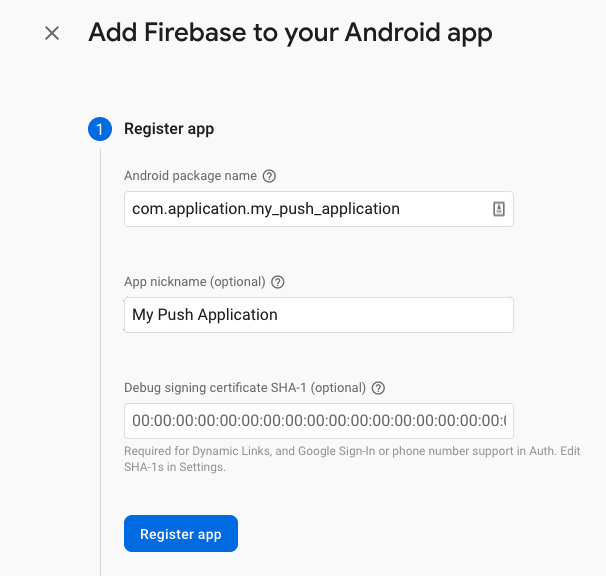
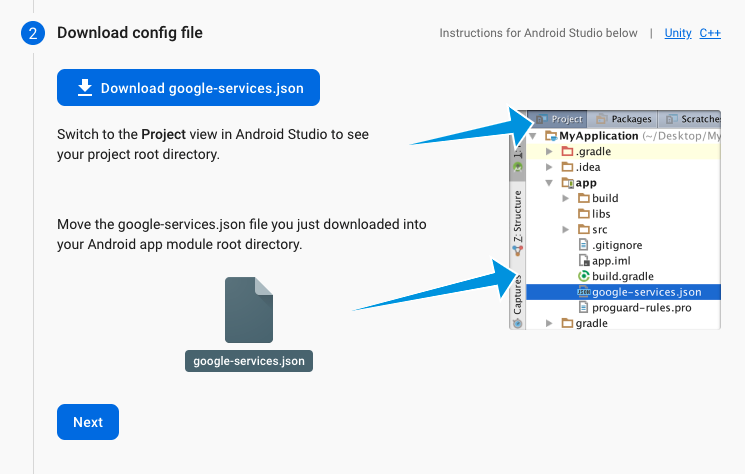
- Add Firebase to your Android Application
- Setup a Push Credential within the Telnyx Portal
- Generate a Firebase Cloud Messaging instance token
- Send the token with your login message


- Go to portal.telnyx.com and log in.
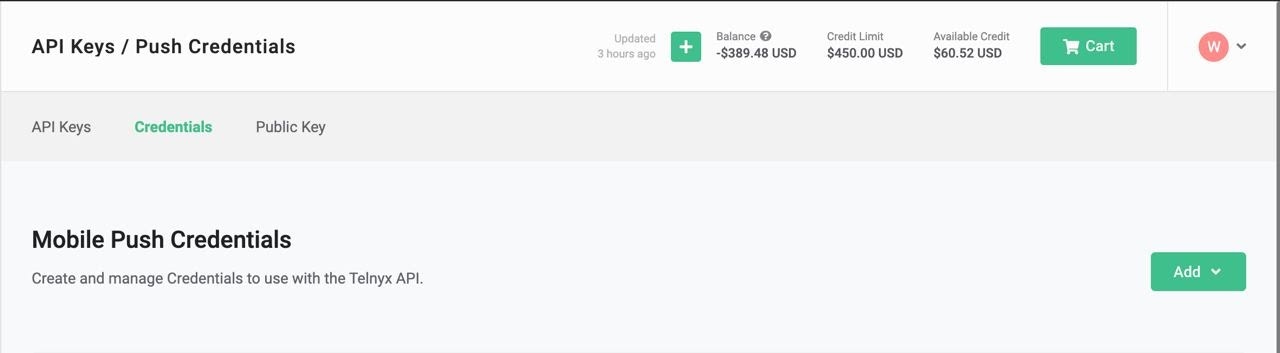
- Go to the API Keys section on the left panel.
- From the top bar go to the Credentials tab and select “Add” >> Android Credential
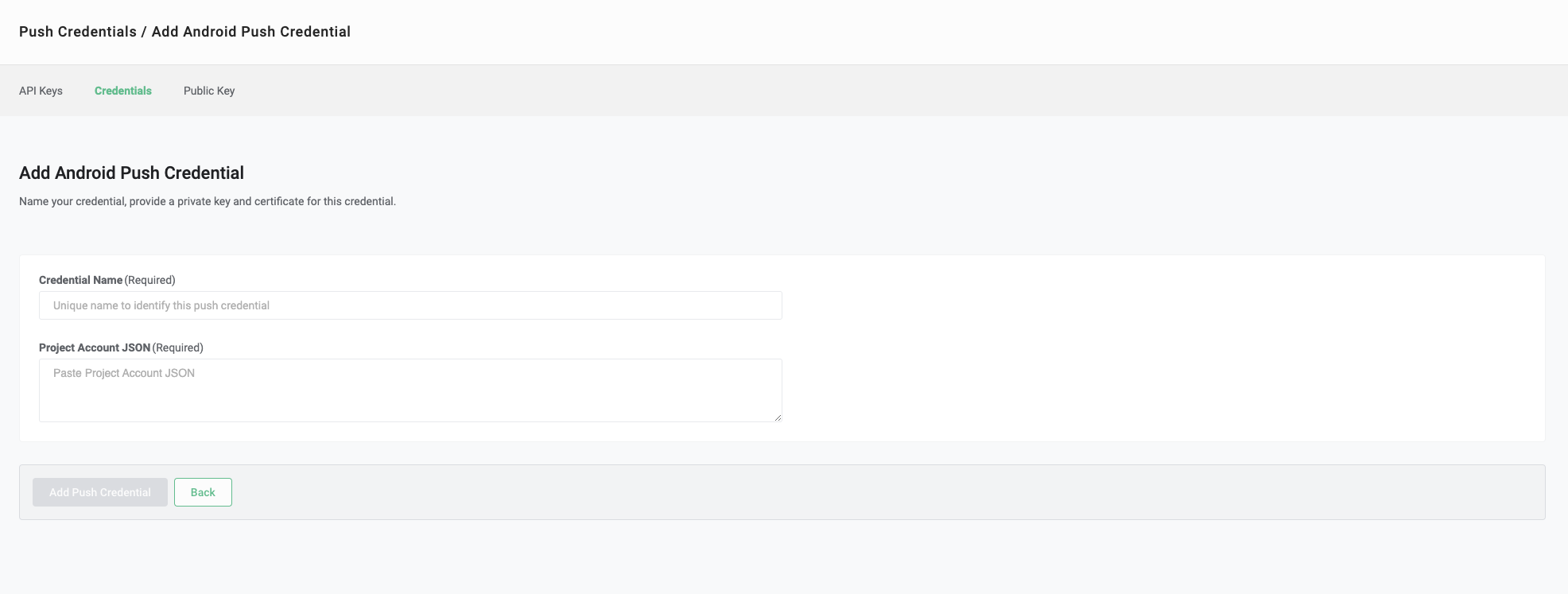
- Enter the details required for your Android Push Credentials. This includes a Credential name and the generated server key in JSON format in the field Project Account json
- Go to the SIP Connections section on the left panel.
- Open the Settings menu of the SIP connection that you want to add a Push Credential to or create a new SIP Connection.
- Select the WebRTC tab.
- Go to the Android Section and select the PN credential you previously created.