

How it works
- Inbound calls — When a WhatsApp user calls your business number, the call routes through your existing voice connection (Voice API, SIP, TeXML, or AI agent).
- Outbound calls — Place calls to WhatsApp users using a SIP URI with the format
<destination>@whatsapp-<your_telnyx_number_without_plus>.sip.telnyx.com. - On-net routing — All WhatsApp voice calls route through Meta’s network. These are not PSTN calls.
- Concurrent call limit — Meta allows a maximum of 1,000 concurrent calls per business number.
Prerequisites
Before enabling WhatsApp calling, you need:- A Telnyx account with an API key.
- A WhatsApp Business Account connected via Embedded Signup.
- A verified phone number added to your WABA.
- A voice connection (Voice API, SIP, or TeXML) configured in the Telnyx Portal.
- A WABA daily messaging limit of at least 2,000 unique recipients — Meta requires this minimum before calling APIs can be enabled.
Connect your WhatsApp Business Account
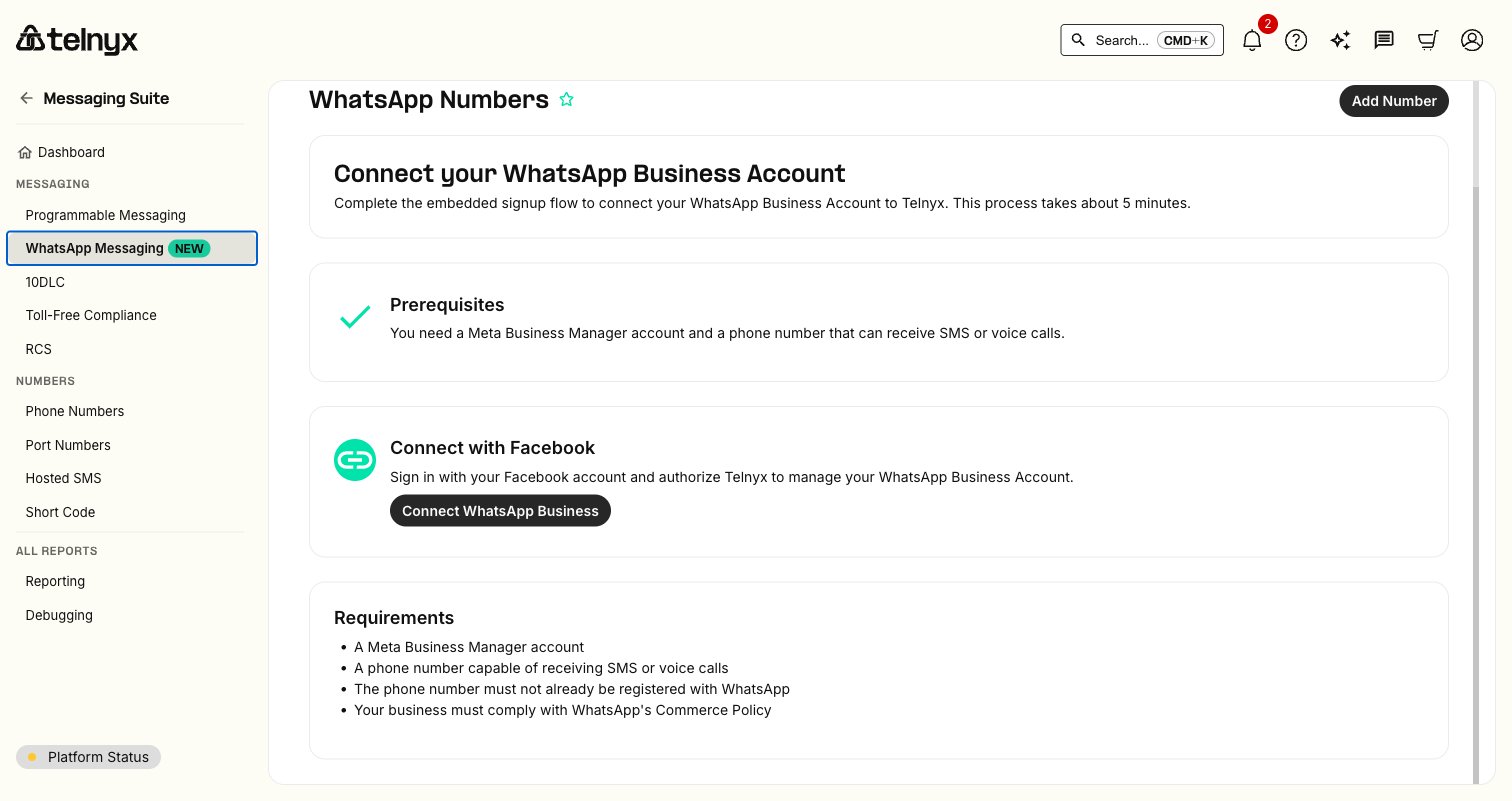
In the Telnyx Portal, navigate to Messaging Suite → WhatsApp Messaging to start the Embedded Signup flow. The page walks you through connecting your WhatsApp Business Account to Telnyx.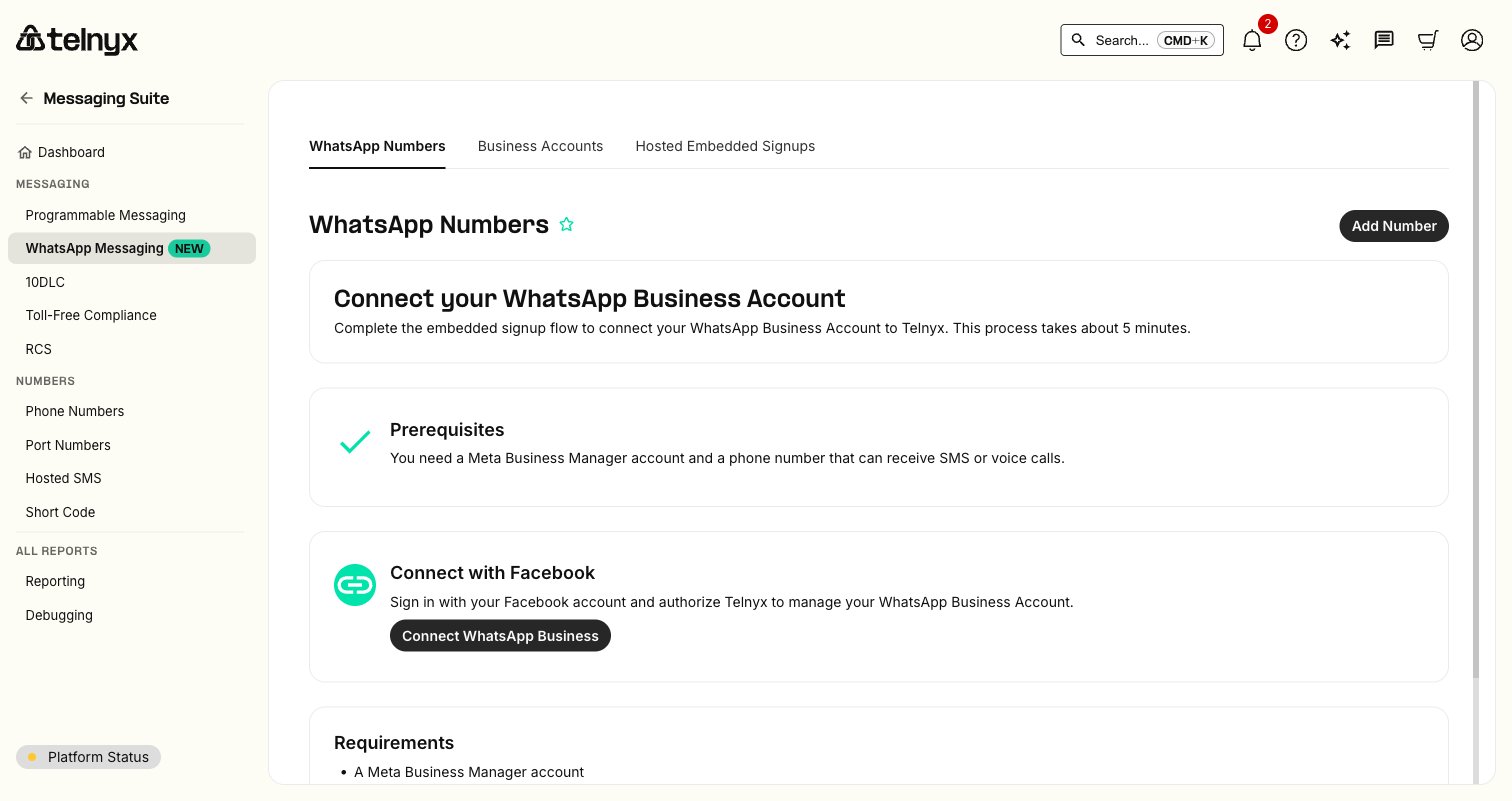
Enable WhatsApp calling
1
Check current calling status
Verify whether calling is already enabled on your WhatsApp phone number.The response includes an
enabled field — false means calling is not yet active.2
Enable calling
Enable WhatsApp calling by setting
enabled to true.3
Configure inbound routing
Inbound WhatsApp calls route through your voice connection. If you haven’t set one up yet, configure one of the following:
- Voice API — Handle calls programmatically with webhooks.
- SIP Trunking — Route calls to your SIP infrastructure.
- TeXML — Control calls with XML-based instructions.
Make outbound calls
The WhatsApp user must grant calling permission before you can place an outbound call to them. Permission can be obtained in three ways:
- Permission request message — Send a calling permission request via WhatsApp message (rate-limited to 1 request per 24 hours and 2 requests per 7 days per user).
- Callback permission — The user calls your business first, which grants temporary permission for 7 days. This requires “Allow Callbacks” to be enabled in Meta Business Suite.
- User grants via profile — The user enables calling from your WhatsApp Business Profile settings, granting permanent permission.
+442071234567 from your Telnyx number +15551234567:
Disable calling
To turn off WhatsApp calling, setenabled to false:
Troubleshooting
Calling is enabled but inbound calls are not arriving
Calling is enabled but inbound calls are not arriving
Verify that your phone number has an active voice connection configured. Inbound WhatsApp calls route through the same connection used for regular voice calls. Check your connection settings in the Telnyx Portal.
Outbound calls fail with a geo-restriction error
Outbound calls fail with a geo-restriction error
Outbound WhatsApp calling is not available for numbers registered in the US, Canada, Egypt, Vietnam, or Nigeria. This is a Meta platform restriction and cannot be overridden.
The enabled field returns false after a PATCH request
The enabled field returns false after a PATCH request
Ensure the phone number is verified and actively registered with your WhatsApp Business Account. Numbers that have not completed Meta’s verification process cannot enable calling.
Call quality issues
Call quality issues
WhatsApp calls route through Meta’s network, not the PSTN. Call quality depends on the end user’s internet connection. This is consistent with standard WhatsApp voice call behavior.
Calling APIs cannot be enabled for this phone number
Calling APIs cannot be enabled for this phone number
Your WhatsApp Business Account must have a daily messaging limit of at least 2,000 unique recipients before Meta allows calling APIs to be enabled. Increase your messaging volume and quality rating to raise your limit.
Outbound call fails despite having permission
Outbound call fails despite having permission
Verify that the phone number is associated with the voice connection you are using in the API call. Also check the SIP URI format — the Telnyx number in the host portion must not include the leading
+ (e.g., whatsapp-15551234567.sip.telnyx.com, not whatsapp-+15551234567.sip.telnyx.com).Outbound calls go unanswered and permission is revoked
Outbound calls go unanswered and permission is revoked
After 2 consecutive unanswered outbound calls, WhatsApp sends the user a nudge notification asking if they want to continue receiving calls. After 4 consecutive unanswered calls, calling permission is automatically revoked and you will need to obtain permission again.
Next steps
Send WhatsApp Messages
Send text, media, and template messages over WhatsApp.
Embedded Signup
Connect your WhatsApp Business Account to Telnyx.
Programmable Voice
Build voice applications with the Telnyx Voice API.