

To follow the steps in this guide, you’ll need a Telnyx account. Signing up takes less than a minute, and no credit card is required.
Python
⏱ 15 minutes build time Swap to Telnyx with your existing TwiML code and Twilio SDK. By using Telnyx to execute your TwiML code, you will get superior customer experience at a significantly lower cost! In this tutorial, we’ll show you how to use the Telnyx Voice API, previously called Call Control, to create and manage conference calls with your Python web application. The code snippets in this guide are written using the Python language. We’re going to use the Twilio Python SDK to create code than can be interpreted by Telnyx, but we’ll show you that later. Ready to begin? Let’s get started!A simple Python conference call
Buy and configure a phone number and TeXML application
In the Telnyx Mission Control Portal, you can search for and buy phone numbers in countries around the world. Numbers that have the Voice capability can make and receive voice phone calls from just about anywhere. Once you purchase a number, you’ll need to configure that number to send a request to your web application. This callback mechanism is called a [webhook](webhook). You will need to create a TeXML Application and point that to your web application so that Telnyx can make a HTTP request when you receive a call. For the URL enter in your current TwiML application URL. If you don’t have an application URL yet, we will create one at a later step using ngrok.Set up your Python web application
Telnyx makes answering a phone call as easy as responding to an HTTP request. When a phone number you have bought through Telnyx receives an incoming call, Telnyx will send an HTTP request to your web application asking for instructions on how to handle the call. Your server will respond with an XML document containing TwiML that instructs Telnyx on what to do with the call. Those instructions can direct Telnyx to read out a message, play an MP3 file, make a recording and much more. To start answering phone calls, you must:- Buy and configure a Telnyx-powered phone number capable of making and receiving phone calls, link it to a TeXML Application and point it at your web application
- Write a web application to tell Telnyx how to handle the incoming call using TwiML
- Make your web application accessible on the Internet so Telnyx can make an HTTP request when you receive a call
Dynamic Python conference calls with moderators
Now comes the fun part - writing code that will handle an incoming HTTP request from Telnyx! In this example we’ll use Python to respond to Telnyx’s request and we’ll use the existing Twilio (not Telnyx! Python SDK to generate our TwiML.Create a Python moderated conference call
<Conference> TwiML (TeXML) noun to create a conference that begins only when a moderator joins
In this example we use a couple advanced <Conference> features to allow one participant, our “moderator”, to better control the call:
In order for the webhooks in this code sample to work, Telnyx must be able to send your web application an HTTP request over the Internet. Of course, that means your application needs to have a URL or IP address that Telnyx can reach. In production you probably have a public URL, but you probably don’t during development. That’s where ngrok comes in. ngrok gives you a public URL for a local port on your development machine, which you can use to configure your Telnyx webhooks as described above. Once ngrok is installed, you can use it at the command line to create a tunnel to whatever port your web application is running on. For example, this will create a public URL for a web application listening on port 3000.
startConferenceOnEnterwill keep all other callers on hold until the moderator joinsendConferenceOnExitwill cause Telnyx to end the call for everyone as soon as the moderator leaves We use the “From” argument on Telnyx’s webhook request to identify whether the current caller should be the moderator or just a regular participant.
http://<your ngrok subdomain>.ngrok.io/voice for example)
You’re now ready to host dynamic conference calls with your Python app. Grab some friends and give it a try!
PHP
⏱ 15 minutes build time Swap to Telnyx with your existing TwiML code and Twilio SDK. By using Telnyx to execute your TwiML code, you will get superior customer experience at a significantly lower cost! In this tutorial, we’ll show you how to use the Telnyx Voice API, previously called Call Control, to create and manage conference calls with your PHP web application. The code snippets in this guide are written using the PHP language version 5.3 or higher. We’re going to use the Twilio PHP SDK to create code than can be interpreted by Telnyx, but we’ll show you that later. Ready to begin? Let’s get started!A simple PHP conference call
Buy and configure a Phone Number and TeXML Application
In the Telnyx Mission Control Portal, you can search for and buy phone numbers in countries around the world. Numbers that have the Voice capability can make and receive voice phone calls from just about anywhere. Once you purchase a number, you’ll need to configure that number to send a request to your web application. This callback mechanism is called a webhook. You will need to create a TeXML Application and point that to your web application so that Telnyx can make a HTTP request when you receive a call. For the URL enter in your current TwiML application URL. If you don’t have an application URL yet, we will create one at a later step using ngrok.Set up your PHP web application
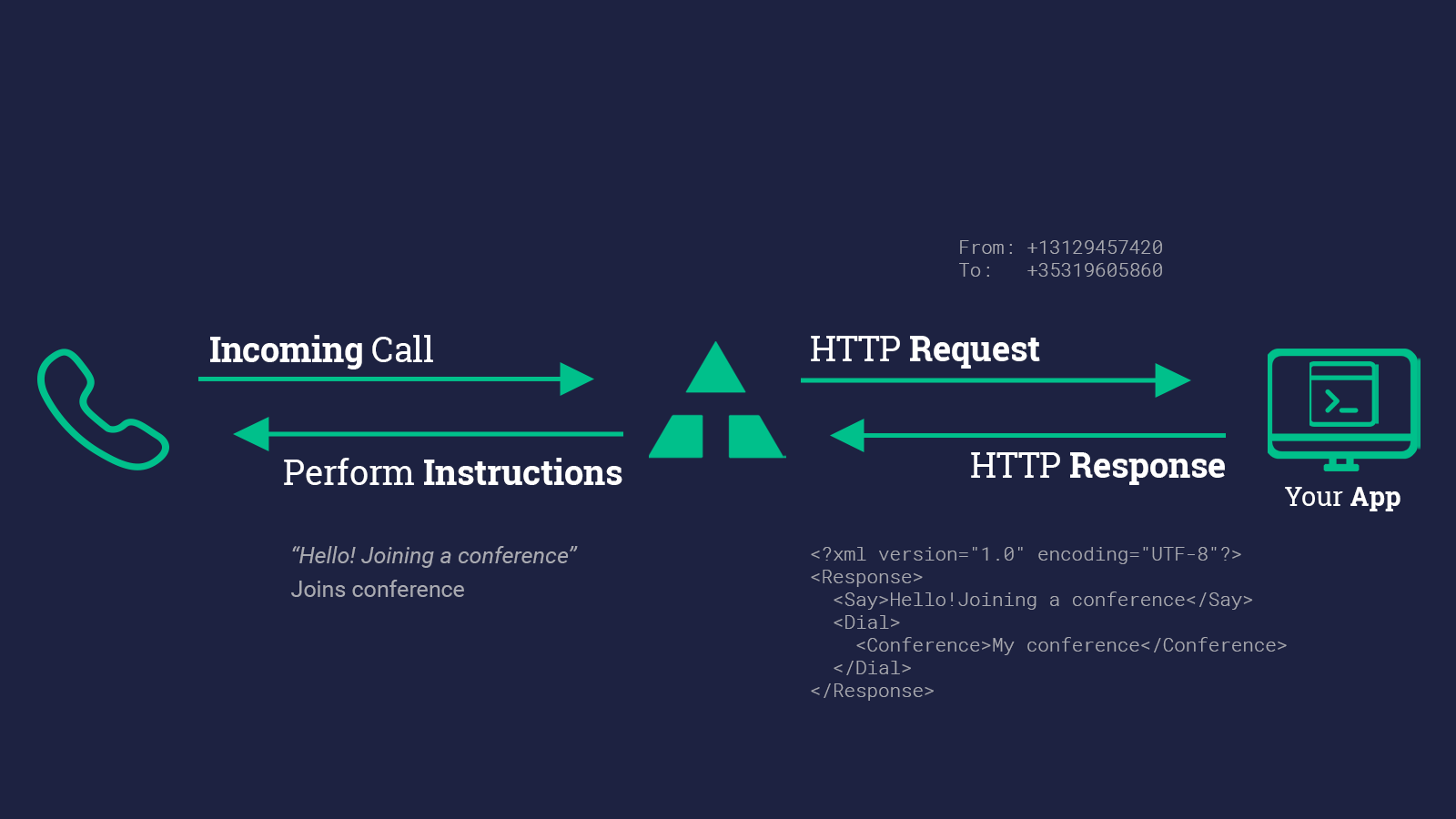
- Buy and configure a Telnyx-powered phone number capable of making and receiving phone calls, link it to a TeXML Application and point it at your web application
- Write a web application to tell Telnyx how to handle the incoming call using TwiML
- Make your web application accessible on the Internet so Telnyx can make an HTTP request when you receive a call
Dynamic PHP conference calls with moderators
Now comes the fun part - writing code that will handle an incoming HTTP request from Telnyx! In this example we’ll use PHP to respond to Telnyx’s request and we’ll use the existing Twilio (not Telnyx! PHP SDK to generate our TwiML.Create a PHP moderated conference call
<Conference> TwiML (TeXML) noun to create a conference that begins only when a moderator joins
In this example we use a couple advanced <Conference> features to allow one participant, our “moderator”, to better control the call:
In order for the webhooks in this code sample to work, Telnyx must be able to send your web application an HTTP request over the Internet. Of course, that means your application needs to have a URL or IP address that Telnyx can reach. In production you probably have a public URL, but you probably don’t during development. That’s where ngrok comes in. ngrok gives you a public URL for a local port on your development machine, which you can use to configure your Telnyx webhooks as described above. Once ngrok is installed, you can use it at the command line to create a tunnel to whatever port your web application is running on. For example, this will create a public URL for a web application listening on port 3000.
startConferenceOnEnterwill keep all other callers on hold until the moderator joinsendConferenceOnExitwill cause Telnyx to end the call for everyone as soon as the moderator leaves We use the “From” argument on Telnyx’s webhook request to identify whether the current caller should be the moderator or just a regular participant.
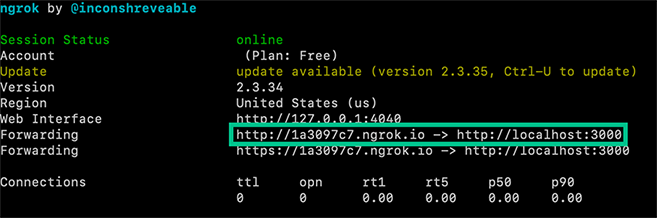
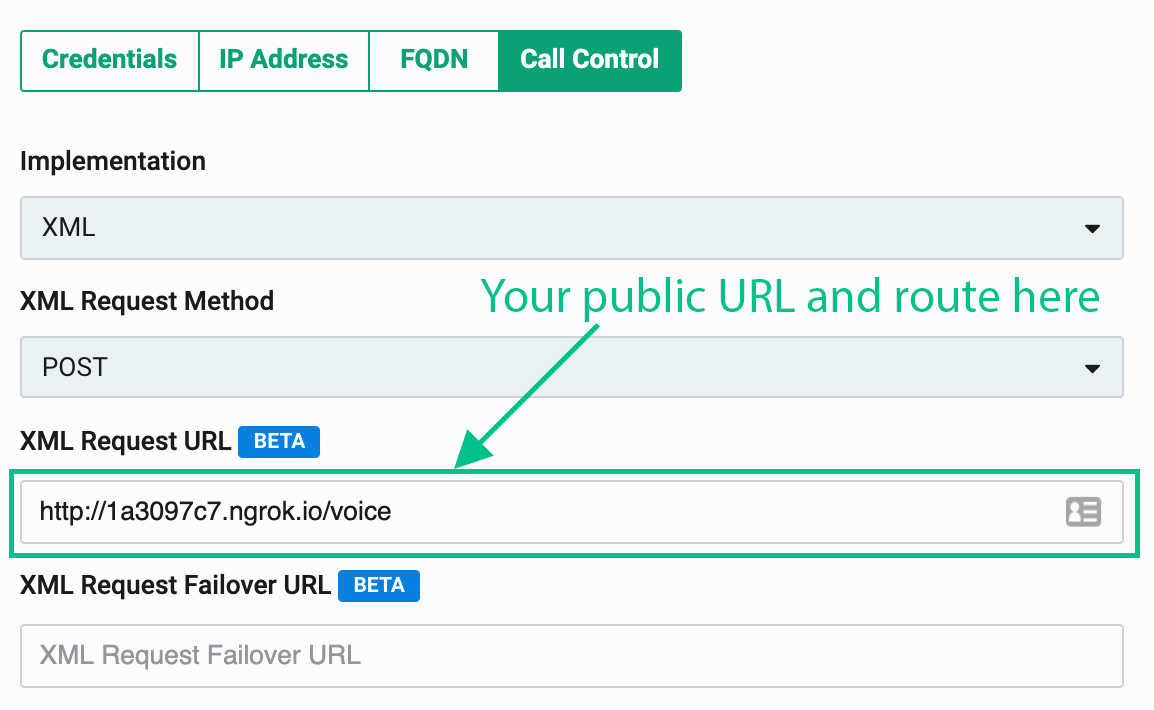
http://<your ngrok subdomain>.ngrok.io/voice for example)
Node
⏱ 15 minutes build time Swap to Telnyx with your existing TwiML code and Twilio SDK. By using Telnyx to execute your TwiML code, you will get the same great customer experience at a significantly lower cost. In this tutorial, we’ll show you how to use the Telnyx Voice API to create and manage conference calls with your Node.js web application. The code snippets in this guide are written using modern JavaScript language features in Node.js version 6 or higher, and make use of the following modules:- Express
- body-parser
- Twilio Node.js SDK
A simple Node conference call
Buy and configure a Phone Number and TeXML Application
In the Telnyx Mission Control Portal, you can search for and buy phone numbers in countries around the world. Numbers that have the Voice capability can make and receive voice phone calls from just about anywhere. Once you purchase a number, you’ll need to configure that number to send a request to your web application. This callback mechanism is called a webhook. You will need to create a TeXML Application and point that to your web application so that Telnyx can make a HTTP request when you receive a call. For the URL enter in your current TwiML application URL. If you don’t have an application URL yet, we will create one at a later step using ngrok.Set up your Node web application
- Buy and configure a Telnyx-powered phone number capable of making and receiving phone calls, link it to a TeXML Application and point it at your web application
- Write a web application to tell Telnyx how to handle the incoming call using TwiML
- Make your web application accessible on the Internet so Telnyx can make an HTTP request when you receive a call
Dynamic Node conference calls with moderators
Now comes the fun part - writing code that will handle an incoming HTTP request from Telnyx! In this example we’ll use the Express web framework for Node.js to respond to Telnyx’s request and we’ll use the existing Twilio (not Telnyx!) Node.js SDK to generate our TwiML.Create a Node moderated conference call
<Conference> TwiML (TeXML) noun to create a conference that begins only when a moderator joins
In this example we use a couple advanced <Conference> features to allow one participant, our “moderator”, to better control the call:
In order for the webhooks in this code sample to work, Telnyx must be able to send your web application an HTTP request over the Internet. Of course, that means your application needs to have a URL or IP address that Telnyx can reach. In production you probably have a public URL, but you probably don’t during development. That’s where ngrok comes in. ngrok gives you a public URL for a local port on your development machine, which you can use to configure your Telnyx webhooks as described above. Once ngrok is installed, you can use it at the command line to create a tunnel to whatever port your web application is running on. For example, this will create a public URL for a web application listening on port 3000.
startConferenceOnEnterwill keep all other callers on hold until the moderator joinsendConferenceOnExitwill cause Telnyx to end the call for everyone as soon as the moderator leaves We use the “From” argument on Telnyx’s webhook request to identify whether the current caller should be the moderator or just a regular participant.
http://<your ngrok subdomain>.ngrok.io/voice for example)
Java
⏱ 15 minutes build time Swap to Telnyx with your existing TwiML code and Twilio SDK. By using Telnyx to execute your TwiML code, you will get the same great customer experience at a significantly lower cost. In this tutorial, we’ll show you how to use the Telnyx Voice API to create and manage conference calls with your Java application. The code snippets in this guide are written using Java servlets. We’re going to use the Twilio Java SDK to create code than can be interpreted by Telnyx, but we’ll show you that later. Ready to begin? Let’s get started!A simple Java conference call
Buy and configure a Phone Number and TeXML Application
In the Telnyx Mission Control Portal, you can search for and buy phone numbers in countries around the world. Numbers that have the Voice capability can make and receive voice phone calls from just about anywhere. Once you purchase a number, you’ll need to configure that number to send a request to your web application. This callback mechanism is called a webhook. You will need to create a TeXML Application and point that to your web application so that Telnyx can make a HTTP request when you receive a call. For the URL enter in your current TwiML application URL. If you don’t have an application URL yet, we will create one at a later step using ngrok.Set up your Java web application
- Buy and configure a Telnyx-powered phone number capable of making and receiving phone calls, link it to a TeXML Application and point it at your web application
- Write a web application to tell Telnyx how to handle the incoming call using TwiML
- Make your web application accessible on the Internet so Telnyx can make an HTTP request when you receive a call
Dynamic Java conference calls with moderators
Now comes the fun part - writing code that will handle an incoming HTTP request from Telnyx! In this example we’ll write a simple servlet to respond to Telnyx’s request, and we’ll use the existing Twilio (not Telnyx!) Java to generate our TwiML.Create a Java moderated conference call
<Conference> TwiML (TeXML) noun to create a conference that begins only when a moderator joins
In this example we use a couple advanced <Conference> features to allow one participant, our “moderator”, to better control the call:
In order for the webhooks in this code sample to work, Telnyx must be able to send your web application an HTTP request over the Internet. Of course, that means your application needs to have a URL or IP address that Telnyx can reach. In production you probably have a public URL, but you probably don’t during development. That’s where ngrok comes in. ngrok gives you a public URL for a local port on your development machine, which you can use to configure your Telnyx webhooks as described above. Once ngrok is installed, you can use it at the command line to create a tunnel to whatever port your web application is running on. For example, this will create a public URL for a web application listening on port 3000.
startConferenceOnEnterwill keep all other callers on hold until the moderator joinsendConferenceOnExitwill cause Telnyx to end the call for everyone as soon as the moderator leaves We use the “From” argument on Telnyx’s webhook request to identify whether the current caller should be the moderator or just a regular participant.
http://<your ngrok subdomain>.ngrok.io/voice for example)
.NET
⏱ 15 minutes build time Swap to Telnyx with your existing TwiML code and Twilio SDK. By using Telnyx to execute your TwiML code, you will get the same great customer experience at a significantly lower cost. In this tutorial, we’ll show you how to use the Telnyx Voice API to create and manage conference calls with your ASP.NET web application. The code snippets in this guide are written using modern C# language features and require the .NET Framework version 4.5 or higher. We’re going to use the Twilio C# SDK to create code than can be interpreted by Telnyx, but we’ll show you that later. Ready to begin? Let’s get started!Simple C# Conference Call
Buy and configure a Phone Number and TeXML Application (C Sharp)
In the Telnyx Mission Control Portal, you can search for and buy phone numbers in countries around the world. Numbers that have the Voice capability can make and receive voice phone calls from just about anywhere. Once you purchase a number, you’ll need to configure that number to send a request to your web application. This callback mechanism is called a webhook. You will need to create a TeXML Application and point that to your web application so that Telnyx can make a HTTP request when you receive a call. For the URL enter in your current TwiML application URL. If you don’t have an application URL yet, we will create one at a later step using ngrok.Set Up Your C# Web Application
- Buy and configure a Telnyx-powered phone number capable of making and receiving phone calls, link it to a TeXML Application and point it at your web application
- Write a web application to tell Telnyx how to handle the incoming call using TwiML
- Make your web application accessible on the Internet so Telnyx can make an HTTP request when you receive a call
Dynamic C# conference calls with moderators
Now comes the fun part - writing code that will handle an incoming HTTP request from Telnyx! In this example we’ll use ASP.NET MVC to respond to Telnyx’s request and we’ll use the existing Twilio (not Telnyx!) C# / .NET SDK to generate our TwiML.Create a C# moderated conference call
<Conference> TwiML (TeXML) noun to create a conference that begins only when a moderator joins
In this example we use a couple advanced <Conference> features to allow one participant, our “moderator”, to better control the call:
In order for the webhooks in this code sample to work, Telnyx must be able to send your web application an HTTP request over the Internet. Of course, that means your application needs to have a URL or IP address that Telnyx can reach. In production you probably have a public URL, but you probably don’t during development. That’s where ngrok comes in. ngrok gives you a public URL for a local port on your development machine, which you can use to configure your Telnyx webhooks as described above. Once ngrok is installed, you can use it at the command line to create a tunnel to whatever port your web application is running on. For example, this will create a public URL for a web application listening on port 3000.
startConferenceOnEnterwill keep all other callers on hold until the moderator joinsendConferenceOnExitwill cause Telnyx to end the call for everyone as soon as the moderator leaves We use the “From” argument on Telnyx’s webhook request to identify whether the current caller should be the moderator or just a regular participant.
http://<your ngrok subdomain>.ngrok.io/voice for example)
Ruby
⏱ 15 minutes build time Swap to Telnyx with your existing TwiML code and Twilio SDK. By using Telnyx to execute your TwiML code, you will get superior customer experience at a significantly lower cost! In this tutorial, we’ll show you how to use the Telnyx Voice API to create and manage conference calls with your Ruby web application. The code snippets in this guide are written using the Ruby language. We’re going to use the Twilio Ruby SDK to create code than can be interpreted by Telnyx, but we’ll show you that later. Ready to begin? Let’s get started!A simple Ruby conference call
Buy and configure a Phone Number and TeXML Application
In the Telnyx Mission Control Portal, you can search for and buy phone numbers in countries around the world. Numbers that have the Voice capability can make and receive voice phone calls from just about anywhere. Once you purchase a number, you’ll need to configure that number to send a request to your web application. This callback mechanism is called a webhook. You will need to create a TeXML Application and point that to your web application so that Telnyx can make a HTTP request when you receive a call. For the URL enter in your current TwiML application URL. If you don’t have an application URL yet, we will create one at a later step using ngrok.Set up your Ruby web application
- Buy and configure a Telnyx-powered phone number capable of making and receiving phone calls, link it to a TeXML Application and point it at your web application
- Write a web application to tell Telnyx how to handle the incoming call using TwiML
- Make your web application accessible on the Internet so Telnyx can make an HTTP request when you receive a call
Dynamic Ruby conference calls with moderators
Now comes the fun part - writing code that will handle an incoming HTTP request from Telnyx! In this example we’ll use Ruby to respond to Telnyx’s request and we’ll use the existing Twilio (not Telnyx! Ruby SDK to generate our TwiML.Create a Ruby moderated conference call
<Conference> TwiML (TeXML) noun to create a conference that begins only when a moderator joins
In this example we use a couple advanced <Conference> features to allow one participant, our “moderator”, to better control the call:
In order for the webhooks in this code sample to work, Telnyx must be able to send your web application an HTTP request over the Internet. Of course, that means your application needs to have a URL or IP address that Telnyx can reach. In production you probably have a public URL, but you probably don’t during development. That’s where ngrok comes in. ngrok gives you a public URL for a local port on your development machine, which you can use to configure your Telnyx webhooks as described above. Once ngrok is installed, you can use it at the command line to create a tunnel to whatever port your web application is running on. For example, this will create a public URL for a web application listening on port 3000.
startConferenceOnEnterwill keep all other callers on hold until the moderator joinsendConferenceOnExitwill cause Telnyx to end the call for everyone as soon as the moderator leaves We use the “From” argument on Telnyx’s webhook request to identify whether the current caller should be the moderator or just a regular participant.
http://<your ngrok subdomain>.ngrok.io/voice for example)