> ## Documentation Index
> Fetch the complete documentation index at: https://developers.telnyx.com/llms.txt
> Use this file to discover all available pages before exploring further.
# Make a call to a web browser
> Build a browser softphone using the Telnyx WebRTC JS SDK to receive and place calls directly inside your web application with carrier-grade voice.
## How to receive calls into your web app
During this guide you will learn how to:
* Setup the WebRTC JS SDK into your app.
* Use the necessary [SDK APIs](/docs/voice/webrtc/js-sdk/classes/telnyxrtc) to connect and receive calls into your web application.
### Requirements
* Have a portal account
* Configure your portal account for voice
* Have 2 SIP Connections: To learn how to setup a SIP connection, please visit our Quick Start Guide. We are going to use one SIP connection for the caller and another for the callee.
## Building the app
1. Add the WebRTC adapter as a script
```javascript theme={null}
```
After pasting the above content, Kindly check and remove any new line added
2. Add the Telnyx RTC SDK as a script
```javascript theme={null}
```
After pasting the above content, Kindly check and remove any new line added
3. Initialize the client using your SIP credentials
```javascript theme={null}
const client = new TelnyxWebRTC.TelnyxRTC({
login: “SIP USER”,
password: “SIP USER PASSWORD”,
});
```
After pasting the above content, Kindly check and remove any new line added
4. Attach the event listeners to receive updates from the SDK
```javascript theme={null}
client
.on('telnyx.ready', () => console.log('ready to call'))
.on('telnyx.notification', (notification) => {
console.log('notification:', notification)
});
```
After pasting the above content, Kindly check and remove any new line added
5. Inside the `telnyx.notification` event you can detect the incoming call and answer it. On this example we are anwering it as soon as we get the incoming call notification
```javascript theme={null}
client.on('telnyx.notification', (notification) => {
const call = notification.call;
// Check the type of the notification
if (notification.type === 'callUpdate' && call.state === 'ringing') {
// Answer the call as soon as the notification is received.
call.answer();
}
});
```
After pasting the above content, Kindly check and remove any new line added
6. Enable the microphone
```javascript theme={null}
client.enableMicrophone();
```
After pasting the above content, Kindly check and remove any new line added
7. Connect the client
```javascript theme={null}
client.connect();
```
After pasting the above content, Kindly check and remove any new line added
8. Now your application is capable of receiving voice calls.
## How to test it
1. Go to [https://webrtc.telnyx.com/](https://webrtc.telnyx.com/)
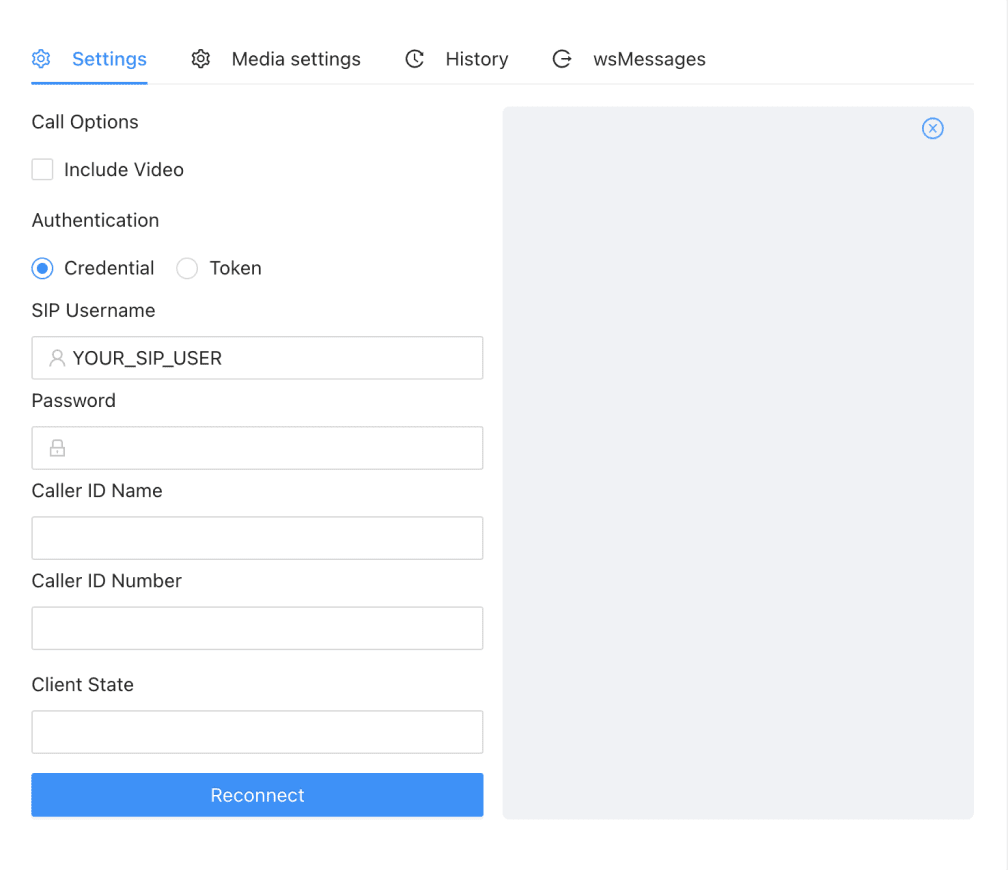
2. Login with SIP credentials (caller SIP credentials). At this point you should have created 2 SIP connections one for the caller and another for the callee.
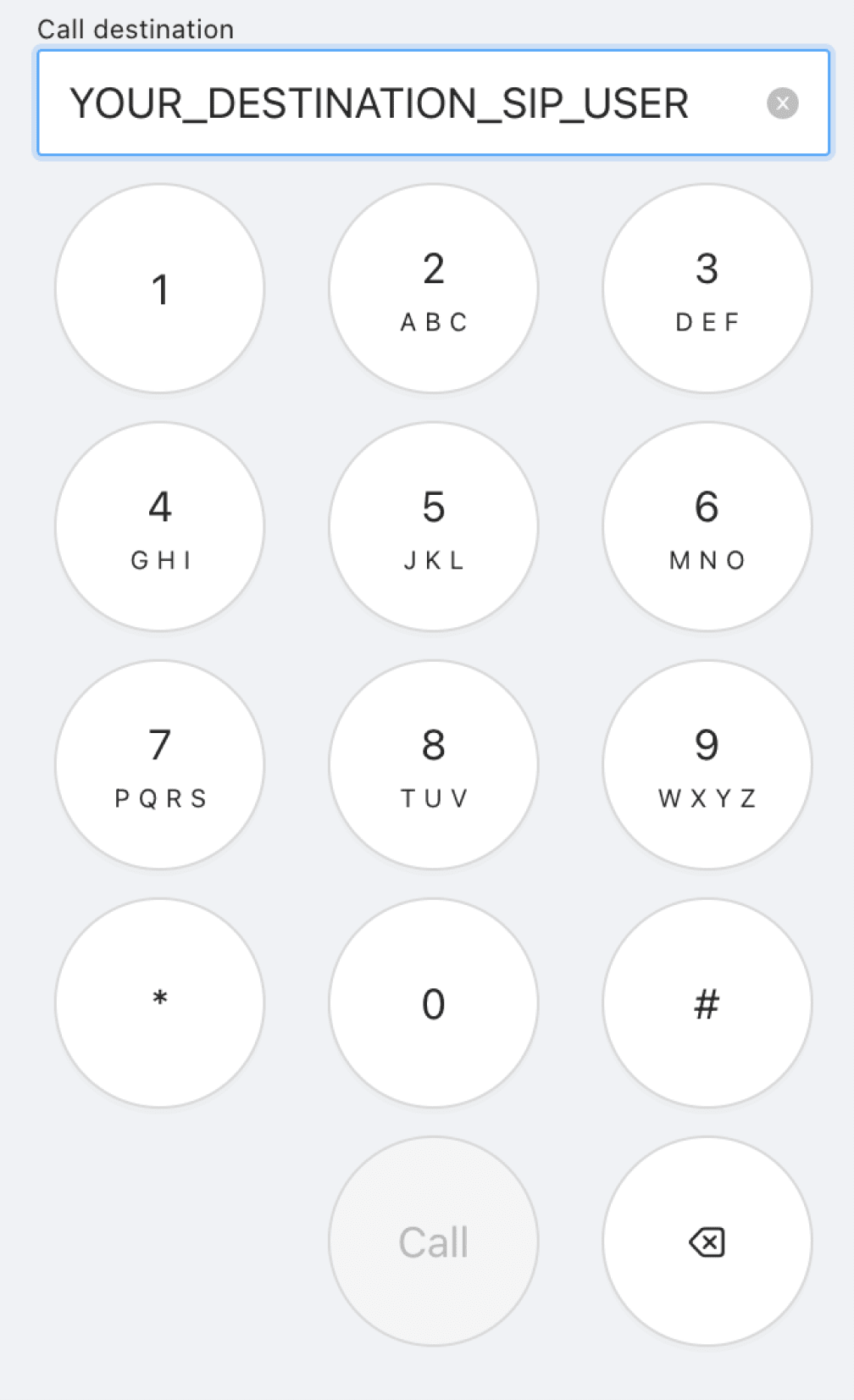
 3. Enter the destination `SIP username` (callee SIP connection) and press the call button.
 4. The telnyx.notification listener will be fired and the call will automatically be answered.
## Test the vanilla example
* Open CodeSandbox
4. The telnyx.notification listener will be fired and the call will automatically be answered.
## Test the vanilla example
* Open CodeSandbox