> ## Documentation Index
> Fetch the complete documentation index at: https://developers.telnyx.com/llms.txt
> Use this file to discover all available pages before exploring further.
# Connect Telnyx to GPT-Live over SIP
> Route inbound calls from a Telnyx number to GPT-Live over encrypted SIP, then use a sideband application to control the session, run tools, and transfer calls.
Route inbound calls from a Telnyx number directly to GPT-Live over encrypted SIP, then use a sideband application to control the session, run tools and transfer calls.
This guide uses the GPT-Live SIP contract. Realtime uses different event names, identifiers, endpoints and acceptance payloads; do not mix the two contracts.
## Overview
With this integration, Telnyx provides the phone number and SIP connection, while OpenAI runs the GPT-Live voice session. Your application receives the incoming-call webhook and attaches to the session over a sideband WebSocket.
The media and control paths remain separate:
* **Call media:** Caller ↔ Telnyx ↔ GPT-Live. Your application does not relay audio.
* **Application control:** OpenAI ↔ your application. Your application accepts or rejects calls, handles tools, initiates approved transfers and monitors the session.
Direct SIP is a good fit when you want to connect a Telnyx number to GPT-Live without building an application-owned audio bridge. If your application must inspect or transform every audio frame, use Telnyx Media Streaming instead.
## What this guide covers
You will configure:
* A Telnyx FQDN SIP Connection to OpenAI.
* TLS for SIP signaling and SRTP for call audio.
* An OpenAI webhook for incoming GPT-Live calls.
* A Python sideband application using Responses delegation.
* An order-lookup tool and an application-controlled human transfer.
The example handles inbound calls. It does not implement outbound dialing, answering-machine detection, conferencing or keypad-driven IVR navigation.
## Prerequisites
Before you begin, you need:
1. A Telnyx account.
2. A voice-capable Telnyx number.
3. An OpenAI project with GPT-Live SIP access.
4. Your OpenAI project ID, API key and webhook signing secret.
5. A public HTTPS endpoint for OpenAI webhooks.
6. Python 3.10 or later.
7. An approved SIP or telephone destination for human transfer.
## How the call works
When someone calls your Telnyx number:
1. Telnyx sends a SIP INVITE to OpenAI over TLS and negotiates encrypted media using SRTP.
2. OpenAI sends your application a signed `live.transport.incoming` webhook.
3. Your application verifies the webhook and reads `data.session_id`.
4. Your application accepts or rejects the pending GPT-Live session.
5. After accepting, your application attaches to the same session over a sideband WebSocket.
6. Telnyx and GPT-Live exchange audio directly while your application handles control events and tools.
7. The caller, your application or a transfer destination ends the call.
Keep the OpenAI session ID, webhook ID, Telnyx call identifiers and SIP Call-ID as separate values in your logs. They identify different parts of the call.
## Configure OpenAI
### Select the project and create an API key
In the OpenAI Platform, select the project with GPT-Live SIP access. Copy its **Project > General** project ID, including the `proj_` prefix. Create an API key under **Project > API Keys** and store it in your secret manager.
Use the same project for the SIP destination, API key and webhook. A key from another project can produce `session_id_not_found` even when the webhook arrives successfully. Never put the API key in source control, screenshots or webhook payloads.
### Create the incoming-call webhook
Open the project’s [webhook settings](https://platform.openai.com/settings/project/webhooks), create an endpoint, and subscribe to `live.transport.incoming`. Set the endpoint to the public HTTPS URL of your application. The bundled application uses:
```
https://voice.example.com/webhooks/openai
```
Copy the signing secret when you create the endpoint and store it as `OPENAI_WEBHOOK_SECRET`. Verify the signature against the raw request body before acting on an event. Rotate the signing secret if it is exposed.
OpenAI uses [Standard Webhooks](https://github.com/standard-webhooks/standard-webhooks) with three headers: `webhook-id`, `webhook-timestamp`, and `webhook-signature`. The signature is a base64-encoded HMAC-SHA256 over `{id}.{timestamp}.{body}`, prefixed with `v1,` and keyed with the base64-decoded portion of the `whsec_` secret. During a secret rotation the header carries several space-separated signatures, and any one of them matching is valid.
The sample application calls `client.webhooks.verify_signature()` from the OpenAI Python SDK, which enforces a 5-minute timestamp freshness window to prevent replay attacks. It falls back to an equivalent local implementation when the SDK is not installed.
When OpenAI receives a SIP INVITE for your project, it sends a `live.transport.incoming` event. Use the `data.session_id` from that event for the accept, reject, sideband, transfer and hangup operations.
```json theme={null}
{
"object": "event",
"id": "evt_...",
"type": "live.transport.incoming",
"data": {
"type": "sip",
"session_id": "live_...",
"sip_headers": [
{ "name": "From", "value": "sip:+15551234567@example.com" },
{ "name": "To", "value": "sip:+15557654321@example.com" },
{ "name": "Call-ID", "value": "..." }
]
}
}
```
For new integrations, subscribe to `live.transport.incoming` and check `data.type` is `sip`. The bundled application also accepts the legacy `live.call.incoming` event for existing deployments. Keep its subscription only while legacy deliveries and retries drain. SIP headers are untrusted caller metadata.
Do not derive the session ID from another value or substitute the carrier SIP Call-ID.
### GPT-Live API values
The bundled sample uses the following configuration:
Use `gpt-live-1`. Live-call testing rejected the earlier alpha model name and `session.context_management`; the sample and acceptance examples omit that field. The tested configuration retained `OpenAI-Alpha: quicksilver=v3`. Confirm project access against the [OpenAI SIP documentation](https://developers.openai.com/api/docs/guides/voice-sip?api=live).
| Setting | Value |
| ------------------- | ------------------------------------------------------------- |
| Frontend model | `gpt-live-1` |
| API version header | `OpenAI-Alpha: quicksilver=v3` |
| Incoming-call event | `live.transport.incoming` |
| Session identifier | `data.session_id` |
| Call controls | `/v1/live/sessions/{session_id}/{accept,reject,refer,hangup}` |
| Sideband attachment | `/v1/live/sessions/{session_id}/attach` |
## Configure your Telnyx SIP Connection
### Create an FQDN connection
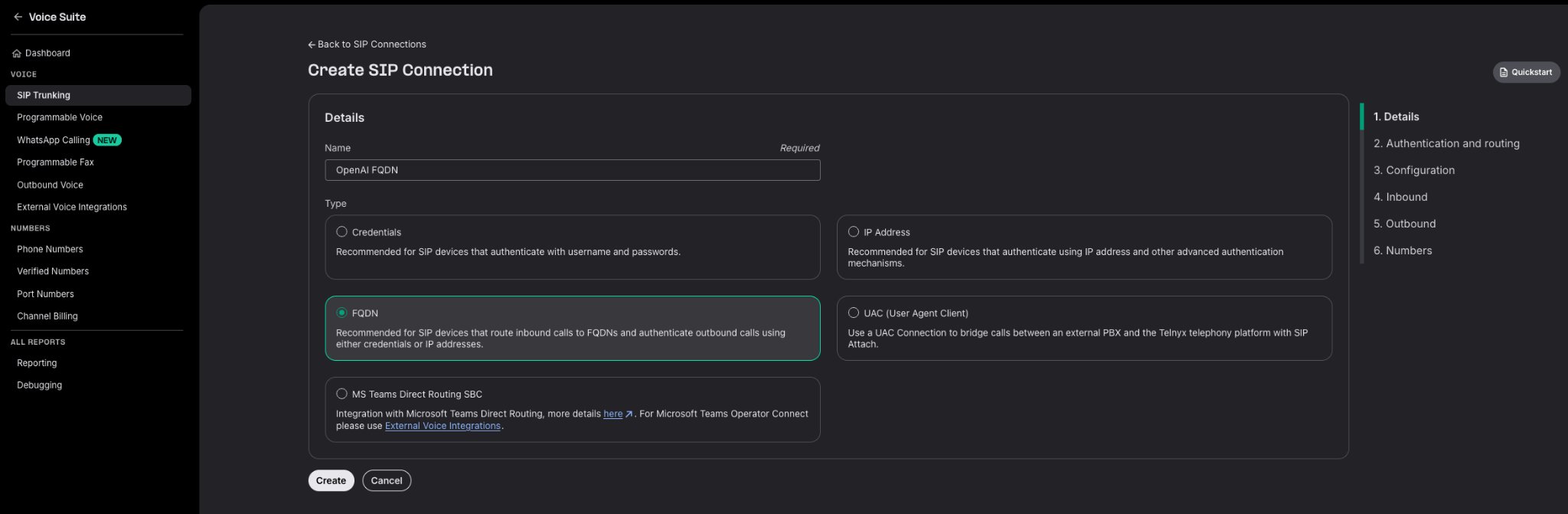
In Mission Control Portal, open **Voice > SIP Trunking**, add a SIP Connection, and select **FQDN** as its type. Give it a name such as `OpenAI GPT-Live`.
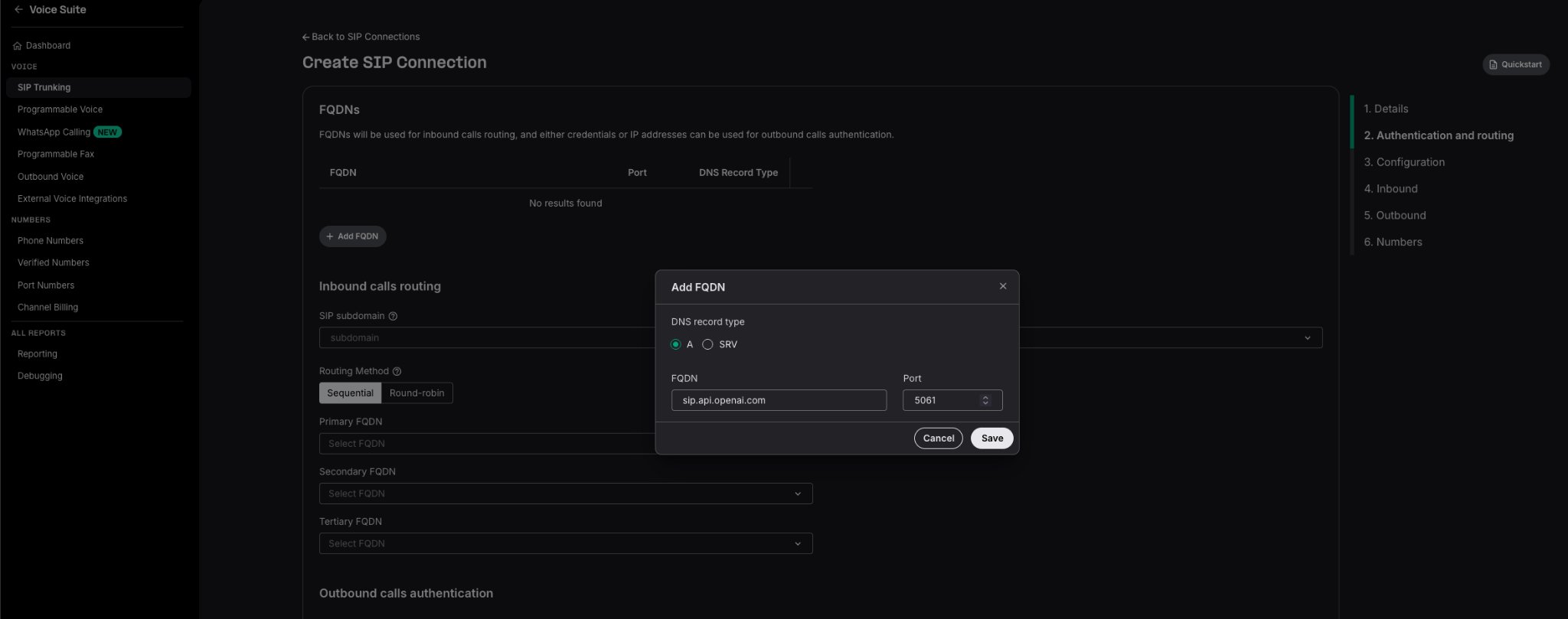
 Under **Authentication and routing**, select **Add FQDN** and set:
| Setting | Value |
| --------------- | -------------------- |
| DNS record type | `A` |
| FQDN | `sip.api.openai.com` |
| Port | `5061` |
Under **Authentication and routing**, select **Add FQDN** and set:
| Setting | Value |
| --------------- | -------------------- |
| DNS record type | `A` |
| FQDN | `sip.api.openai.com` |
| Port | `5061` |
 ### Enable TLS and SRTP
Set **Encrypted media** to **SRTP Mandatory** in the connection configuration.
### Enable TLS and SRTP
Set **Encrypted media** to **SRTP Mandatory** in the connection configuration.
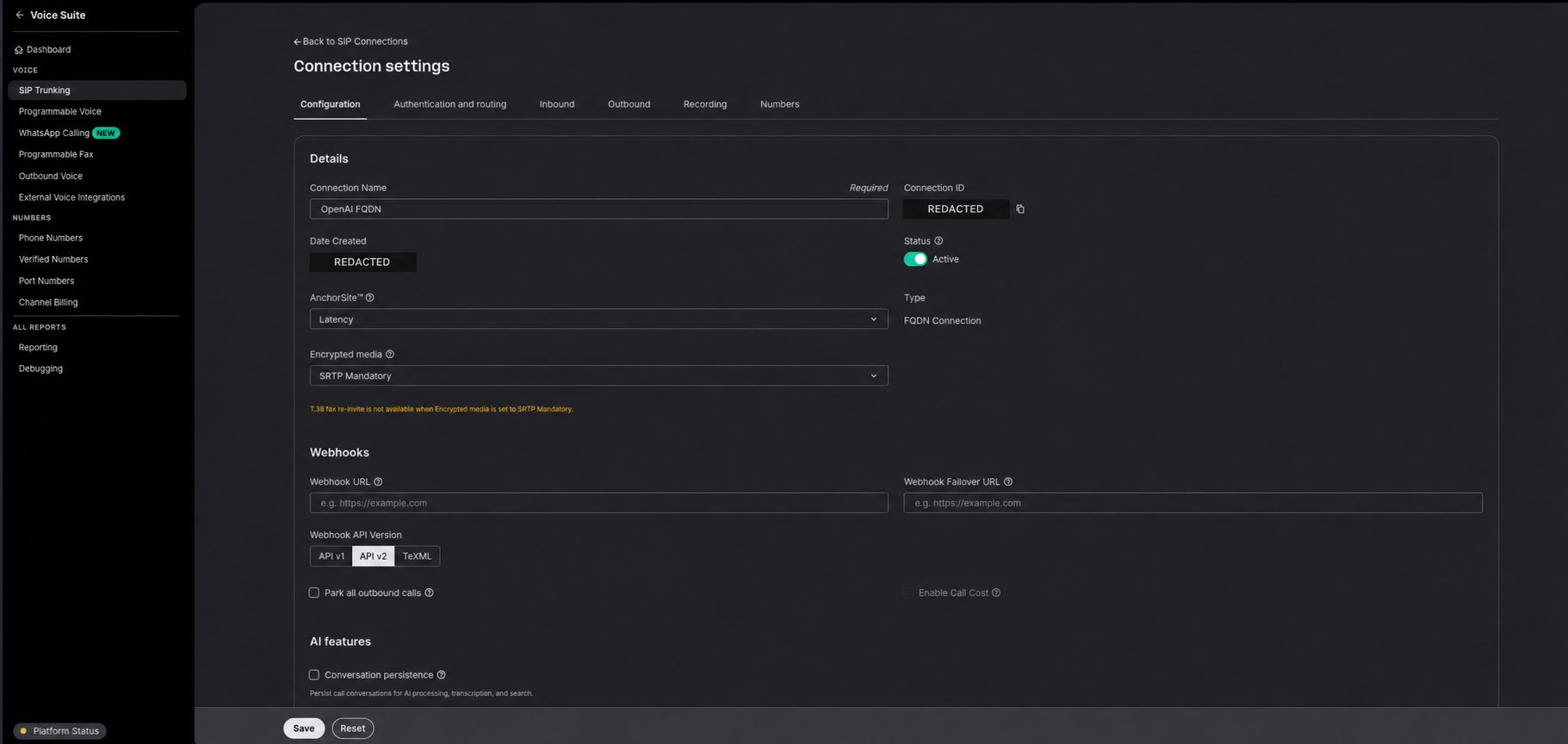 Set the inbound **SIP transport protocol** (transport method) to **TLS**.
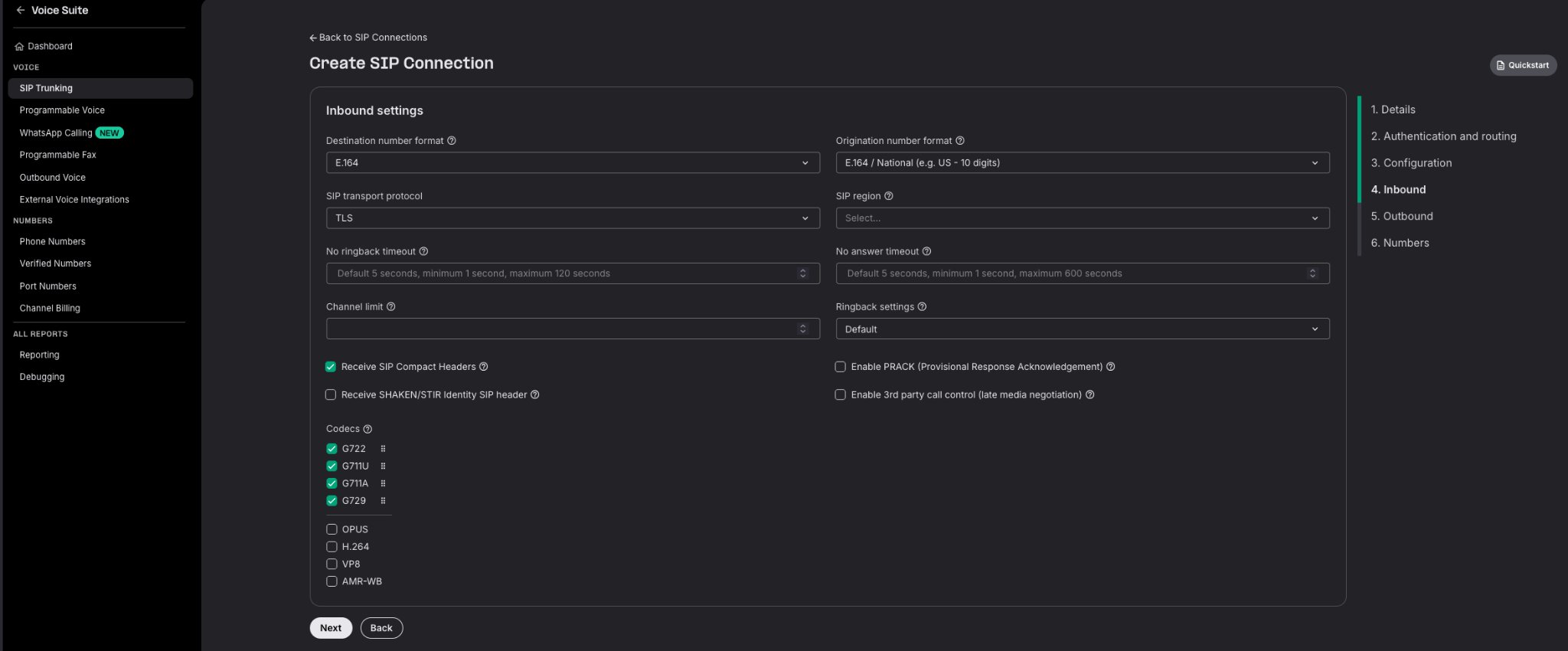 TLS protects SIP signaling; SRTP protects call audio. Enabling TLS alone is insufficient. Confirm SRTP negotiation and two-way audio on the OpenAI-facing leg.
### Configure codecs
Enable at least one codec supported by both sides. SIP offer and answer select the codec used on the OpenAI-facing leg. Confirm the negotiated codec in Telnyx SIP diagnostics; the screenshot illustrates the TLS setting, not a required codec selection.
* **Opus** supports wideband audio.
* **PCMU** and **PCMA** provide narrowband compatibility when the complete route cannot negotiate Opus.
Do not configure Media Streaming linear16 here. Direct SIP carries media using the codec negotiated in SDP, and your sideband application does not convert or relay the audio.
### Assign your Telnyx number
In Mission Control Portal:
1. Go to **Numbers → My Numbers**.
2. Select the number callers will use.
3. Assign the **OpenAI GPT-Live** SIP Connection.
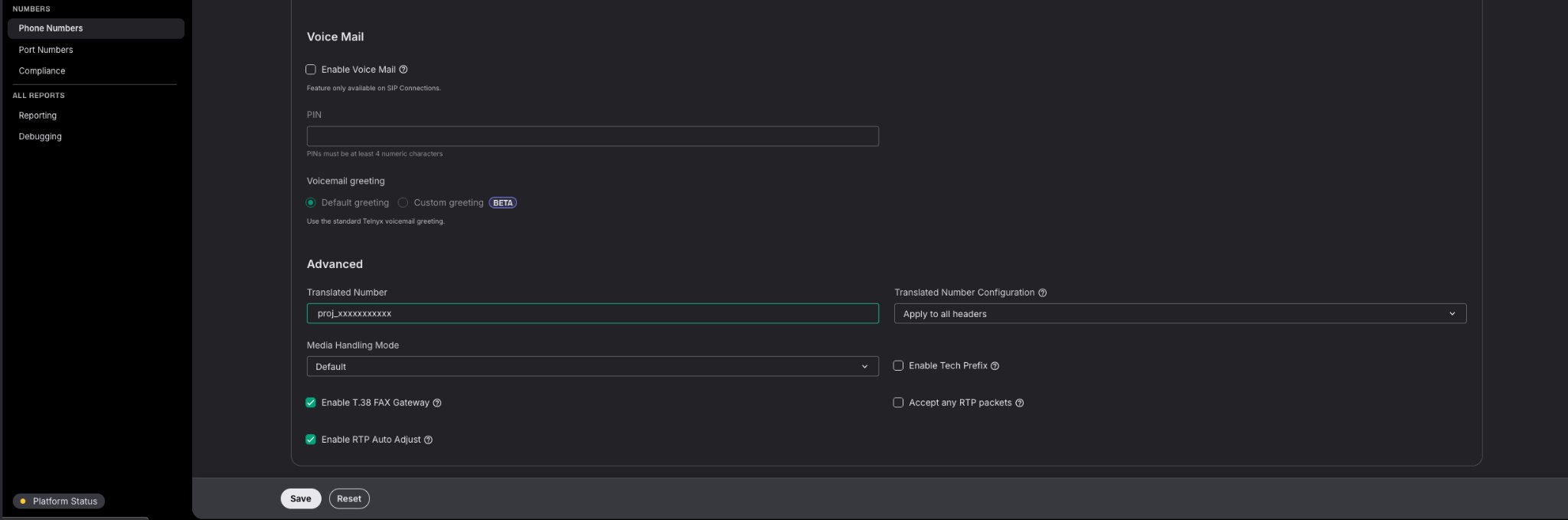
4. In the number’s **Voice** settings, set **Translated Number** to the OpenAI project ID, including `proj_`.
5. Save the number configuration.
TLS protects SIP signaling; SRTP protects call audio. Enabling TLS alone is insufficient. Confirm SRTP negotiation and two-way audio on the OpenAI-facing leg.
### Configure codecs
Enable at least one codec supported by both sides. SIP offer and answer select the codec used on the OpenAI-facing leg. Confirm the negotiated codec in Telnyx SIP diagnostics; the screenshot illustrates the TLS setting, not a required codec selection.
* **Opus** supports wideband audio.
* **PCMU** and **PCMA** provide narrowband compatibility when the complete route cannot negotiate Opus.
Do not configure Media Streaming linear16 here. Direct SIP carries media using the codec negotiated in SDP, and your sideband application does not convert or relay the audio.
### Assign your Telnyx number
In Mission Control Portal:
1. Go to **Numbers → My Numbers**.
2. Select the number callers will use.
3. Assign the **OpenAI GPT-Live** SIP Connection.
4. In the number’s **Voice** settings, set **Translated Number** to the OpenAI project ID, including `proj_`.
5. Save the number configuration.

 The OpenAI-facing SIP destination follows this pattern:
```text theme={null}
sip:proj_YOUR_PROJECT_ID@sip.api.openai.com:5061;transport=tls
```
Before calling, verify the FQDN, port, TLS, mandatory SRTP, number assignment, translated project ID and `live.transport.incoming` webhook subscription.
Calls to this number will now be routed to the OpenAI SIP destination. OpenAI sends the incoming-call webhook before the GPT-Live session is accepted.
## Run the sideband application
Download the complete Python sample: [`telnyx_gpt_live_sip_server.py`](/assets/gpt-live-sip/telnyx_gpt_live_sip_server.py).
The bundled FastAPI application receives webhooks at **`/webhooks/openai`** and uses **Responses delegation** for order lookup and transfer. Set the webhook URL to this exact route; `/` will not reach the handler. The client-delegation payload below is a separate minimal contract example for applications that supply their own backend.
The application:
* Verifies the OpenAI webhook signature.
* Applies a caller admission check.
* Accepts or rejects the GPT-Live session.
* Attaches to the session over the sideband WebSocket.
* Handles delegated order lookups.
* Transfers callers only to an application-controlled destination.
* Attempts a safe transfer or hangup if sideband control fails.
### Install dependencies
```bash theme={null}
python3 -m venv .venv
source .venv/bin/activate
python -m pip install "fastapi>=0.115,<1" "uvicorn[standard]>=0.30,<1" \
"httpx>=0.27,<1" "websockets>=14,<16" "openai>=2,<3" \
"python-dotenv>=1,<2"
```
### Configure environment variables
Inject credentials from a secret manager, or create a local `.env` excluded from version control with owner-only access. The bundled application loads these settings:
```env theme={null}
OPENAI_API_KEY=YOUR_OPENAI_API_KEY
OPENAI_WEBHOOK_SECRET=YOUR_OPENAI_WEBHOOK_SECRET
OPENAI_LIVE_MODEL=gpt-live-1
OPENAI_RESPONSES_MODEL=YOUR_RESPONSES_MODEL
OPENAI_ALPHA_VALUE=quicksilver=v3
OPENAI_VOICE=marin
TRANSFER_TARGET_URI=tel:+14155550123
ALLOWED_CALLER_PREFIXES=+1415,+1312
```
`TRANSFER_TARGET_URI` is controlled by your application. The model cannot construct an arbitrary transfer destination.
`ALLOWED_CALLER_PREFIXES` is a simple example admission check, not caller authentication. Use appropriate authentication and authorization before exposing account data or state-changing tools.
### Start the server
```bash theme={null}
uvicorn telnyx_gpt_live_sip_server:app --host 0.0.0.0 --port 8000
```
For local testing, expose port 8000 through a secure HTTPS tunnel and update the OpenAI webhook URL.
### Verify the local server
```bash theme={null}
curl -i http://127.0.0.1:8000/health
```
Expected response:
```json theme={null}
{ "status": "ok" }
```
Configure the public tunnel to forward to port 8000 and use `https://YOUR_TUNNEL/webhooks/openai` in OpenAI. The health endpoint confirms the process is running; it does not validate credentials or SIP routing.
### Accept the GPT-Live session
After verifying the webhook, accept the call using:
```
POST /v1/live/sessions/{session_id}/accept
```
Send `Authorization: Bearer OPENAI_API_KEY` and `Content-Type: application/json` from the application. For the tested configuration in this guide, also send `OpenAI-Alpha: quicksilver=v3`.
A minimal client-delegation configuration is:
```json theme={null}
{
"session": {
"type": "live",
"model": "gpt-live-1",
"instructions": "You are a concise and helpful phone assistant.",
"audio": { "output": { "voice": "marin" } },
"delegation": { "type": "client" }
}
}
```
Client delegation requires your application to handle delegated work; accepting a call and sending a greeting alone does not implement that backend. For SIP, omit `audio.format`: SDP negotiates the media format.
The downloadable application instead uses this Responses-delegation configuration:
```json theme={null}
{
"session": {
"type": "live",
"model": "gpt-live-1",
"instructions": "Keep spoken answers concise and delegate order lookups.",
"input": [],
"audio": {
"output": { "voice": "marin" }
},
"delegation": {
"type": "responses",
"responses": {
"model": "YOUR_RESPONSES_MODEL",
"instructions": "Return verified results for a spoken conversation.",
"tools": [
{
"type": "function",
"name": "lookup_order",
"description": "Look up the status of a customer order. Requires a valid order ID.",
"parameters": {
"type": "object",
"properties": {
"order_id": {
"type": "string",
"description": "The order identifier."
}
},
"required": ["order_id"]
}
},
{
"type": "function",
"name": "transfer_to_human",
"description": "Transfer the caller to a human agent at the approved destination.",
"parameters": {
"type": "object",
"properties": {}
}
}
],
"tool_choice": "auto"
}
}
}
}
```
Session configuration is strict. Do not add Realtime-specific fields such as `output_modalities`, Semantic VAD settings or top-level tool definitions.
### Attach the sideband connection
After accepting the call, connect your server to:
```
wss://api.openai.com/v1/live/sessions/{session_id}/attach
```
Wait for a successful acceptance before attaching. Authenticate using the same OpenAI project key and version header used for the accept request. Do not send `session.start` on an attached session.
The sideband connection carries session events and application commands. SIP remains the primary call audio path. Attach promptly and install the event reader before sending commands because events emitted before attachment may not be replayed.
## Handle tools with Responses delegation
GPT-Live supports Client and Responses delegation:
* **Client delegation:** Your application performs the delegated work and provides context for GPT-Live to speak.
* **Responses delegation:** GPT-Live delegates to a configured Responses backend. OpenAI runs supported hosted tools, while your application executes client-actionable functions.
The sample uses Responses delegation for `lookup_order` and `transfer_to_human`. Tool definitions belong under `session.delegation.responses`.
Responses events arrive inside a `response.event` envelope. Read the nested `event.type`, collect completed function calls from nested `response.output_item.done` events and preserve the outer `delegation_id` for correlation.
For each client-actionable function call:
1. Validate the tool name and arguments.
2. Authenticate and authorize the requested action.
3. Execute the operation with a timeout and idempotency protection.
4. Submit a `response.item.create` event with the matching `call_id`.
5. After every function result for that delegation has been submitted, send a single `response.create` to continue delegated work.
A delegated response can emit more than one function call, so wait for its `response.completed` event before deciding that every call has been seen. The sample tracks outstanding calls per `delegation_id` and continues only once.
`delegation_id` arrives on the inbound `response.event` envelope and is how you group nested events by delegation. Do not echo it back on `response.item.create` or `response.create` — neither command takes that field. A tool result is matched by `item.call_id`, and the optional `event_id` you set on a command comes back as `client_event_id` on the corresponding server event. The one client command that does take `delegation_id` is `session.commentary.append`, which requires it and accepts only `null` under Responses delegation.
```json theme={null}
{
"type": "response.item.create",
"event_id": "tool_result_1",
"item": {
"type": "function_call_output",
"call_id": "call_123",
"output": "{\"ok\":true,\"status\":\"shipped\"}"
}
}
```
Submitting a function result does not automatically continue the response.
## Greet the caller
After attaching the sideband receiver, the sample appends a spoken greeting:
```json theme={null}
{
"type": "session.commentary.append",
"event_id": "greeting_1",
"delegation_id": null,
"content": "Welcome to Example Company. I am an AI assistant. How can I help you today?"
}
```
The acknowledgment confirms that GPT-Live accepted the event. It does not guarantee exact-wording playback, so test the caller experience and interruption behavior with real calls. Use a supported prerecorded playback method if your opening must use exact wording.
## Transfer or end a call
The `transfer_to_human` tool uses the destination stored in `TRANSFER_TARGET_URI`. The model does not supply the destination.
Transfer an active call using:
```
POST /v1/live/sessions/{session_id}/refer
```
The request body identifies the approved destination:
```json theme={null}
{ "target_uri": "tel:+14155550123" }
```
End a call under application control using:
```
POST /v1/live/sessions/{session_id}/hangup
```
Test the complete transfer outcome. A successful API response confirms that the request was accepted, not that the destination answered or that two-way audio was established.
Hangup has no request body. A successful call-control response may have an empty body; check its HTTP status instead of unconditionally parsing JSON. Keep the sideband open for final events and `session.closed` before releasing resources.
### Reject a pending call
```text theme={null}
POST /v1/live/sessions/{session_id}/reject
```
```json theme={null}
{ "status_code": 486 }
```
Only one accept or reject decision wins. To test rejection, use a separate incoming call and reject it before the application accepts it. The bundled sample rejects callers outside `ALLOWED_CALLER_PREFIXES`.
## Test the integration
Call the assigned Telnyx number and verify:
| Test | Expected result |
| ----------------- | ------------------------------------------------------------------------------------------------------------------------- |
| Incoming call | Your application verifies `live.transport.incoming` and accepts the session |
| Greeting | The caller hears the AI disclosure and greeting |
| Conversation | The caller and assistant can interrupt and hear one another |
| Order lookup | The function receives valid arguments and GPT-Live speaks the confirmed result |
| Invalid order ID | The application returns a controlled error |
| Human transfer | The approved destination answers with two-way audio |
| Duplicate webhook | The application makes one call decision and performs no duplicate action |
| Sideband failure | A transfer is requested once; only a definitive rejection triggers hangup. An unknown outcome is preserved without retry. |
| Caller hangup | The phone leg ends and the application cleans up its session state |
Use Telnyx SIP call diagnostics and packet captures to inspect the Request-URI, SIP responses, SDP offer and answer, selected codec, SRTP negotiation, packet loss and jitter. Redact credentials and SDP inline SRTP key material before sharing traces.
### Test another voice
Set `OPENAI_VOICE=cedar`, restart the application and place a new call. Use only voices supported by the selected model and project. Voice selection happens at acceptance; a source or environment change does not alter an active call. If acceptance fails, inspect the error and restore a known-supported voice.
### Test webhook security
* Send a request with an invalid signature and expect `401` from the bundled application.
* Send a correctly signed non-SIP event and expect a harmless `200`.
* Send a correctly signed SIP event without `data.session_id` and expect `400`.
* Deliver the same correctly signed webhook twice, including concurrently, and verify one call decision.
Never disable signature verification. Sign the non-SIP and missing-session test payloads correctly so those tests exercise event handling rather than signature rejection.
## Troubleshooting
### `session_id_not_found`
Confirm the API key, webhook and SIP destination use the same OpenAI project. Preserve `data.session_id` unchanged, including its prefix. Do not substitute the SIP Call-ID, a Telnyx call ID or a Realtime `call_id`. Use `/v1/live/sessions/...` for Live operations.
### No webhook arrives
Confirm the public HTTPS URL is reachable, its route is `/webhooks/openai` for the bundled sample, and the tunnel forwards to port 8000. Verify the `live.transport.incoming` subscription, number assignment, FQDN and translated project ID.
### The call is rejected or has no audio
Check TLS signaling, mandatory SRTP, the project ID in the SIP Request-URI, a compatible codec and a successful SDP offer/answer. Check signaling and negotiated media connectivity on the Telnyx-to-OpenAI path. The application’s HTTPS tunnel carries webhooks, not SIP audio.
### The call connects but there is no greeting
Confirm acceptance succeeded before opening the sideband. Check the exact session ID, project key and the configured header, `OpenAI-Alpha: quicksilver=v3`. Send `session.commentary.append` rather than `session.start`. Keep the application and background event handler running after returning the webhook response.
### Transfer outcome is unknown
A timeout, transport error or 5xx response can occur after a transfer takes effect. The sample keeps a per-session transfer marker shared by tool calls and fallback. It reports `transfer_unknown` or `transfer_pending` to the backend and neither repeats the transfer nor hangs up. An HTTP success confirms the request was accepted, not that the destination answered. Production deployments need durable state and provider-side reconciliation.
### Normal hangup closes the sideband without a close frame
A caller hangup can look like a WebSocket failure. If fallback receives `404` with `session_id_not_found`, the sample treats the call as already ended and does not issue another hangup. Other 404 errors are not assumed to mean the call ended.
### Inspect call-control errors
Failures from accept, reject, transfer and hangup include the HTTP status, OpenAI request ID, and bounded error code, parameter and message diagnostics. Configured credentials are redacted; request headers, request payloads and raw response bodies are not logged. Use the parameter and message to distinguish an unsupported model from an unsupported acceptance field.
## References
* [OpenAI GPT-Live SIP contract](https://developers.openai.com/api/docs/guides/voice-sip?api=live)
* [OpenAI session acceptance reference](https://developers.openai.com/api/reference/python/resources/live/subresources/sessions/methods/accept)
Content and screenshots adapted from João Viegas’s *Telnyx / OpenAI SIP Integration Guide - V2*.
The OpenAI-facing SIP destination follows this pattern:
```text theme={null}
sip:proj_YOUR_PROJECT_ID@sip.api.openai.com:5061;transport=tls
```
Before calling, verify the FQDN, port, TLS, mandatory SRTP, number assignment, translated project ID and `live.transport.incoming` webhook subscription.
Calls to this number will now be routed to the OpenAI SIP destination. OpenAI sends the incoming-call webhook before the GPT-Live session is accepted.
## Run the sideband application
Download the complete Python sample: [`telnyx_gpt_live_sip_server.py`](/assets/gpt-live-sip/telnyx_gpt_live_sip_server.py).
The bundled FastAPI application receives webhooks at **`/webhooks/openai`** and uses **Responses delegation** for order lookup and transfer. Set the webhook URL to this exact route; `/` will not reach the handler. The client-delegation payload below is a separate minimal contract example for applications that supply their own backend.
The application:
* Verifies the OpenAI webhook signature.
* Applies a caller admission check.
* Accepts or rejects the GPT-Live session.
* Attaches to the session over the sideband WebSocket.
* Handles delegated order lookups.
* Transfers callers only to an application-controlled destination.
* Attempts a safe transfer or hangup if sideband control fails.
### Install dependencies
```bash theme={null}
python3 -m venv .venv
source .venv/bin/activate
python -m pip install "fastapi>=0.115,<1" "uvicorn[standard]>=0.30,<1" \
"httpx>=0.27,<1" "websockets>=14,<16" "openai>=2,<3" \
"python-dotenv>=1,<2"
```
### Configure environment variables
Inject credentials from a secret manager, or create a local `.env` excluded from version control with owner-only access. The bundled application loads these settings:
```env theme={null}
OPENAI_API_KEY=YOUR_OPENAI_API_KEY
OPENAI_WEBHOOK_SECRET=YOUR_OPENAI_WEBHOOK_SECRET
OPENAI_LIVE_MODEL=gpt-live-1
OPENAI_RESPONSES_MODEL=YOUR_RESPONSES_MODEL
OPENAI_ALPHA_VALUE=quicksilver=v3
OPENAI_VOICE=marin
TRANSFER_TARGET_URI=tel:+14155550123
ALLOWED_CALLER_PREFIXES=+1415,+1312
```
`TRANSFER_TARGET_URI` is controlled by your application. The model cannot construct an arbitrary transfer destination.
`ALLOWED_CALLER_PREFIXES` is a simple example admission check, not caller authentication. Use appropriate authentication and authorization before exposing account data or state-changing tools.
### Start the server
```bash theme={null}
uvicorn telnyx_gpt_live_sip_server:app --host 0.0.0.0 --port 8000
```
For local testing, expose port 8000 through a secure HTTPS tunnel and update the OpenAI webhook URL.
### Verify the local server
```bash theme={null}
curl -i http://127.0.0.1:8000/health
```
Expected response:
```json theme={null}
{ "status": "ok" }
```
Configure the public tunnel to forward to port 8000 and use `https://YOUR_TUNNEL/webhooks/openai` in OpenAI. The health endpoint confirms the process is running; it does not validate credentials or SIP routing.
### Accept the GPT-Live session
After verifying the webhook, accept the call using:
```
POST /v1/live/sessions/{session_id}/accept
```
Send `Authorization: Bearer OPENAI_API_KEY` and `Content-Type: application/json` from the application. For the tested configuration in this guide, also send `OpenAI-Alpha: quicksilver=v3`.
A minimal client-delegation configuration is:
```json theme={null}
{
"session": {
"type": "live",
"model": "gpt-live-1",
"instructions": "You are a concise and helpful phone assistant.",
"audio": { "output": { "voice": "marin" } },
"delegation": { "type": "client" }
}
}
```
Client delegation requires your application to handle delegated work; accepting a call and sending a greeting alone does not implement that backend. For SIP, omit `audio.format`: SDP negotiates the media format.
The downloadable application instead uses this Responses-delegation configuration:
```json theme={null}
{
"session": {
"type": "live",
"model": "gpt-live-1",
"instructions": "Keep spoken answers concise and delegate order lookups.",
"input": [],
"audio": {
"output": { "voice": "marin" }
},
"delegation": {
"type": "responses",
"responses": {
"model": "YOUR_RESPONSES_MODEL",
"instructions": "Return verified results for a spoken conversation.",
"tools": [
{
"type": "function",
"name": "lookup_order",
"description": "Look up the status of a customer order. Requires a valid order ID.",
"parameters": {
"type": "object",
"properties": {
"order_id": {
"type": "string",
"description": "The order identifier."
}
},
"required": ["order_id"]
}
},
{
"type": "function",
"name": "transfer_to_human",
"description": "Transfer the caller to a human agent at the approved destination.",
"parameters": {
"type": "object",
"properties": {}
}
}
],
"tool_choice": "auto"
}
}
}
}
```
Session configuration is strict. Do not add Realtime-specific fields such as `output_modalities`, Semantic VAD settings or top-level tool definitions.
### Attach the sideband connection
After accepting the call, connect your server to:
```
wss://api.openai.com/v1/live/sessions/{session_id}/attach
```
Wait for a successful acceptance before attaching. Authenticate using the same OpenAI project key and version header used for the accept request. Do not send `session.start` on an attached session.
The sideband connection carries session events and application commands. SIP remains the primary call audio path. Attach promptly and install the event reader before sending commands because events emitted before attachment may not be replayed.
## Handle tools with Responses delegation
GPT-Live supports Client and Responses delegation:
* **Client delegation:** Your application performs the delegated work and provides context for GPT-Live to speak.
* **Responses delegation:** GPT-Live delegates to a configured Responses backend. OpenAI runs supported hosted tools, while your application executes client-actionable functions.
The sample uses Responses delegation for `lookup_order` and `transfer_to_human`. Tool definitions belong under `session.delegation.responses`.
Responses events arrive inside a `response.event` envelope. Read the nested `event.type`, collect completed function calls from nested `response.output_item.done` events and preserve the outer `delegation_id` for correlation.
For each client-actionable function call:
1. Validate the tool name and arguments.
2. Authenticate and authorize the requested action.
3. Execute the operation with a timeout and idempotency protection.
4. Submit a `response.item.create` event with the matching `call_id`.
5. After every function result for that delegation has been submitted, send a single `response.create` to continue delegated work.
A delegated response can emit more than one function call, so wait for its `response.completed` event before deciding that every call has been seen. The sample tracks outstanding calls per `delegation_id` and continues only once.
`delegation_id` arrives on the inbound `response.event` envelope and is how you group nested events by delegation. Do not echo it back on `response.item.create` or `response.create` — neither command takes that field. A tool result is matched by `item.call_id`, and the optional `event_id` you set on a command comes back as `client_event_id` on the corresponding server event. The one client command that does take `delegation_id` is `session.commentary.append`, which requires it and accepts only `null` under Responses delegation.
```json theme={null}
{
"type": "response.item.create",
"event_id": "tool_result_1",
"item": {
"type": "function_call_output",
"call_id": "call_123",
"output": "{\"ok\":true,\"status\":\"shipped\"}"
}
}
```
Submitting a function result does not automatically continue the response.
## Greet the caller
After attaching the sideband receiver, the sample appends a spoken greeting:
```json theme={null}
{
"type": "session.commentary.append",
"event_id": "greeting_1",
"delegation_id": null,
"content": "Welcome to Example Company. I am an AI assistant. How can I help you today?"
}
```
The acknowledgment confirms that GPT-Live accepted the event. It does not guarantee exact-wording playback, so test the caller experience and interruption behavior with real calls. Use a supported prerecorded playback method if your opening must use exact wording.
## Transfer or end a call
The `transfer_to_human` tool uses the destination stored in `TRANSFER_TARGET_URI`. The model does not supply the destination.
Transfer an active call using:
```
POST /v1/live/sessions/{session_id}/refer
```
The request body identifies the approved destination:
```json theme={null}
{ "target_uri": "tel:+14155550123" }
```
End a call under application control using:
```
POST /v1/live/sessions/{session_id}/hangup
```
Test the complete transfer outcome. A successful API response confirms that the request was accepted, not that the destination answered or that two-way audio was established.
Hangup has no request body. A successful call-control response may have an empty body; check its HTTP status instead of unconditionally parsing JSON. Keep the sideband open for final events and `session.closed` before releasing resources.
### Reject a pending call
```text theme={null}
POST /v1/live/sessions/{session_id}/reject
```
```json theme={null}
{ "status_code": 486 }
```
Only one accept or reject decision wins. To test rejection, use a separate incoming call and reject it before the application accepts it. The bundled sample rejects callers outside `ALLOWED_CALLER_PREFIXES`.
## Test the integration
Call the assigned Telnyx number and verify:
| Test | Expected result |
| ----------------- | ------------------------------------------------------------------------------------------------------------------------- |
| Incoming call | Your application verifies `live.transport.incoming` and accepts the session |
| Greeting | The caller hears the AI disclosure and greeting |
| Conversation | The caller and assistant can interrupt and hear one another |
| Order lookup | The function receives valid arguments and GPT-Live speaks the confirmed result |
| Invalid order ID | The application returns a controlled error |
| Human transfer | The approved destination answers with two-way audio |
| Duplicate webhook | The application makes one call decision and performs no duplicate action |
| Sideband failure | A transfer is requested once; only a definitive rejection triggers hangup. An unknown outcome is preserved without retry. |
| Caller hangup | The phone leg ends and the application cleans up its session state |
Use Telnyx SIP call diagnostics and packet captures to inspect the Request-URI, SIP responses, SDP offer and answer, selected codec, SRTP negotiation, packet loss and jitter. Redact credentials and SDP inline SRTP key material before sharing traces.
### Test another voice
Set `OPENAI_VOICE=cedar`, restart the application and place a new call. Use only voices supported by the selected model and project. Voice selection happens at acceptance; a source or environment change does not alter an active call. If acceptance fails, inspect the error and restore a known-supported voice.
### Test webhook security
* Send a request with an invalid signature and expect `401` from the bundled application.
* Send a correctly signed non-SIP event and expect a harmless `200`.
* Send a correctly signed SIP event without `data.session_id` and expect `400`.
* Deliver the same correctly signed webhook twice, including concurrently, and verify one call decision.
Never disable signature verification. Sign the non-SIP and missing-session test payloads correctly so those tests exercise event handling rather than signature rejection.
## Troubleshooting
### `session_id_not_found`
Confirm the API key, webhook and SIP destination use the same OpenAI project. Preserve `data.session_id` unchanged, including its prefix. Do not substitute the SIP Call-ID, a Telnyx call ID or a Realtime `call_id`. Use `/v1/live/sessions/...` for Live operations.
### No webhook arrives
Confirm the public HTTPS URL is reachable, its route is `/webhooks/openai` for the bundled sample, and the tunnel forwards to port 8000. Verify the `live.transport.incoming` subscription, number assignment, FQDN and translated project ID.
### The call is rejected or has no audio
Check TLS signaling, mandatory SRTP, the project ID in the SIP Request-URI, a compatible codec and a successful SDP offer/answer. Check signaling and negotiated media connectivity on the Telnyx-to-OpenAI path. The application’s HTTPS tunnel carries webhooks, not SIP audio.
### The call connects but there is no greeting
Confirm acceptance succeeded before opening the sideband. Check the exact session ID, project key and the configured header, `OpenAI-Alpha: quicksilver=v3`. Send `session.commentary.append` rather than `session.start`. Keep the application and background event handler running after returning the webhook response.
### Transfer outcome is unknown
A timeout, transport error or 5xx response can occur after a transfer takes effect. The sample keeps a per-session transfer marker shared by tool calls and fallback. It reports `transfer_unknown` or `transfer_pending` to the backend and neither repeats the transfer nor hangs up. An HTTP success confirms the request was accepted, not that the destination answered. Production deployments need durable state and provider-side reconciliation.
### Normal hangup closes the sideband without a close frame
A caller hangup can look like a WebSocket failure. If fallback receives `404` with `session_id_not_found`, the sample treats the call as already ended and does not issue another hangup. Other 404 errors are not assumed to mean the call ended.
### Inspect call-control errors
Failures from accept, reject, transfer and hangup include the HTTP status, OpenAI request ID, and bounded error code, parameter and message diagnostics. Configured credentials are redacted; request headers, request payloads and raw response bodies are not logged. Use the parameter and message to distinguish an unsupported model from an unsupported acceptance field.
## References
* [OpenAI GPT-Live SIP contract](https://developers.openai.com/api/docs/guides/voice-sip?api=live)
* [OpenAI session acceptance reference](https://developers.openai.com/api/reference/python/resources/live/subresources/sessions/methods/accept)
Content and screenshots adapted from João Viegas’s *Telnyx / OpenAI SIP Integration Guide - V2*.