> ## Documentation Index
> Fetch the complete documentation index at: https://developers.telnyx.com/llms.txt
> Use this file to discover all available pages before exploring further.
# Migrating TwiML-based applications from Twilio to Telnyx
> Migrate Twilio TwiML applications to Telnyx TeXML. Reference the supported verbs and nouns, behavior differences, and step-by-step porting tips.
Migrating solutions built on TwiML to Telnyx only requires a few simple steps. Telnyx offers TeXML - a solution compatible with TwiML for defining call flows as XML documents. If you use TwiML REST endpoints to manage your application, there is a TeXML API with a feature parity.
To migrate to Telnyx you need to:
## Create a TeXML application in the portal
1. Create a TeXML application in the portal by selecting Voice -> Programmable Voice in the left-side menu.
2. Go to the TeXML application tab and select the `Add new TeXML app` button
3. Provide the application's name and set `Send a TeXML Webhook to the URL` and `If the primary URL fails, send webhook to` fields by providing a URL to the backend server that handles the callbacks from your TwiML application.
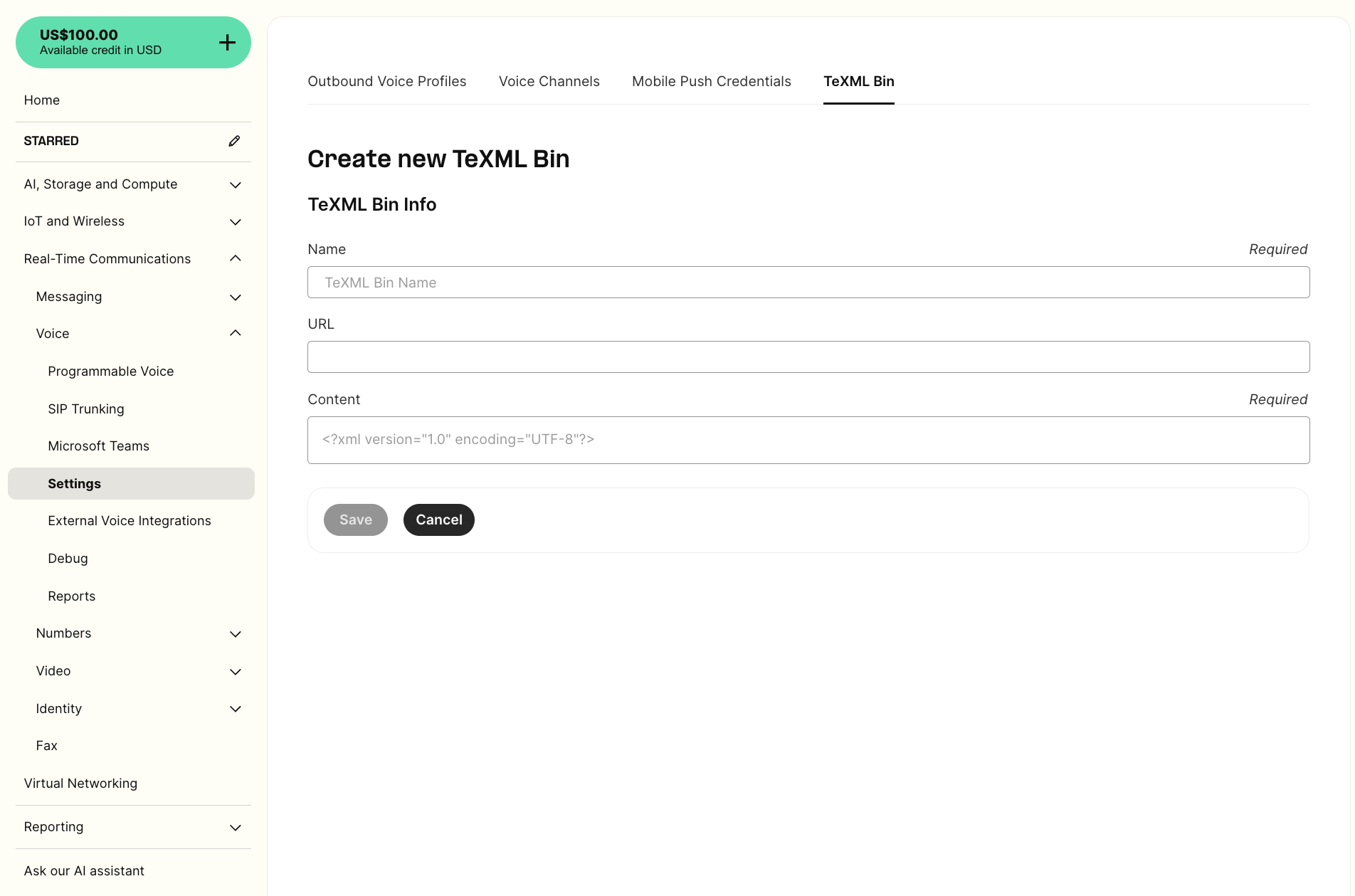
 4. If you use TwiML bins, you can store your instructions using the TeXML Bin tab. In that case, the URL provided when you fill in the name of the file should be used to configure the `Send a TeXML Webhook to the URL` setting for your application
 5. Go to your number list by navigating to Real-Time Communications -> Numbers -> Manage Numbers and assign one of the numbers to the created TeXML application. If you don’t have any yet, please follow that [tutorial](/docs/numbers/phone-numbers/number-orders/ "tutorial") to buy one.
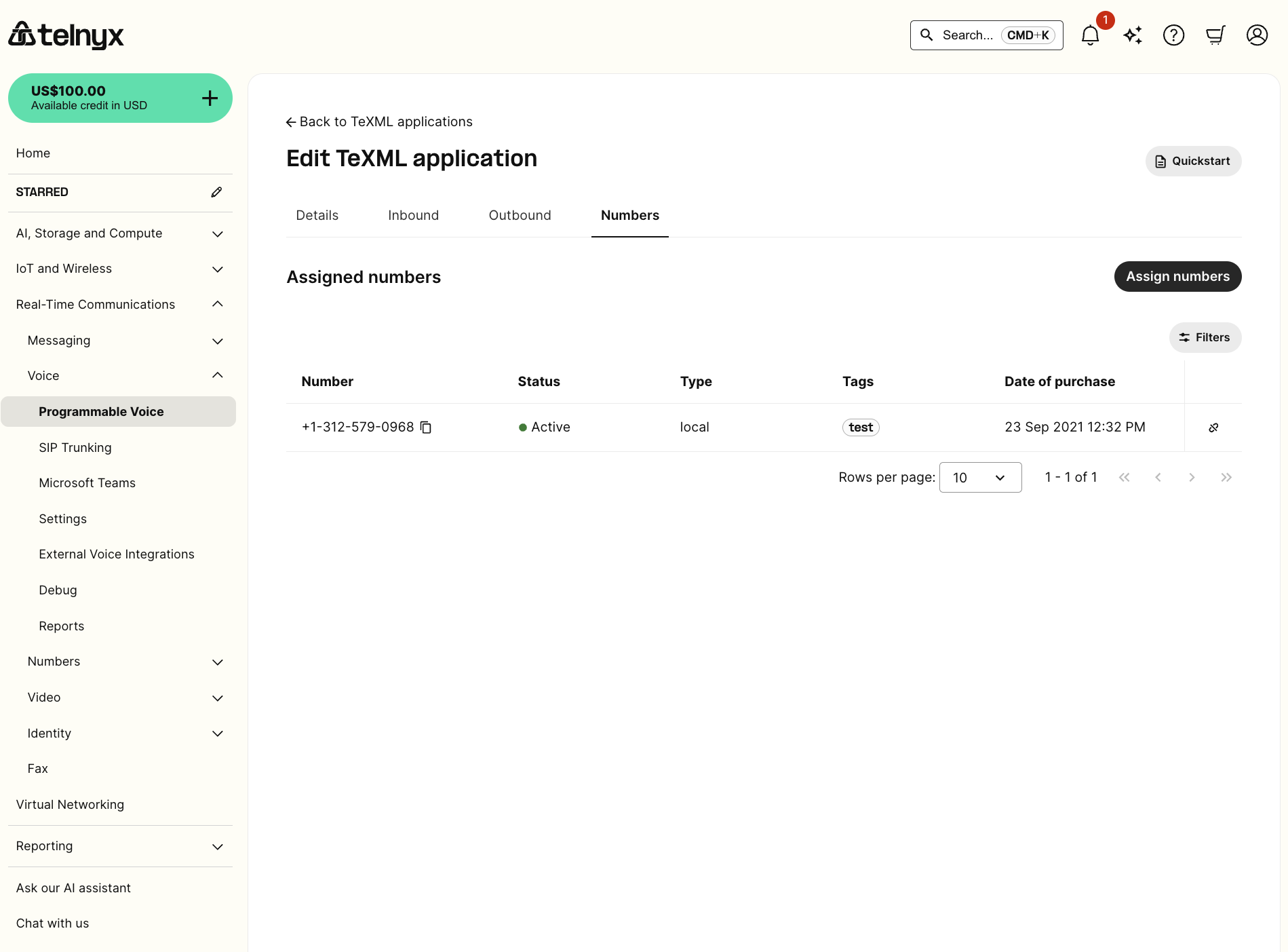 Everything is ready to make a test incoming call - you can do that by calling a number that you assigned to the application.
You can find the list of supported verbs that can be used for defining instructions here: [TeXML and TwiML Compatibility](/docs/voice/programmable-voice/texml-twiml-compatibility "TeXML and TwiML Compatibility")
## Using REST endpoints to control the TeXML application
Telnyx offers a set of TeXML endpoints that offer feature parity with Twilio endpoints. In order to use them you need to adjust two parameters:
* the endpoint address should be switched to: `https://api.telnyx.com/v2/texml/`
* the authentication header should look as follows:
```bash theme={null}
Authorization: Bearer your_api_key
```
If you don’t have an API key created yet, please go to the home page of the Telnyx portal and select `Manage keys`. On the following page, you can create a new API key.
The example of the request to the REST endpoint looks like this:
```bash theme={null}
curl -i -X GET \
'https://api.telnyx.com/v2/texml/Accounts/{account_sid}/Calls/{call_sid}' \
-H 'Authorization: Bearer your_api_key'
```
The list of supported endpoints can be found under the [link](/api-reference/texml-rest-commands/initiate-an-outbound-call).
Everything is ready to make a test incoming call - you can do that by calling a number that you assigned to the application.
You can find the list of supported verbs that can be used for defining instructions here: [TeXML and TwiML Compatibility](/docs/voice/programmable-voice/texml-twiml-compatibility "TeXML and TwiML Compatibility")
## Using REST endpoints to control the TeXML application
Telnyx offers a set of TeXML endpoints that offer feature parity with Twilio endpoints. In order to use them you need to adjust two parameters:
* the endpoint address should be switched to: `https://api.telnyx.com/v2/texml/`
* the authentication header should look as follows:
```bash theme={null}
Authorization: Bearer your_api_key
```
If you don’t have an API key created yet, please go to the home page of the Telnyx portal and select `Manage keys`. On the following page, you can create a new API key.
The example of the request to the REST endpoint looks like this:
```bash theme={null}
curl -i -X GET \
'https://api.telnyx.com/v2/texml/Accounts/{account_sid}/Calls/{call_sid}' \
-H 'Authorization: Bearer your_api_key'
```
The list of supported endpoints can be found under the [link](/api-reference/texml-rest-commands/initiate-an-outbound-call).