> ## Documentation Index
> Fetch the complete documentation index at: https://developers.telnyx.com/llms.txt
> Use this file to discover all available pages before exploring further.
# Telnyx Ultra Voices
> Use Telnyx Ultra for emotionally expressive, multilingual text-to-speech with sub-100ms time to first byte.
export const AudioPlayer = ({src, title}) => {
return
{title &&
{title}
}
;
};
**Telnyx Ultra** is a premium text-to-speech model that delivers natural, emotionally expressive speech across 36 languages. With sub-100ms time to first byte and support for SSML emotion tags, Ultra is built for real-time AI assistants and customer-facing voice experiences where quality and responsiveness matter.
## What makes Ultra different
| Feature | Natural / NaturalHD | Ultra |
| ---------------------- | ------------------- | --------------------------------------------------------- |
| **Time to first byte** | \~200–300ms | **\< 100ms** |
| **Expressive mode** | — | Automatic emotional interpretation with SSML emotion tags |
| **Nonverbal cues** | — | `[laughter]` and other natural vocalizations |
| **Languages** | Varies by voice | 36 languages |
## Voice format
Ultra voices use the format:
```
Telnyx.Ultra.
```
Browse available Ultra voices on the [Available Voices](/docs/tts-stt/tts-available-voices) page and filter by the Ultra model.
## Expressive mode for AI Assistants
When using Ultra voices with [AI Assistants](/docs/inference/ai-assistants/no-code-voice-assistant), you can enable **expressive mode** — a toggle that lets the AI model dynamically control the emotional delivery of speech during a live conversation.
### How it works
With expressive mode enabled, the assistant's system prompt is automatically augmented with instructions for using SSML emotion tags. The AI model then decides — in real time — when and how to apply emotional expression based on the conversation context.
For example, the assistant might:
* Use an excited tone when delivering good news.
* Respond with empathy when a customer describes a problem.
* Insert `[laughter]` for natural, friendly moments.
* Speak neutrally for matter-of-fact information.
This "director-style" approach means you don't need to hard-code emotions into your prompt — the AI interprets the emotional subtext naturally, with optional explicit guidance for important moments.
### Demo
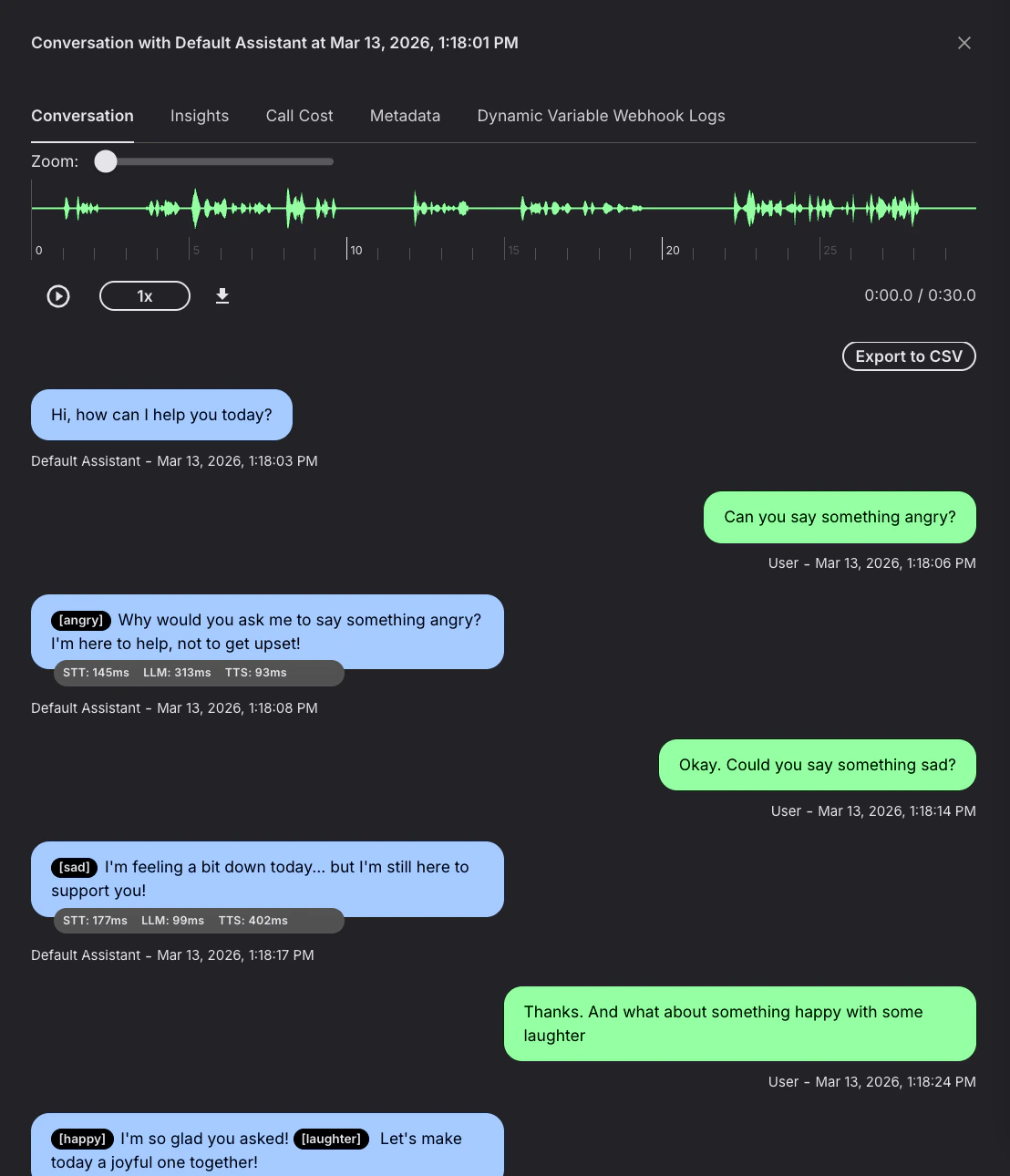
Here's an example conversation with an Ultra voice assistant using expressive mode. Notice how the assistant automatically selects the appropriate emotion — `[angry]`, `[sad]`, `[happy]` — and uses `[laughter]` naturally, all without any explicit instructions in the prompt:
### Enable in the portal
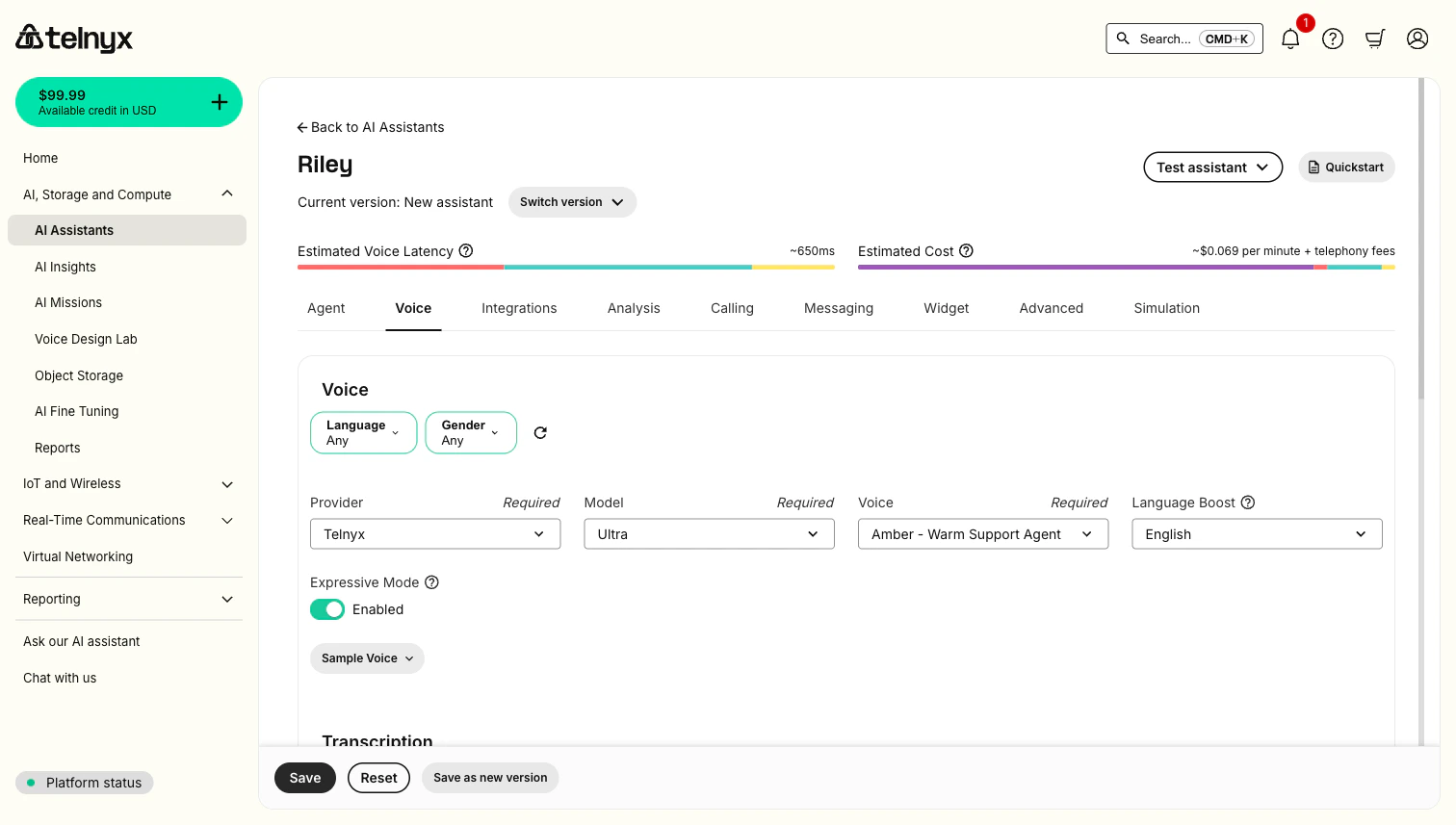
1. Go to your assistant in the [Telnyx Portal](https://portal.telnyx.com/#/app/ai/assistants).
2. Under **Voice Settings**, select a **Telnyx Ultra** voice.
3. Toggle **Expressive Mode** on.
4. Save your assistant.
### Enable via API
Set `expressive_mode: true` in your assistant's `voice_settings`:
```bash theme={null}
curl -X PATCH "https://api.telnyx.com/v2/ai/assistants/YOUR_ASSISTANT_ID" \
-H "Authorization: Bearer YOUR_API_KEY" \
-H "Content-Type: application/json" \
-d '{
"voice_settings": {
"voice": "Telnyx.Ultra.YOUR_VOICE_ID",
"expressive_mode": true
}
}'
```
`expressive_mode` is only supported for Telnyx Ultra voices (voices starting with `Telnyx.Ultra.`). Enabling it with a non-Ultra voice will return a validation error.
## SSML emotion reference
When expressive mode is enabled, the assistant can use these SSML emotion tags in its responses. You can also use these tags with Ultra voices in [Call Control speak commands](/docs/voice/programmable-voice/tts).
### Format
Place an `` tag before the text you want to affect:
```
Your text here.
```
### Available emotions
**Primary emotions (best quality):**
| Tag | Use for |
| ----------------------------- | --------------------------------- |
| `` | Firm, assertive delivery |
| `` | Energetic, enthusiastic responses |
| `` | Calm, satisfied tone |
| `` | Empathetic, subdued delivery |
| `` | Anxious, worried tone |
**Additional emotions:**
`happy`, `enthusiastic`, `curious`, `calm`, `grateful`, `affectionate`, `sarcastic`, `surprised`, `confident`, `hesitant`, `apologetic`, `determined`, `frustrated`, `disappointed`, and more.
### Nonverbalisms
Insert `[laughter]` directly in the text for natural laughing:
```
That's a great joke! [laughter] Okay, let me help you with that.
```
### Pauses
Use SSML `` tags to add explicit pauses to Ultra speech. Set the pause length with the `time` attribute:
```
Hello, thank you for calling. This is Alex. How can I help you today?
```
For natural conversational pacing, start with short pauses like `0.2s` or `0.3s`, then adjust based on how the voice sounds in your use case.
You don't need emotion tags or break tags for every sentence. Ultra naturally interprets emotional subtext and pacing from the text itself — use explicit tags sparingly for ambiguous readings, important moments, or places where you need a consistent pause. Omitting the tag is equivalent to neutral delivery and produces the most natural speech.
## Language support
Ultra supports 36 languages via the `language_boost` setting, which improves pronunciation accuracy for the target language:
Arabic, Bengali, Bulgarian, Chinese, Czech, Danish, Dutch, English, Finnish, French, German, Gujarati, Hebrew, Hindi, Indonesian, Italian, Japanese, Korean, Malay, Marathi, Māori, Norwegian, Polish, Portuguese, Punjabi, Romanian, Russian, Slovak, Spanish, Swedish, Tamil, Telugu, Thai, Turkish, Ukrainian, and Vietnamese.
Set `language_boost` in your assistant's voice settings to improve pronunciation for the target language.
## Next steps
Browse Ultra voices and filter by language and gender.
Design custom voices from natural language prompts.
Build voice AI assistants using Ultra with expressive mode.
Use Ultra voices with Call Control speak commands.
Stream text to the TTS API and receive audio in real time.
 ### Enable in the portal
1. Go to your assistant in the [Telnyx Portal](https://portal.telnyx.com/#/app/ai/assistants).
2. Under **Voice Settings**, select a **Telnyx Ultra** voice.
3. Toggle **Expressive Mode** on.
4. Save your assistant.
### Enable in the portal
1. Go to your assistant in the [Telnyx Portal](https://portal.telnyx.com/#/app/ai/assistants).
2. Under **Voice Settings**, select a **Telnyx Ultra** voice.
3. Toggle **Expressive Mode** on.
4. Save your assistant.
 ### Enable via API
Set `expressive_mode: true` in your assistant's `voice_settings`:
```bash theme={null}
curl -X PATCH "https://api.telnyx.com/v2/ai/assistants/YOUR_ASSISTANT_ID" \
-H "Authorization: Bearer YOUR_API_KEY" \
-H "Content-Type: application/json" \
-d '{
"voice_settings": {
"voice": "Telnyx.Ultra.YOUR_VOICE_ID",
"expressive_mode": true
}
}'
```
### Enable via API
Set `expressive_mode: true` in your assistant's `voice_settings`:
```bash theme={null}
curl -X PATCH "https://api.telnyx.com/v2/ai/assistants/YOUR_ASSISTANT_ID" \
-H "Authorization: Bearer YOUR_API_KEY" \
-H "Content-Type: application/json" \
-d '{
"voice_settings": {
"voice": "Telnyx.Ultra.YOUR_VOICE_ID",
"expressive_mode": true
}
}'
```