> ## Documentation Index
> Fetch the complete documentation index at: https://developers.telnyx.com/llms.txt
> Use this file to discover all available pages before exploring further.
# Azure VXC Setup
> Step-by-step guide to provisioning a Telnyx Virtual Cross Connect (VXC) to Azure ExpressRoute, including circuit setup and BGP configuration.
## Architecture
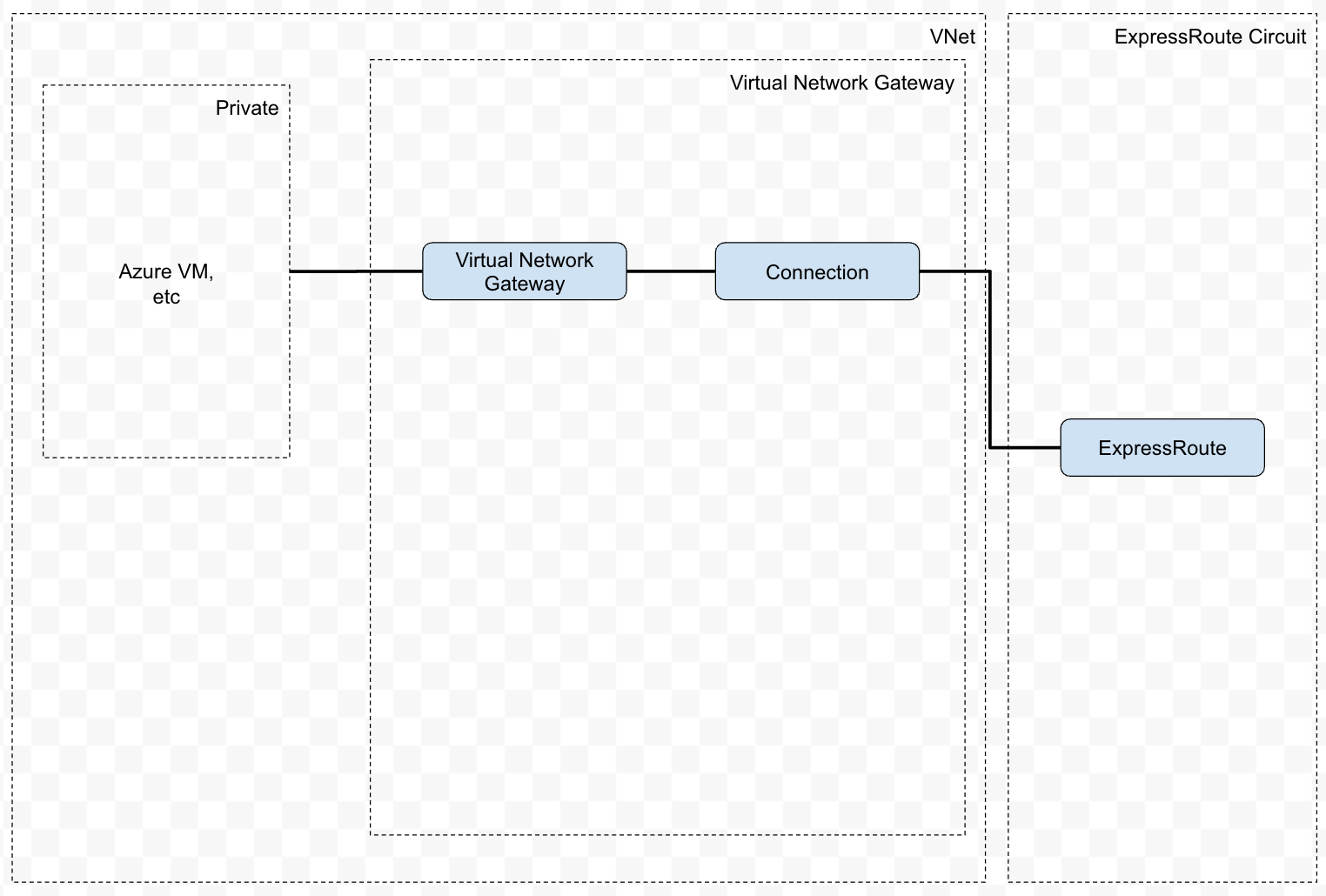
We will construct the following architecture.
 ## Prerequisites
### Create ExpressRoute Circuit
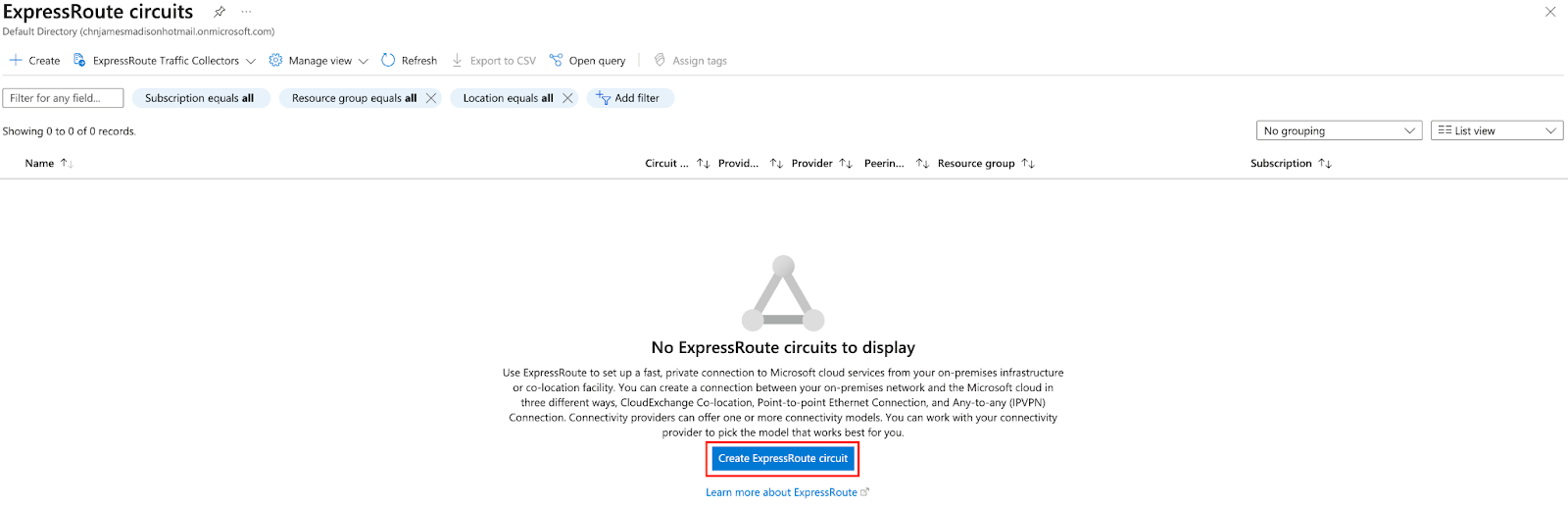
This step is performed on Azure.
## Prerequisites
### Create ExpressRoute Circuit
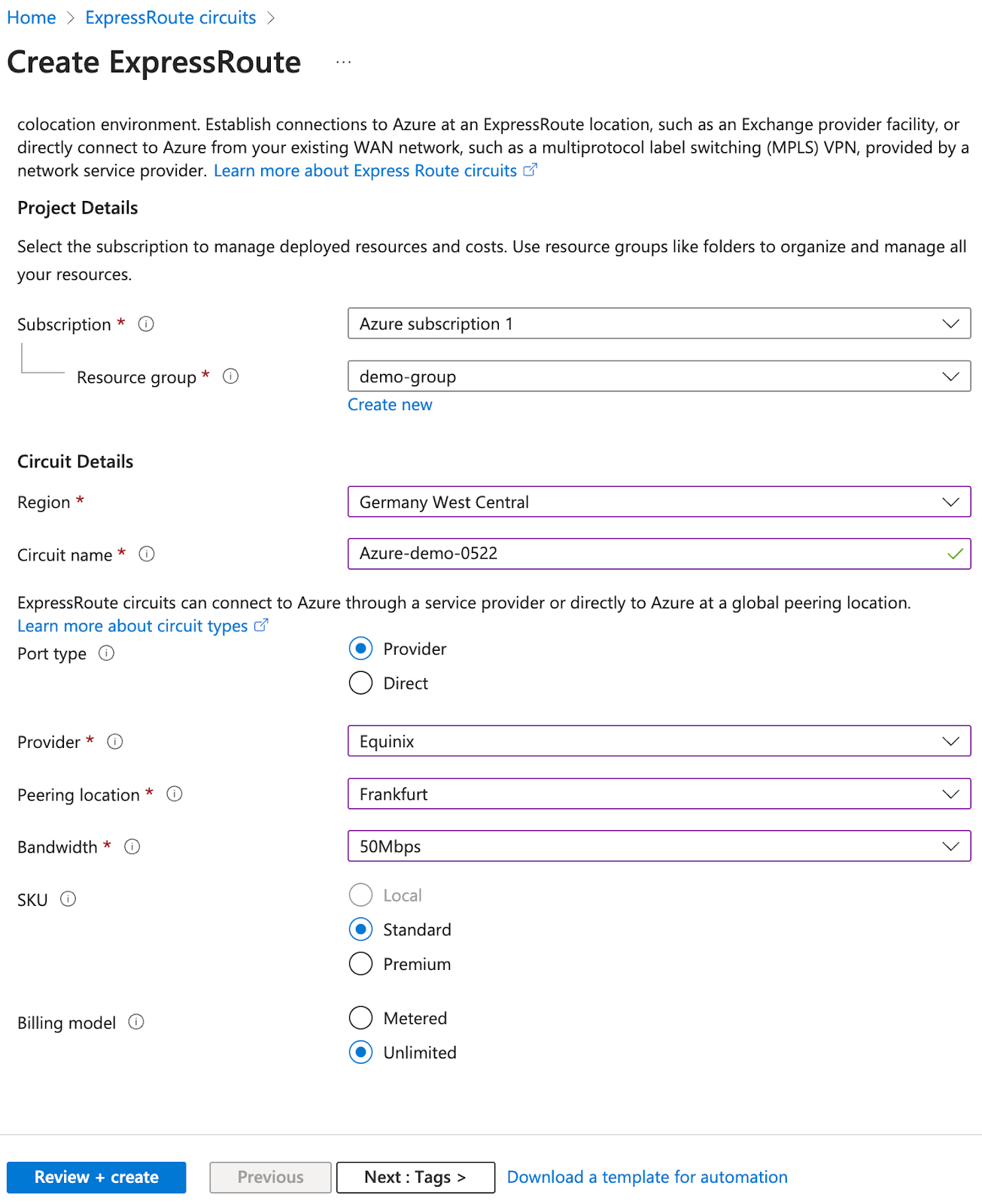
This step is performed on Azure.
 | Parameter | Value |
| ---------------- | -------------------------------------------------------------- |
| Region | Choose the matching available region from the VXC coverage API |
| Port Type | Provider |
| Provider | Equinix |
| Peering location | matching available region from the VXC coverage API |
| Bandwidth | Choose the available bandwidth from the VXC coverage API |
| SKU | Standard |
Choose the rest of the parameters at your own discretion.
| Parameter | Value |
| ---------------- | -------------------------------------------------------------- |
| Region | Choose the matching available region from the VXC coverage API |
| Port Type | Provider |
| Provider | Equinix |
| Peering location | matching available region from the VXC coverage API |
| Bandwidth | Choose the available bandwidth from the VXC coverage API |
| SKU | Standard |
Choose the rest of the parameters at your own discretion.
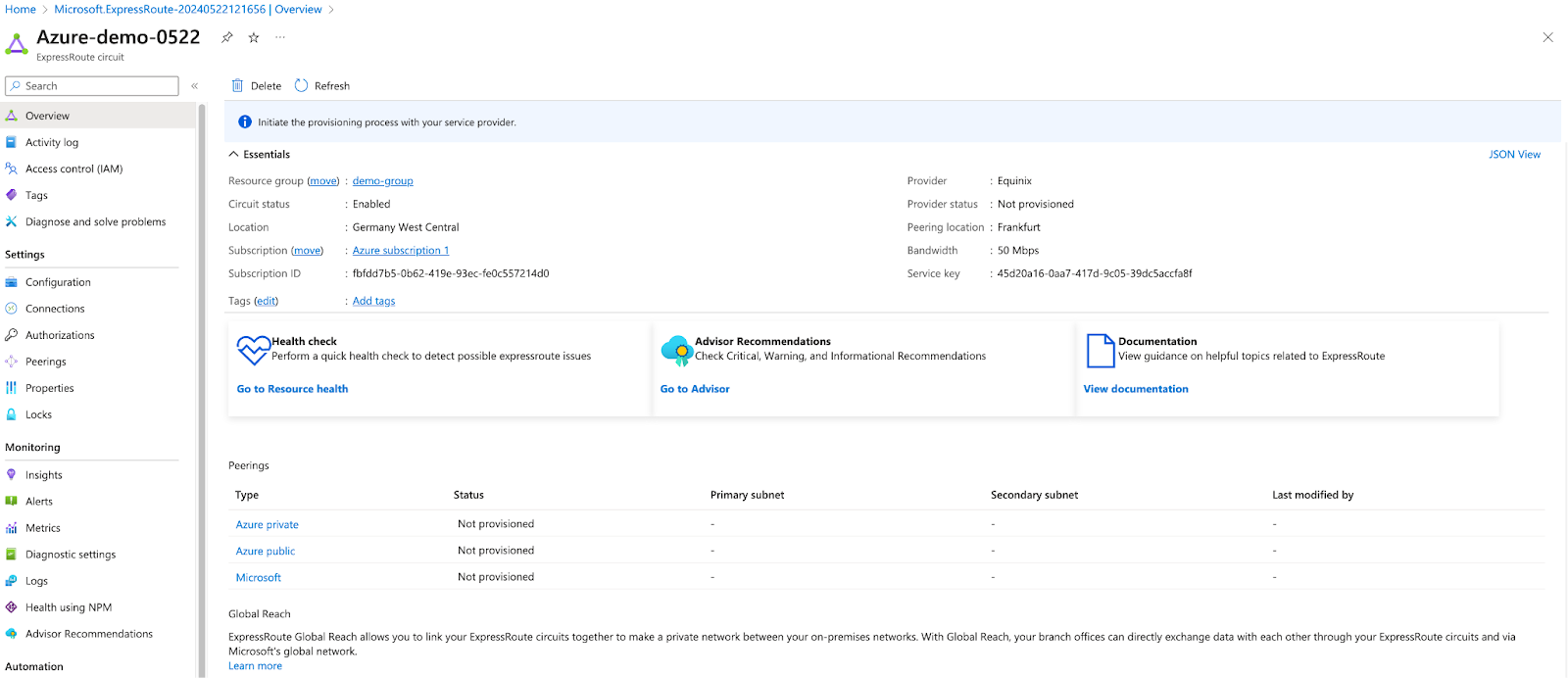 At the end of this step, the “Provider status” should say “Not provisioned”.
### Telnyx Network
This step is performed on Telnyx.
If you don't have a network created already, you may follow [this guide](https://developers.telnyx.com/docs/network/networks) to create one.
## Procedure
### Create a VXC resource
This step is performed on Telnyx.
```http request theme={null}
POST /v2/virtual_cross_connects HTTP/1.1
Host: api.telnyx.com
Content-Type: application/json
Authorization: Bearer XXX
Content-Length: 286
{
"network_id": "{{you network UUID}}",
"name": "my-first-azure-vxc",
"cloud_provider": "azure",
"cloud_provider_region": "Frankfurt",
"primary_cloud_account_id": "xxxxxx",
"bgp_asn": 12076
}
```
| Parameter | Value |
| -------------------------- | -------------------------------------------------------- |
| `cloud_provider` | `azure` |
| `cloud_provider_region` | Choose the matching region from the ExpressRoute circuit |
| `primary_cloud_account_id` | "Service key" on the ExpressRoute created previously |
| `bgp_asn` | Azure’s bgp asn which is 12076 |
Take note of the following info in the response; you will need it later.
* `id`
* `primary_cloud_ip`
* `primary_bgp_key`
### Enable Primary Connection
This step is performed on Telnyx.
```http request theme={null}
PATCH /v2/virtual_cross_connects/:vxc_uuid HTTP/1.1
Host: api.telnyx.com
Content-Type: application/json
Authorization: Bearer XXX
Content-Length: 31
{
"primary_enabled": true
}
```
You must make sure the VXC `status` is `provisioned` before proceeding to the next step. You can poll the status using GET request on the specific VXC.
### Azure Private Peering
This step is performed on Azure.
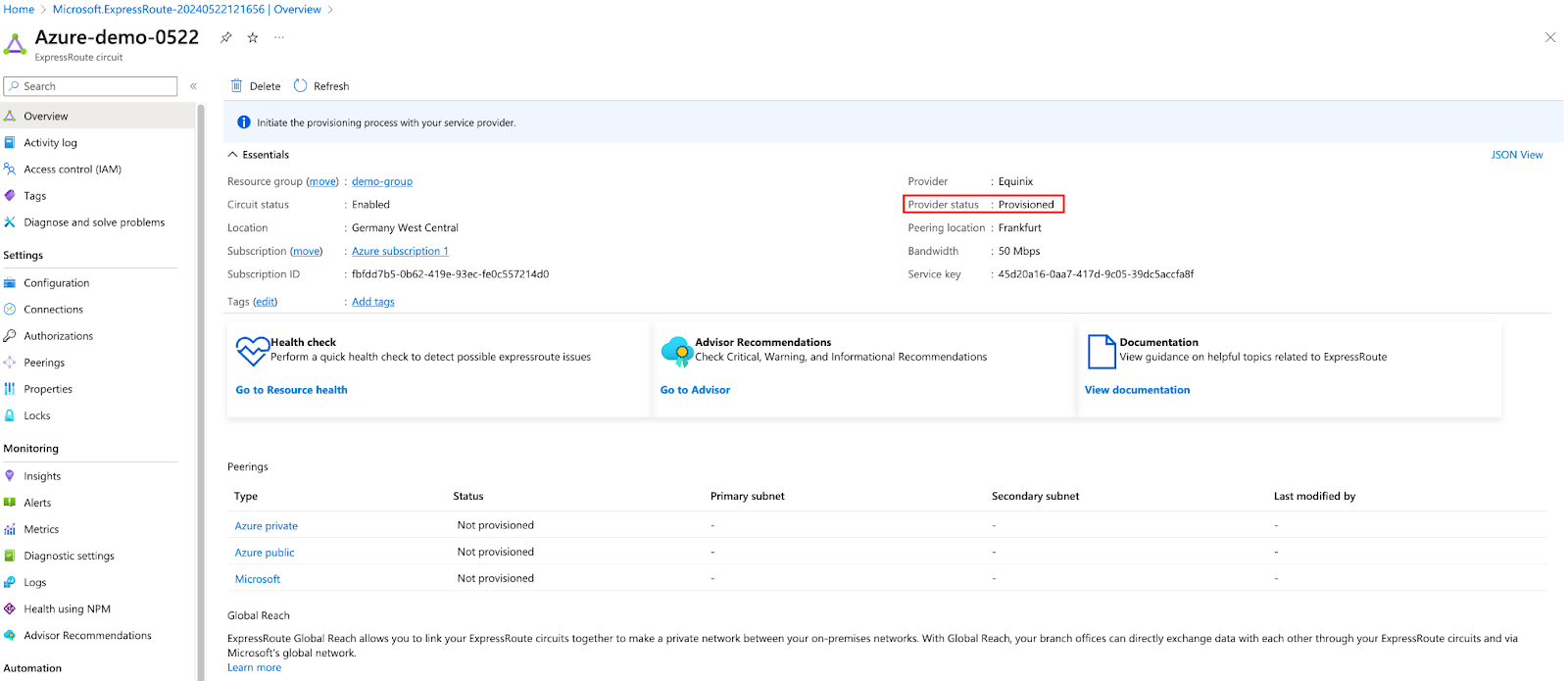
“Provider status” must show “Provisioned” before performing this step.
At the end of this step, the “Provider status” should say “Not provisioned”.
### Telnyx Network
This step is performed on Telnyx.
If you don't have a network created already, you may follow [this guide](https://developers.telnyx.com/docs/network/networks) to create one.
## Procedure
### Create a VXC resource
This step is performed on Telnyx.
```http request theme={null}
POST /v2/virtual_cross_connects HTTP/1.1
Host: api.telnyx.com
Content-Type: application/json
Authorization: Bearer XXX
Content-Length: 286
{
"network_id": "{{you network UUID}}",
"name": "my-first-azure-vxc",
"cloud_provider": "azure",
"cloud_provider_region": "Frankfurt",
"primary_cloud_account_id": "xxxxxx",
"bgp_asn": 12076
}
```
| Parameter | Value |
| -------------------------- | -------------------------------------------------------- |
| `cloud_provider` | `azure` |
| `cloud_provider_region` | Choose the matching region from the ExpressRoute circuit |
| `primary_cloud_account_id` | "Service key" on the ExpressRoute created previously |
| `bgp_asn` | Azure’s bgp asn which is 12076 |
Take note of the following info in the response; you will need it later.
* `id`
* `primary_cloud_ip`
* `primary_bgp_key`
### Enable Primary Connection
This step is performed on Telnyx.
```http request theme={null}
PATCH /v2/virtual_cross_connects/:vxc_uuid HTTP/1.1
Host: api.telnyx.com
Content-Type: application/json
Authorization: Bearer XXX
Content-Length: 31
{
"primary_enabled": true
}
```
You must make sure the VXC `status` is `provisioned` before proceeding to the next step. You can poll the status using GET request on the specific VXC.
### Azure Private Peering
This step is performed on Azure.
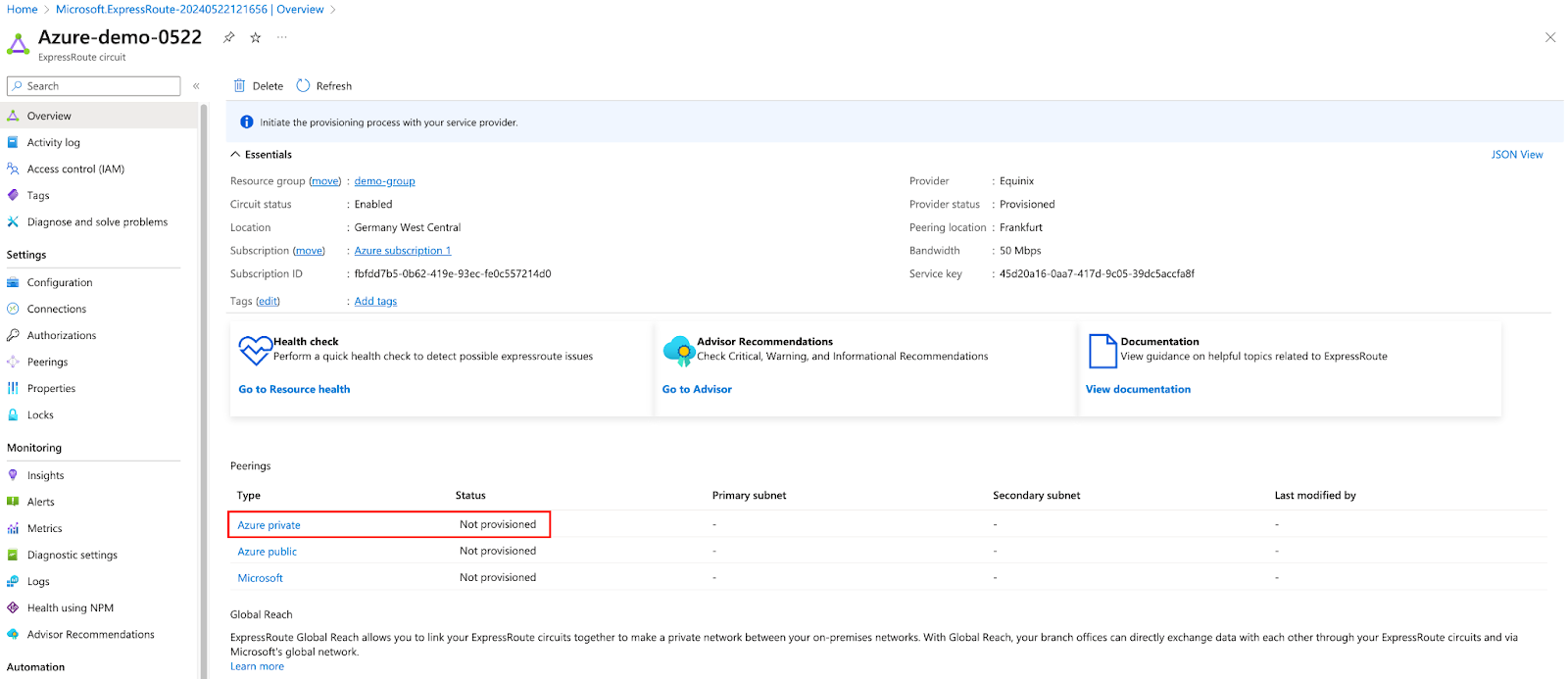
“Provider status” must show “Provisioned” before performing this step.
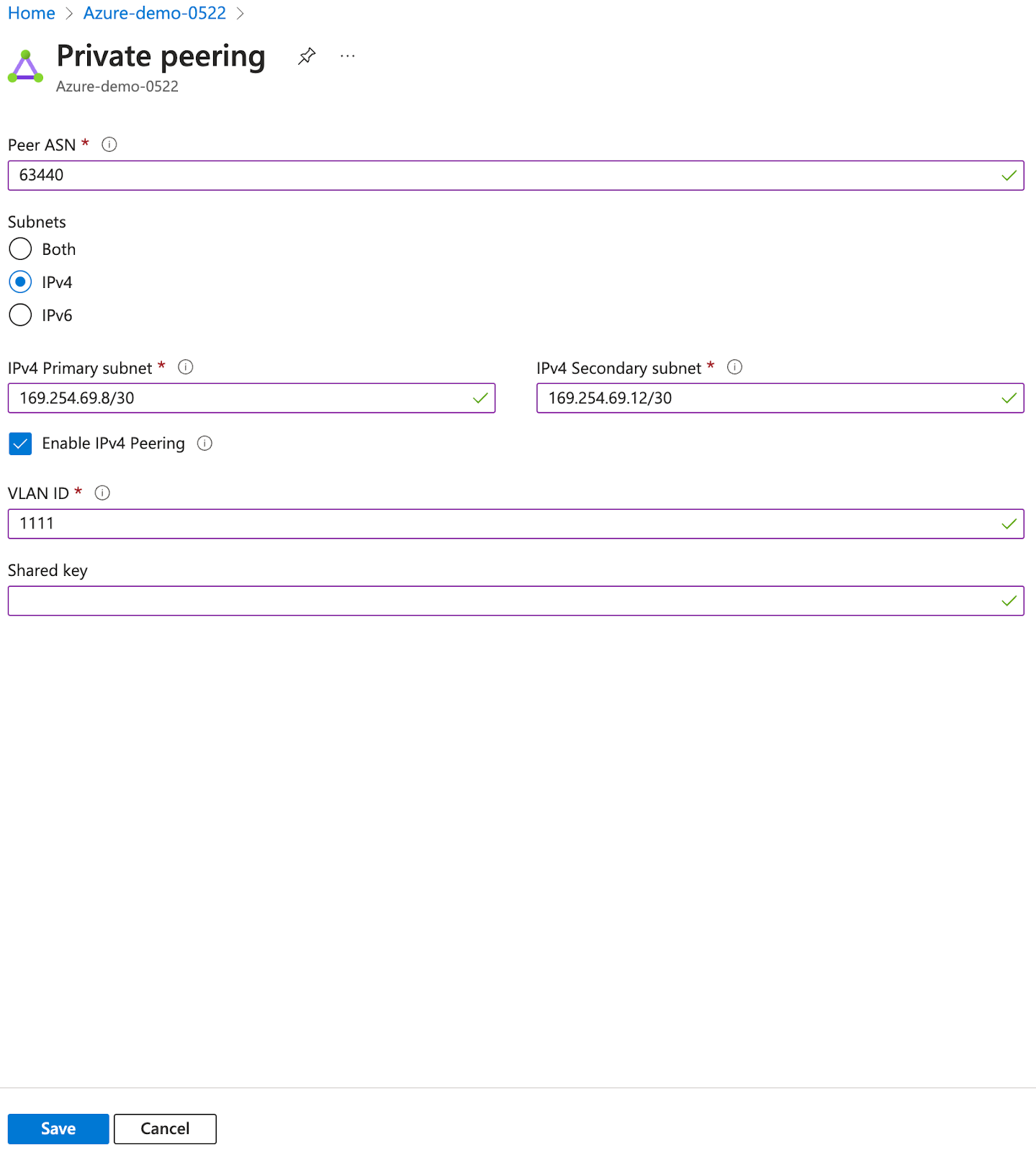 | Parameter | Value |
| --------------------- | ----------------------------------------------------- |
| Peer ASN | Telnyx’s BGP ASN which is 63440 |
| Subnets | IPv4 |
| IPv4 Primary subnet | Choose the /30 block that includes `primary_cloud_ip` |
| IPv4 Secondary subnet | Choose the next /30 block |
| VLAN ID | Choose any number from a valid VLAN range |
| Shared key | primary bgp key |
| Public IP address | Create new |
| Public IP address SKU | Standard |
After saving, you may need to wait for some time before performing the next step.
| Parameter | Value |
| --------------------- | ----------------------------------------------------- |
| Peer ASN | Telnyx’s BGP ASN which is 63440 |
| Subnets | IPv4 |
| IPv4 Primary subnet | Choose the /30 block that includes `primary_cloud_ip` |
| IPv4 Secondary subnet | Choose the next /30 block |
| VLAN ID | Choose any number from a valid VLAN range |
| Shared key | primary bgp key |
| Public IP address | Create new |
| Public IP address SKU | Standard |
After saving, you may need to wait for some time before performing the next step.
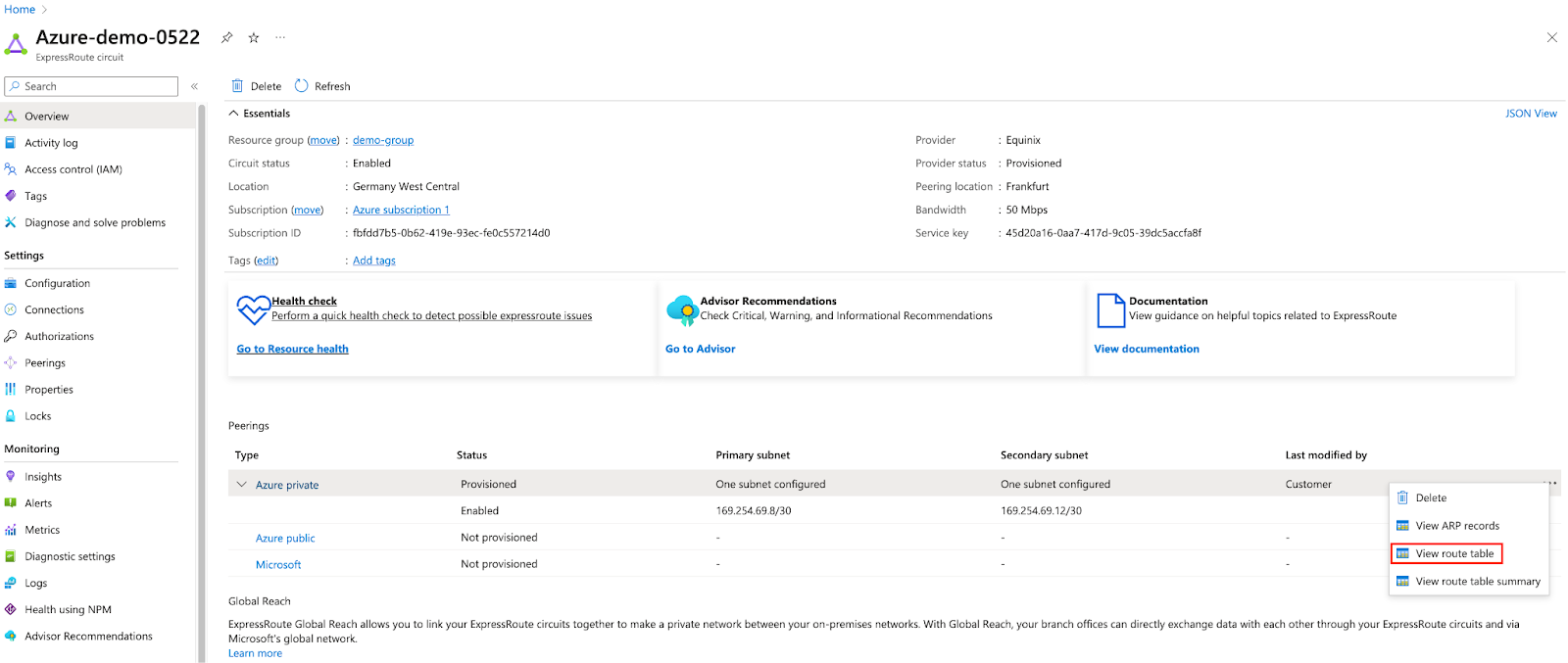 At this point, you should see Telnyx IPs advertised in the result after you click into “View route table.”
 At this point, you are all set. Perform the following steps only if you are trying to test things out before putting it into your own production environment.
### Virtual Network
At this point, you are all set. Perform the following steps only if you are trying to test things out before putting it into your own production environment.
### Virtual Network
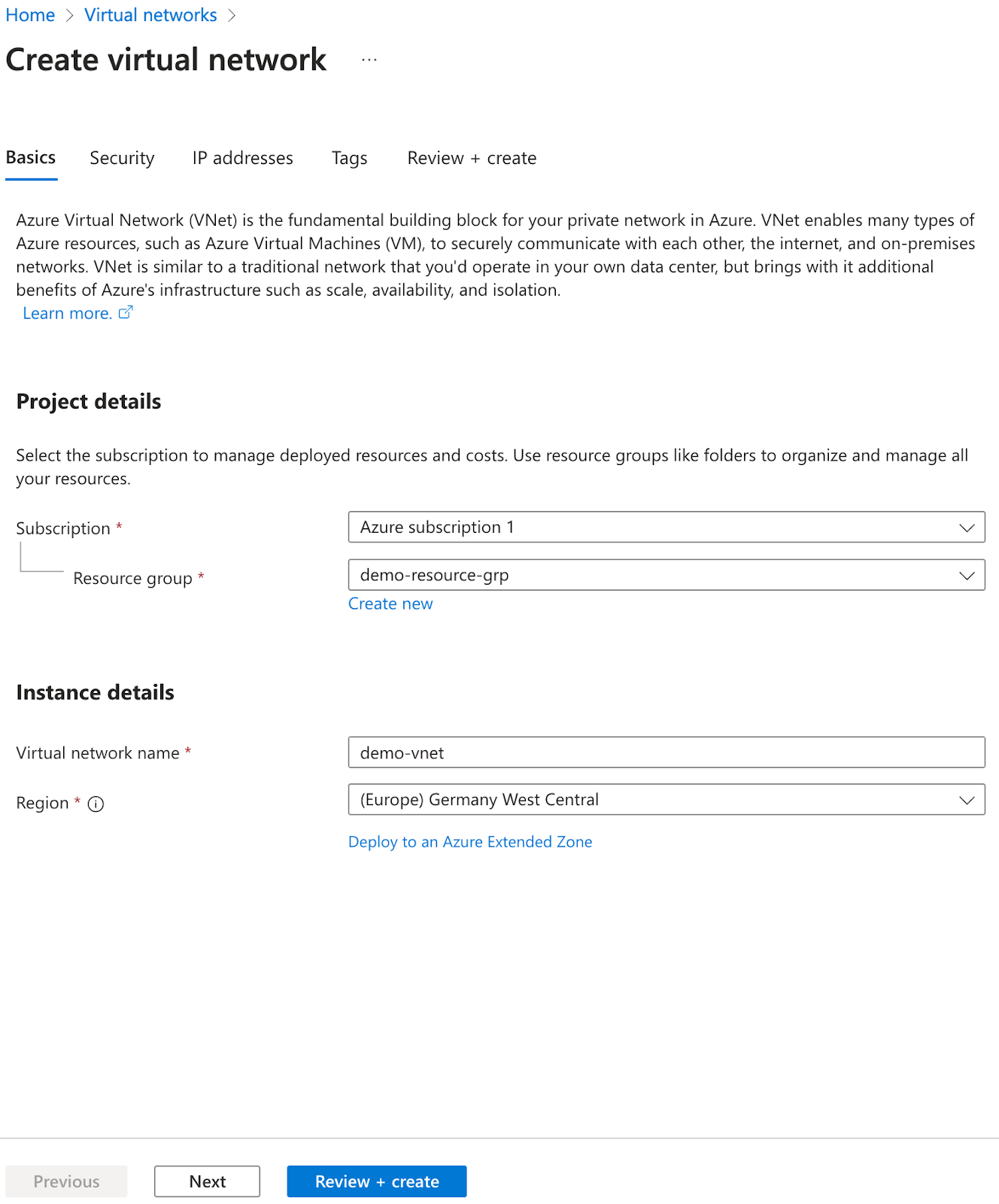 | Parameters | Value |
| ---------- | ---------------------------------------------------------------- |
| Region | Match that of the virtual network created from the previous step |
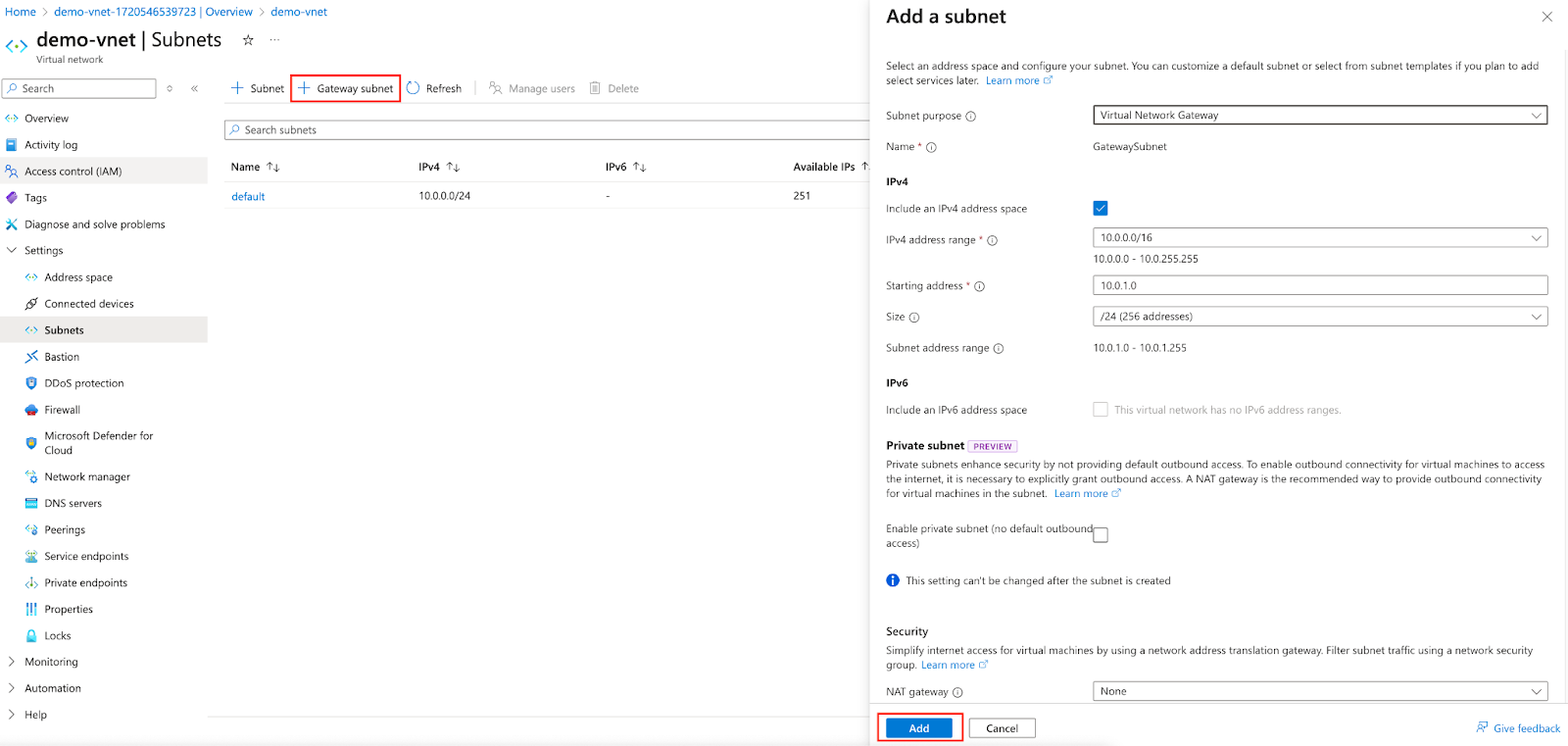
Next, add a Gateway subnet. Keep all parameters as default.
| Parameters | Value |
| ---------- | ---------------------------------------------------------------- |
| Region | Match that of the virtual network created from the previous step |
Next, add a Gateway subnet. Keep all parameters as default.
 ### Virtual Network Gateways
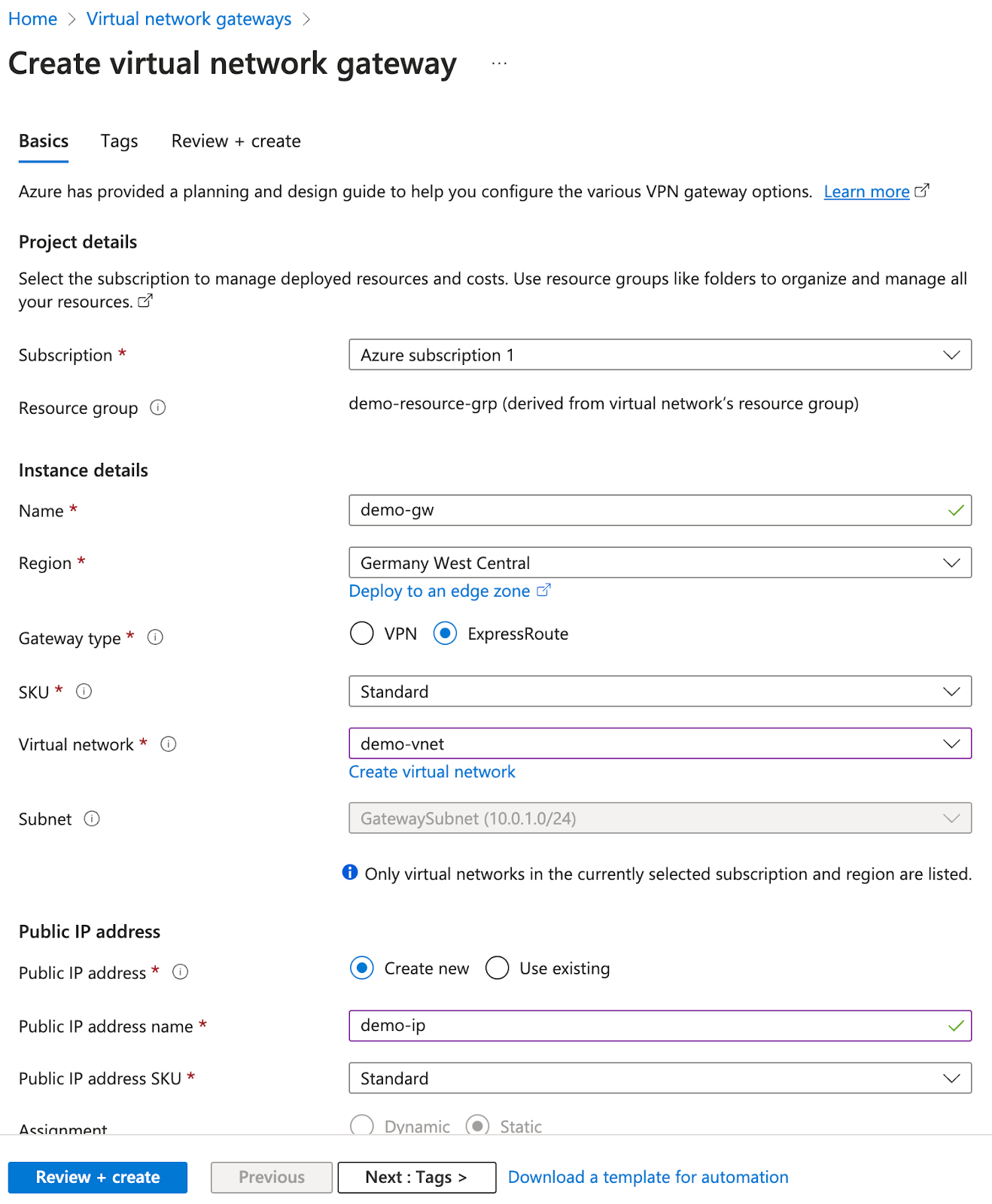 | Parameters | Value |
| --------------------- | ---------------------------------------------------------------- |
| Name | Something meaningful to you |
| Region | Match that of the virtual network created from the previous step |
| Gateway type | Express Route |
| SKU | Standard |
| Virtual network | Choose the one created from the previous step |
| Public IP address | Create new |
| Public IP address SKU | Standard |
The gateway creation will take a while; upward of 20 minutes. In the meantime, you can proceed to the following step.
### Virtual Machines
| Parameters | Value |
| --------------------- | ---------------------------------------------------------------- |
| Name | Something meaningful to you |
| Region | Match that of the virtual network created from the previous step |
| Gateway type | Express Route |
| SKU | Standard |
| Virtual network | Choose the one created from the previous step |
| Public IP address | Create new |
| Public IP address SKU | Standard |
The gateway creation will take a while; upward of 20 minutes. In the meantime, you can proceed to the following step.
### Virtual Machines
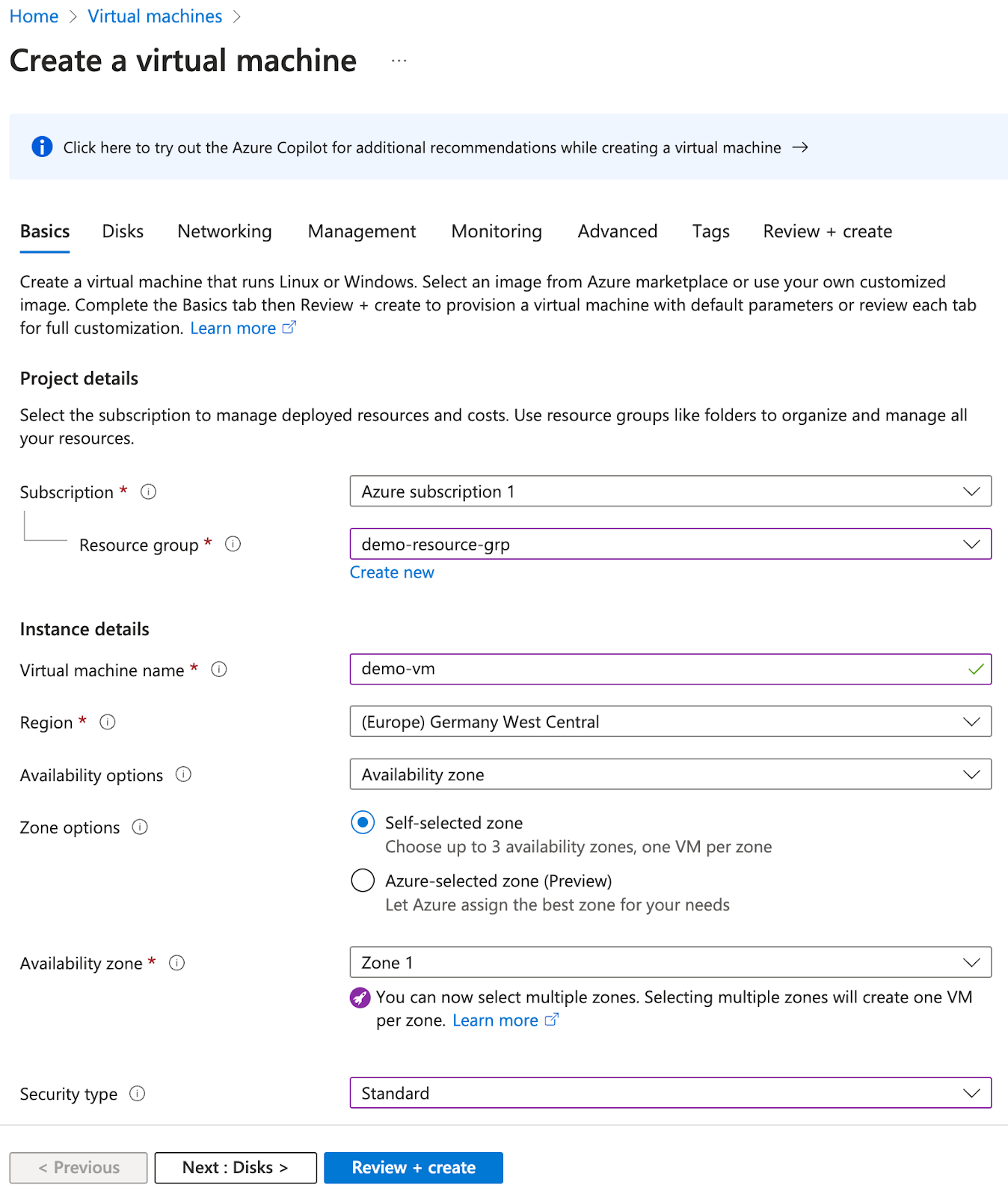 | Parameters | Value |
| ---------- | ---------------------------------------------------------------- |
| Region | Match that of the virtual network created from the previous step |
| Parameters | Value |
| ---------- | ---------------------------------------------------------------- |
| Region | Match that of the virtual network created from the previous step |
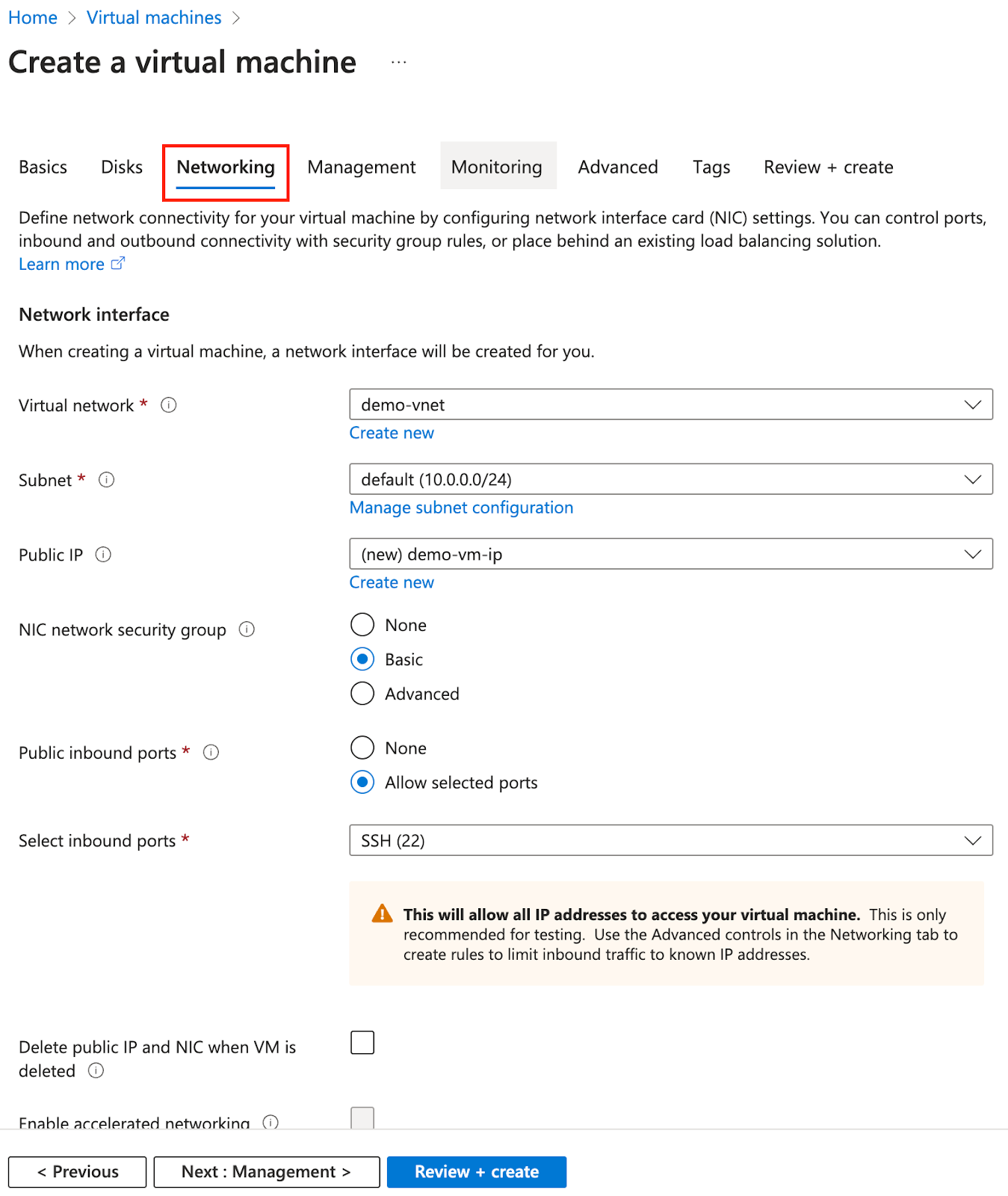 | Parameters | Value |
| --------------- | --------------------------------------------- |
| Virtual network | Choose the one created from the previous step |
You can keep the rest default or choose at your discretion.
### Add Gateway Connection
This step is performed on Azure.
The Virtual Gateway you created must be successfully deployed before this step is performed.
| Parameters | Value |
| --------------- | --------------------------------------------- |
| Virtual network | Choose the one created from the previous step |
You can keep the rest default or choose at your discretion.
### Add Gateway Connection
This step is performed on Azure.
The Virtual Gateway you created must be successfully deployed before this step is performed.
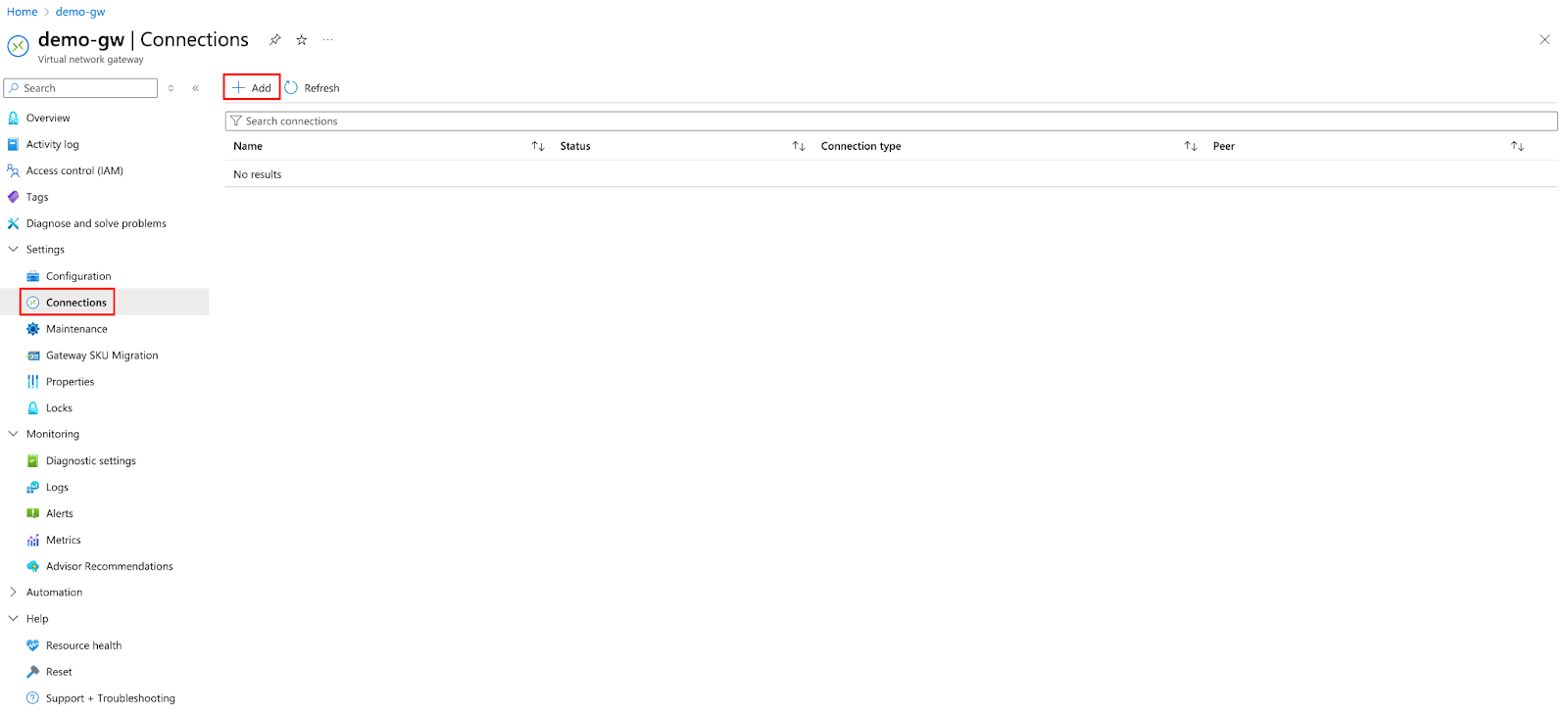
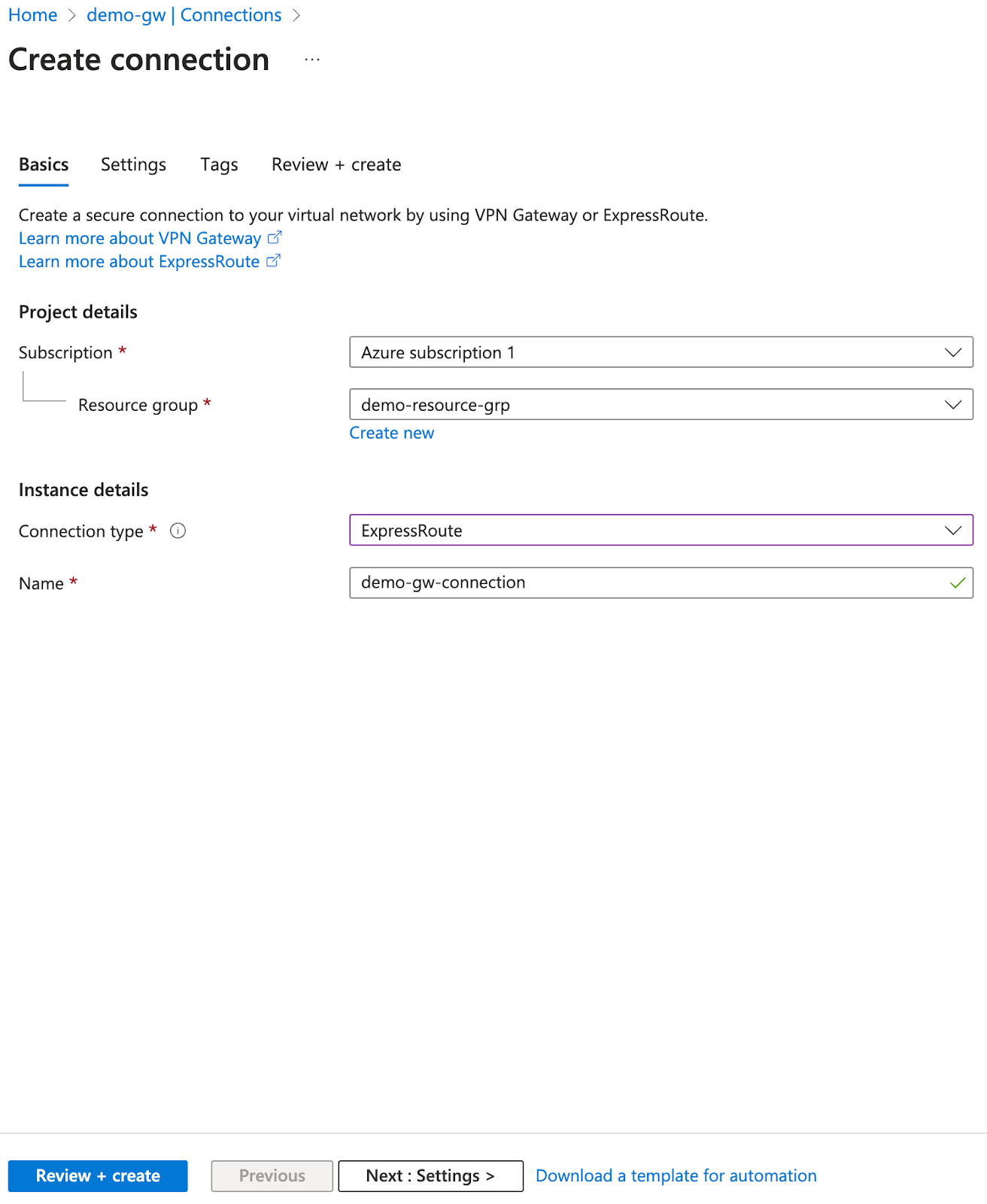 | Parameters | Value |
| --------------- | ------------- |
| Connection type | Express Route |
| Parameters | Value |
| --------------- | ------------- |
| Connection type | Express Route |
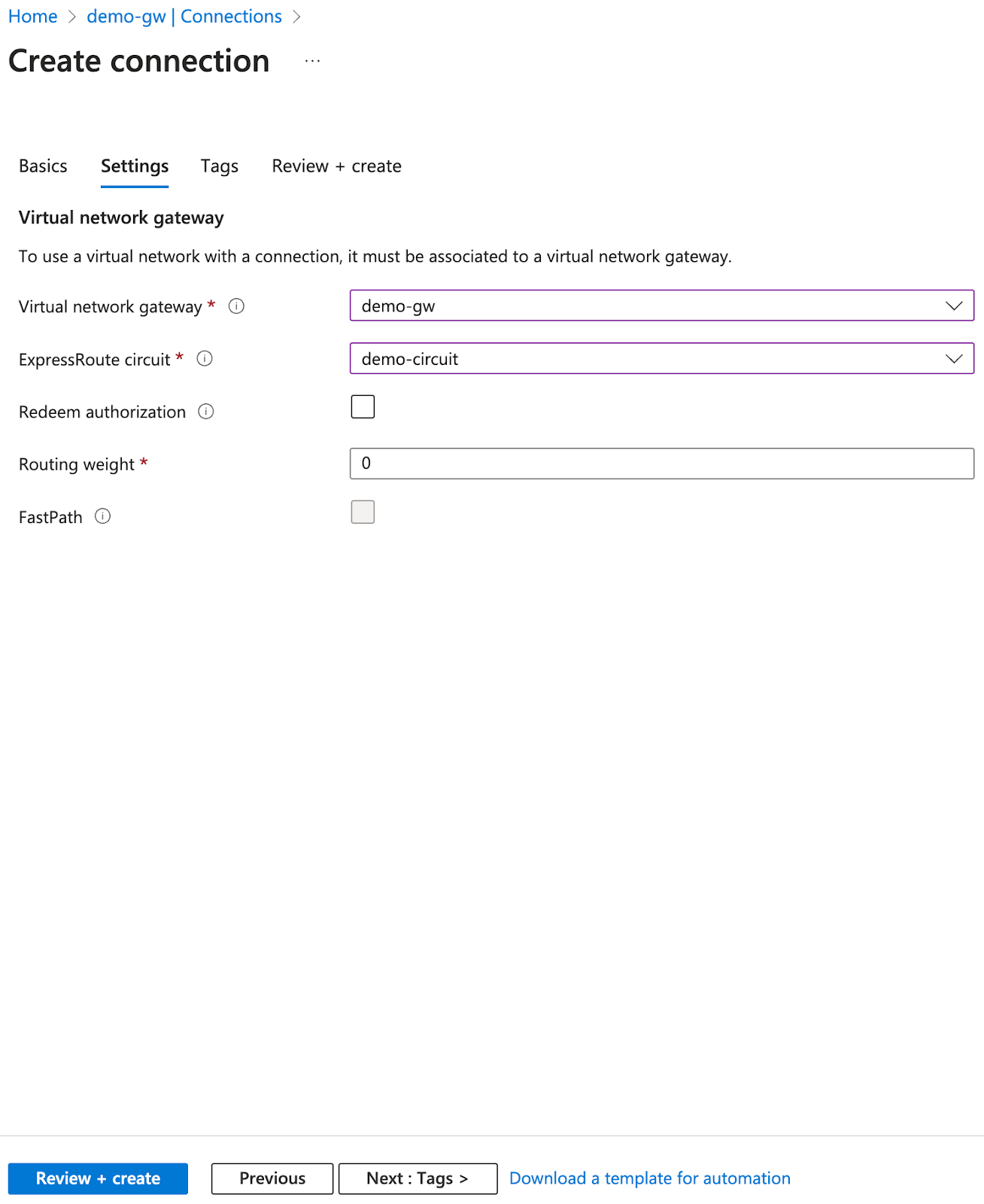 | Parameters | Value |
| ----------------------- | --------------------------------------------- |
| Virtual network gateway | Choose the one created from the previous step |
| ExpressRoute circuit | Choose the one created from the previous step |
| Routing weight | 0 |
### Validate Connection
This step is performed on Azure.
Ensure all of the following are successfully deployed:
* ExpressRoute
* Virtual network
* Virtual network gateway & connection
* Virtual machine
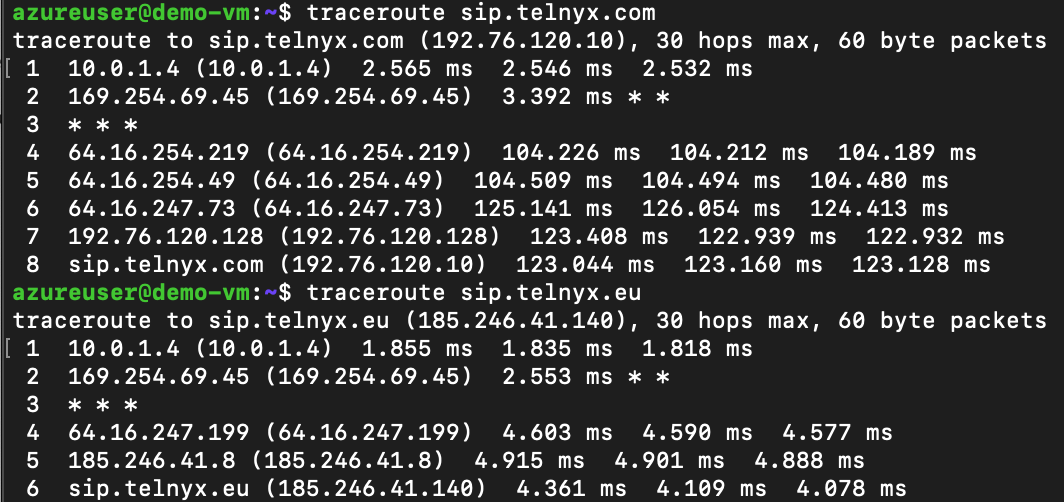
SSH into the VM and perform a traceroute to sip.telnyx.com and sip.telnyx.eu. You can see the next hop is the next hop indicated on the Azure Private Peering under the express route.
| Parameters | Value |
| ----------------------- | --------------------------------------------- |
| Virtual network gateway | Choose the one created from the previous step |
| ExpressRoute circuit | Choose the one created from the previous step |
| Routing weight | 0 |
### Validate Connection
This step is performed on Azure.
Ensure all of the following are successfully deployed:
* ExpressRoute
* Virtual network
* Virtual network gateway & connection
* Virtual machine
SSH into the VM and perform a traceroute to sip.telnyx.com and sip.telnyx.eu. You can see the next hop is the next hop indicated on the Azure Private Peering under the express route.