> ## Documentation Index
> Fetch the complete documentation index at: https://developers.telnyx.com/llms.txt
> Use this file to discover all available pages before exploring further.
# Nordic Semiconductor nRF9160 DK Setup Guide
> Get started with the Nordic Semiconductor nRF9160 LTE-M/NB-IoT SoC and a Telnyx IoT SIM. APN configuration, AT command tests, and first connection steps.
**Original location:** Wireless > IoT > nordic-semiconductor
The nRF9160 DK is an affordable, pre-certified single-board development kit for evaluation and development on the nRF9160 SiP for LTE-M, NB-IoT and GPS. This guide will walk through the steps to take in order to connect a Telnyx SIM to the nRF9160 development kit.
## Updating the firmware of the nRF9160:
1. Download the latest board and SIP modem firmware for this device [here](https://www.nordicsemi.com/Products/Development-hardware/nrf9160-dk/download).
2. Once both firmwares are downloaded, open up your file manager and extract the board firmware. The zip file has the file name: `nrf9160dk_fw_0000-00-00_xxxxxxx.zip.` Do NOT extract the SIP modem firmware labeled `mfw_nrf9160_x.x.x.zip.`
3. Download and install the latest nRF Connect application for your operating system [here](https://www.nordicsemi.com/Products/Development-tools/nrf-connect-for-desktop/download#infotabs).
4. Once installed, open up the application and install the following modules:
* LTE Link Monitor
* Programmer
* Trace Collector
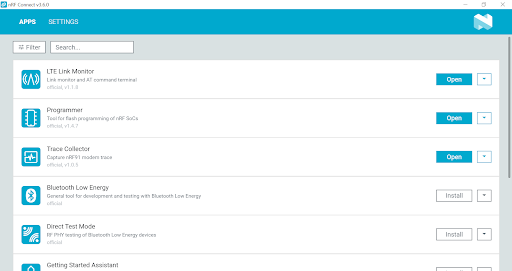 5. Look at the front of the device and make sure it's in debug mode as shown below.
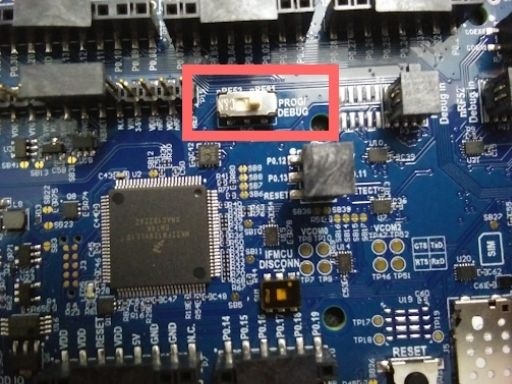 6. Connect the device to the computer via a microUSB cable and turn on the device using the power switch located at the bottom left corner of the device.
7. Open up the `Programmer` application and select the device denoted `PCA10090`.
8. Drag and drop the firmware file into the file memory layout box then select `Erase & write` to update the firmware. The left box will show patterns when the update is in progress. Once the update is complete, the left box will display a `Device is connected` message.
6. Connect the device to the computer via a microUSB cable and turn on the device using the power switch located at the bottom left corner of the device.
7. Open up the `Programmer` application and select the device denoted `PCA10090`.
8. Drag and drop the firmware file into the file memory layout box then select `Erase & write` to update the firmware. The left box will show patterns when the update is in progress. Once the update is complete, the left box will display a `Device is connected` message.
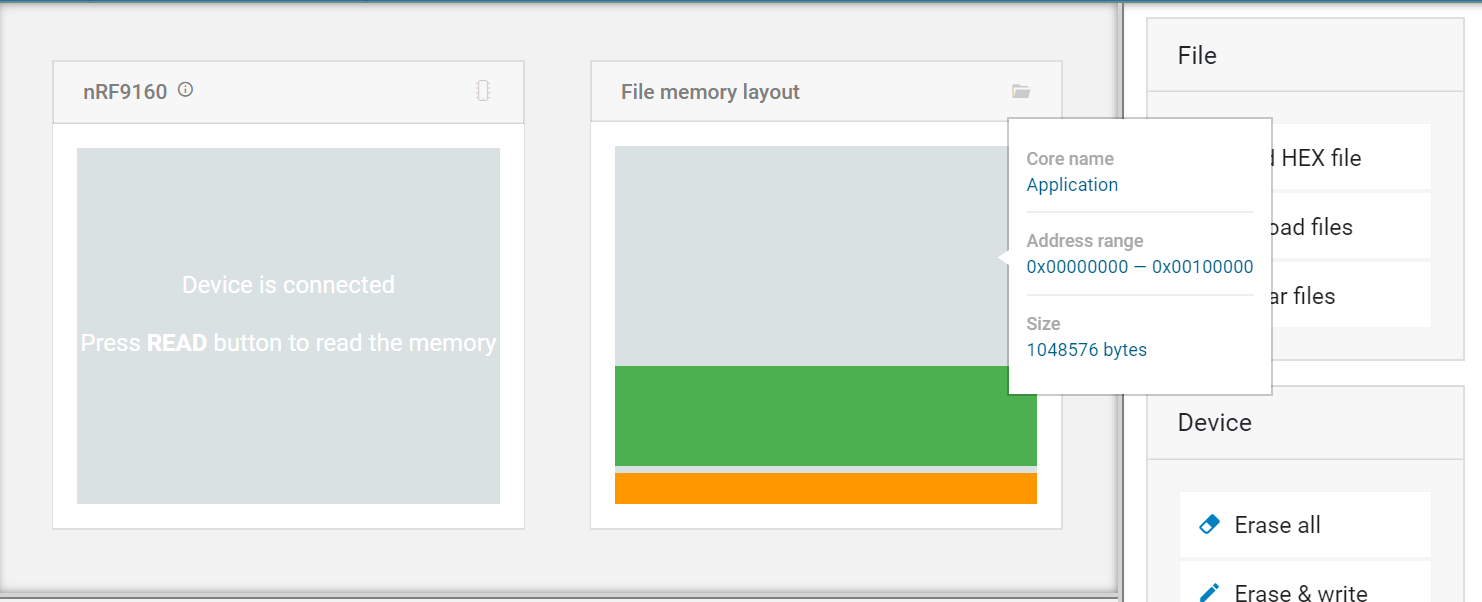 9. Now, we'll update the modem firmware. Scroll the right toolbar to the bottom of the screen. Select `Update modem` under the Cellular Modem section and click on the SIP modem firmware that was downloaded in step 1. Then click `Write`.
* The zip file has the following filename: `mfw_nrf9160_x.x.x.zip.`
9. Now, we'll update the modem firmware. Scroll the right toolbar to the bottom of the screen. Select `Update modem` under the Cellular Modem section and click on the SIP modem firmware that was downloaded in step 1. Then click `Write`.
* The zip file has the following filename: `mfw_nrf9160_x.x.x.zip.`
 10. Once the modem updates are complete, turn off the device by using the power switch located at the bottom left corner and disconnect the device from the computer.
## Connecting the nRF9160 device to your Telnyx SIM:
1. Insert your Telnyx SIM card into the nRF9160 device (this device uses nano-sim). Make sure to insert in the correct orientation as notated on the development kit.
10. Once the modem updates are complete, turn off the device by using the power switch located at the bottom left corner and disconnect the device from the computer.
## Connecting the nRF9160 device to your Telnyx SIM:
1. Insert your Telnyx SIM card into the nRF9160 device (this device uses nano-sim). Make sure to insert in the correct orientation as notated on the development kit.
 2. Connect the nRF9160 device to the computer and power on the device.
3. Open up the nRF Connect application and launch `LTE Link Monitor`.
4. In the `Select Device` dropdown menu, select `PCA10090`. The LTE Link Monitor display will update and run preselected AT commands. Allow 10-15 seconds for it to complete and the device will automatically connect to the network.
Verify connectivity in the information tab located on the right side of your display.
2. Connect the nRF9160 device to the computer and power on the device.
3. Open up the nRF Connect application and launch `LTE Link Monitor`.
4. In the `Select Device` dropdown menu, select `PCA10090`. The LTE Link Monitor display will update and run preselected AT commands. Allow 10-15 seconds for it to complete and the device will automatically connect to the network.
Verify connectivity in the information tab located on the right side of your display.
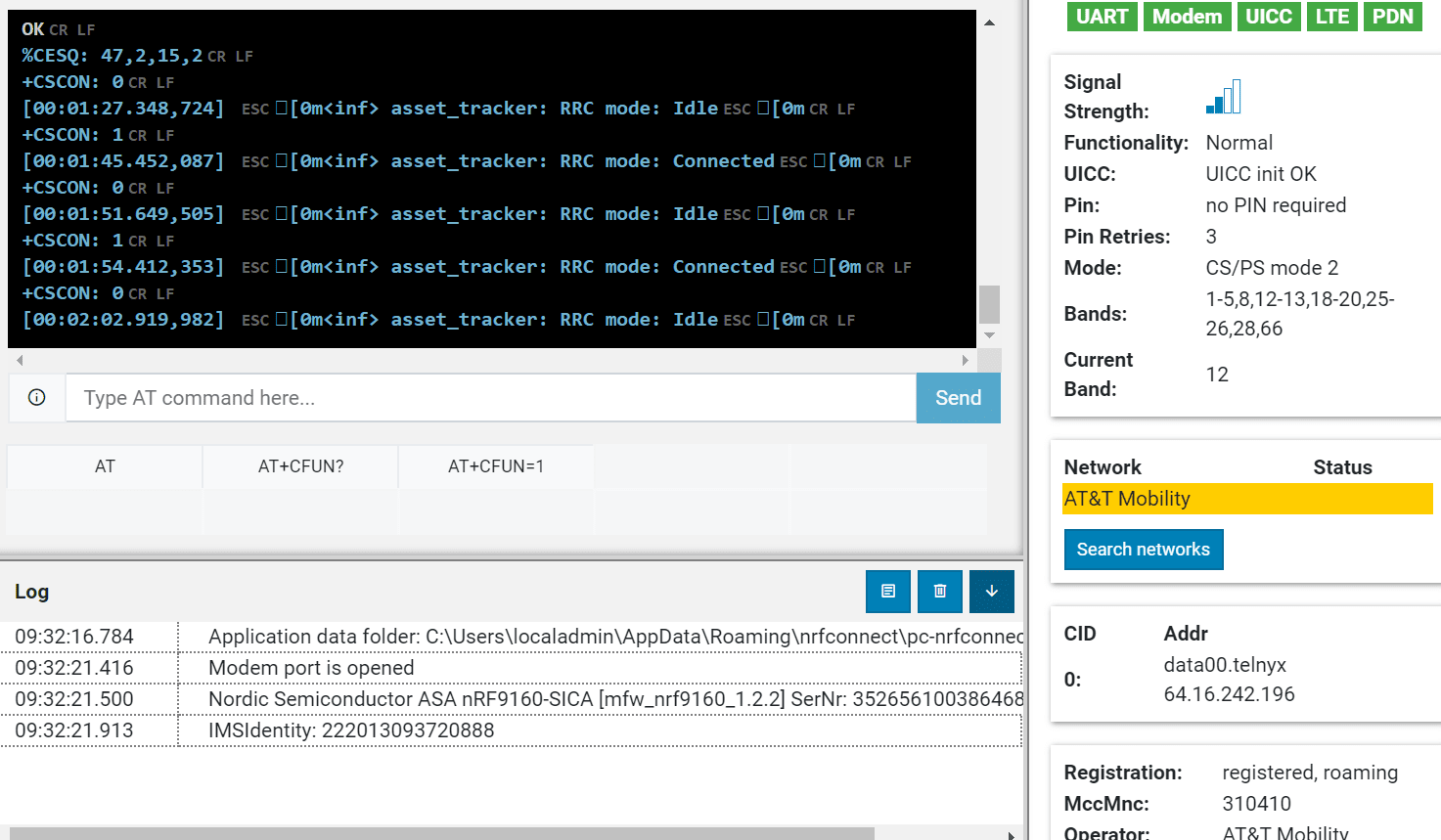 That's it! You've connected the Telnyx SIM to the nRF9160 development kit.