> ## Documentation Index
> Fetch the complete documentation index at: https://developers.telnyx.com/llms.txt
> Use this file to discover all available pages before exploring further.
# GL-MiFi 4G Smart Router Setup Guide
> Set up a GL.iNet Mifi router with a Telnyx IoT SIM for LTE internet access. Step-by-step APN configuration, signal checks, and basic troubleshooting.
**Original location:** Wireless > IoT > glmifi-router
This guide will walk you through how to pair a GL-MiFi 4G Smart Router with a Telnyx SIM Card.
## Prerequisites to complete the GL-MiFi 4G Smart Router setup:
1. A Telnyx Portal account and active Telnyx SIM card with data plan. Check out this [Quickstart Guide](/docs/iot-sim/get-started) to get set up.
2. GL-MiFi device.
3. A computer with a browser.
Alright, let's get started!
***
## Instructions for setting up your GL-MiFi 4G device:
1. First, insert the SIM card into the device. Look at the picture below for the proper placement of the SIM card, the gold chip should be facing up.
 2. Power on the device and connect either via the Ethernet port or WiFi connection.The default WiFi credentials are located on a label at the bottom of the device.
3. Navigate to the device’s default gateway at `192.168.8.1` and log into the device. You'll be prompted to set an admin password but if you don't see the prompt, the default password is `admin`.
4. Once you’ve logged in, click on `manual setup` located in the Cellular Modem Overview section. Enter the following details as shown below and click `Apply`.
* Device: `/dev/cdc-wdm0`
* APN: `data00.telnyx`
2. Power on the device and connect either via the Ethernet port or WiFi connection.The default WiFi credentials are located on a label at the bottom of the device.
3. Navigate to the device’s default gateway at `192.168.8.1` and log into the device. You'll be prompted to set an admin password but if you don't see the prompt, the default password is `admin`.
4. Once you’ve logged in, click on `manual setup` located in the Cellular Modem Overview section. Enter the following details as shown below and click `Apply`.
* Device: `/dev/cdc-wdm0`
* APN: `data00.telnyx`
 5. The device will now attach to the Telnyx network. You can verify the connectivity by checking the front page of the default gateway as shown below. You'll notice that the device now shows a `Disconnect` button as well as IP address and data usage.
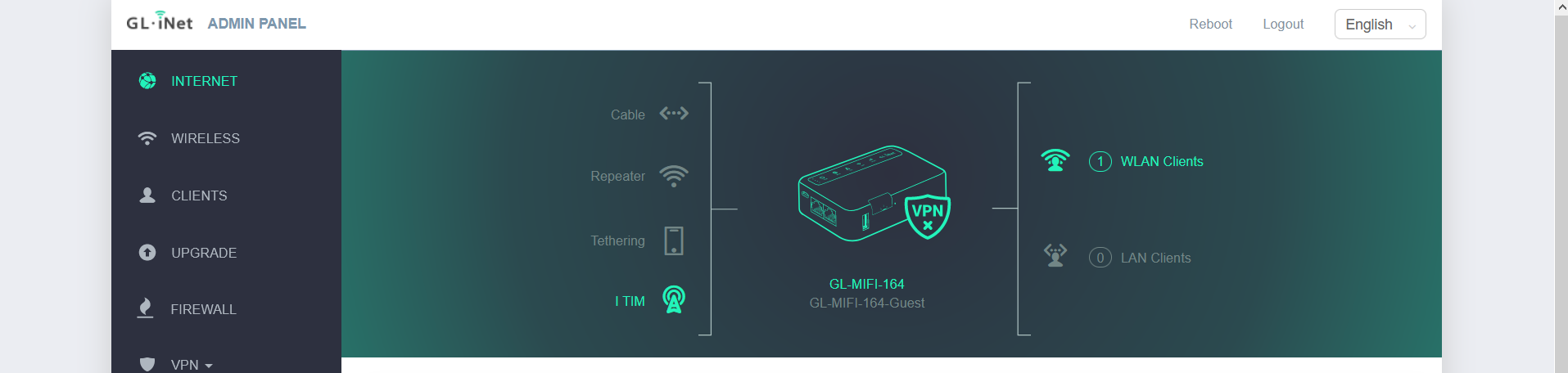
 6. To check your connectivity, you can also check the fourth icon on the left of the overview diagram. It will indicate `I TIM`.
 That's it! Your GL-MiFi 4G Smart Router is all set up with a Telnyx SIM card.