> ## Documentation Index
> Fetch the complete documentation index at: https://developers.telnyx.com/llms.txt
> Use this file to discover all available pages before exploring further.
# Creating Insights
> Step-by-step guide to creating AI Insights in the Mission Control Portal to analyze your AI Assistant conversations.
This guide walks you through creating individual [AI Insights](https://portal.telnyx.com/#/ai/insights) in the Mission Control Portal. You'll learn how to define analysis instructions, use variables, and configure both normal and structured insights.
## Prerequisites
* Access to the Telnyx Mission Control Portal.
* At least one AI Assistant configured (recommended for testing).
## Accessing AI Insights
1. Log in to the [Mission Control Portal](https://portal.telnyx.com).
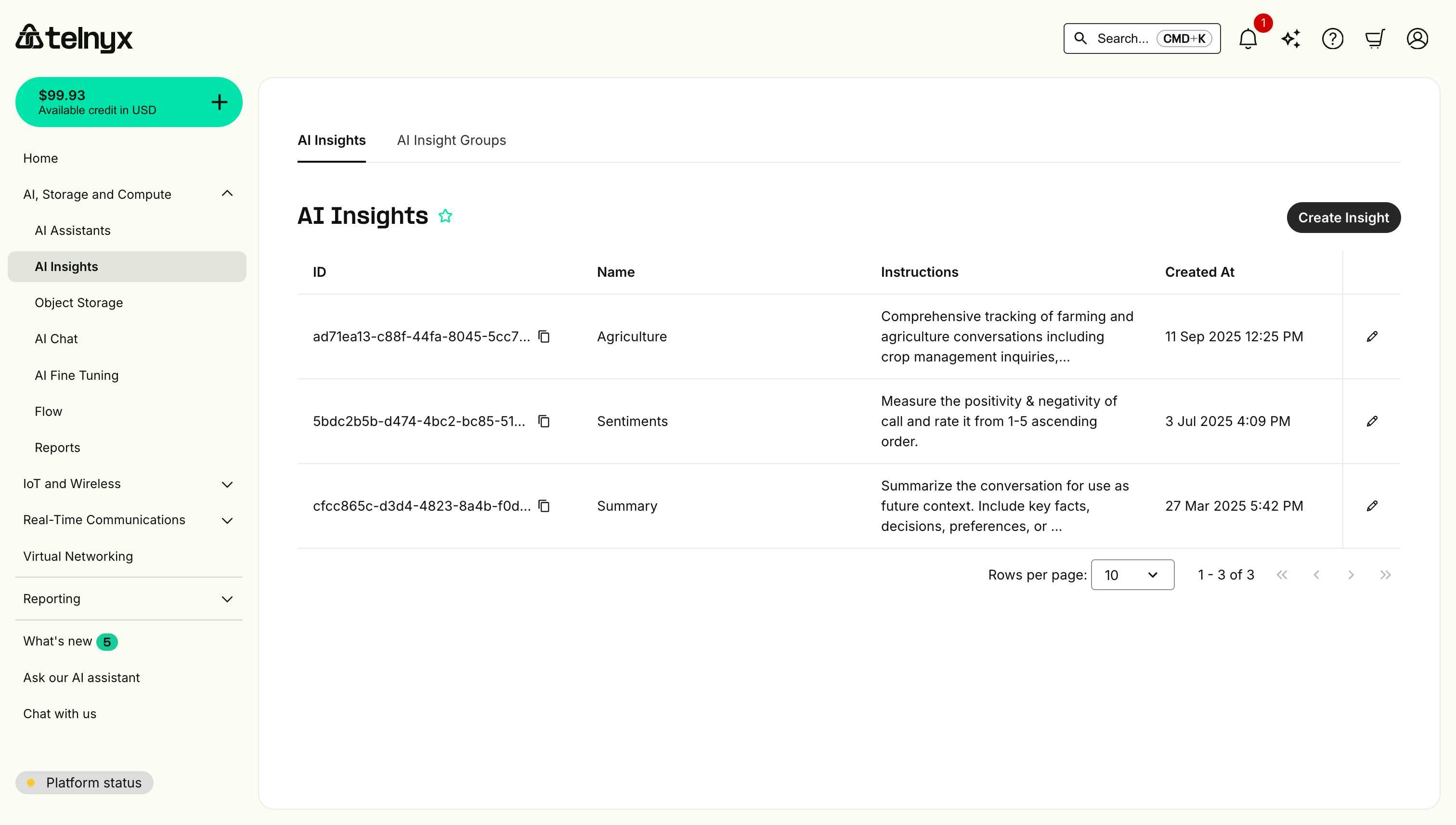
2. Navigate to **AI, Storage and Compute** > **AI Insights**.
3. You'll see a list of existing insights with their IDs, names, instructions, and creation dates.
 ## Creating an insight
Insights return free-form text responses based on your instructions.
### Step 1: Open the create dialog
Click the **Create Insight** button in the top-right corner of the AI Insights page.
### Step 2: Configure basic settings
In the Create Insight modal, you'll see:
## Creating an insight
Insights return free-form text responses based on your instructions.
### Step 1: Open the create dialog
Click the **Create Insight** button in the top-right corner of the AI Insights page.
### Step 2: Configure basic settings
In the Create Insight modal, you'll see:
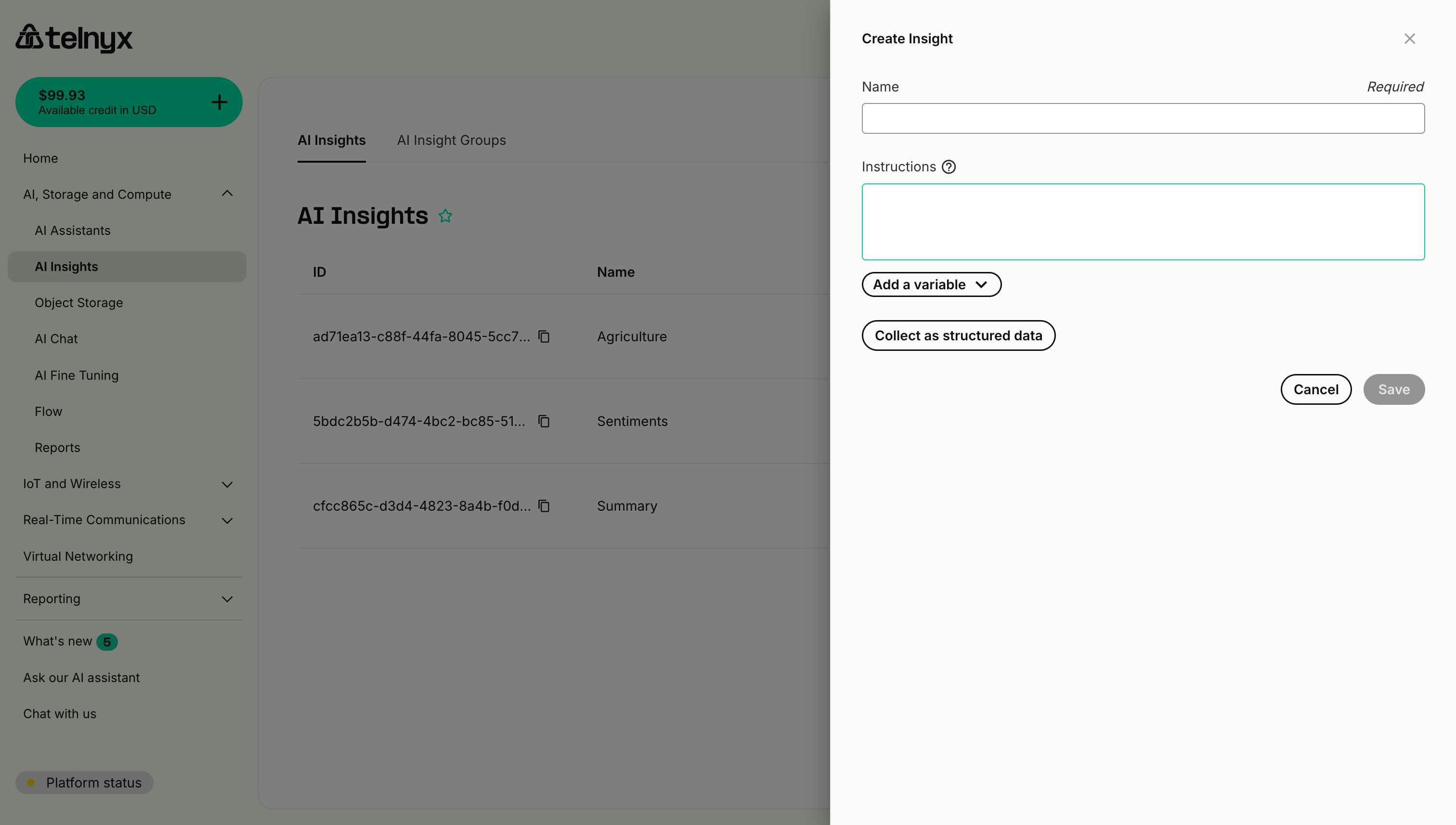 1. **Name** (Required) - A descriptive identifier for your insight.
* Example: "Conversation Summary", "Customer Sentiment", "Issue Classification".
2. **Instructions** - Detailed prompt describing what to analyze and extract.
* Be specific about what information you want.
* Include output format expectations.
* Reference conversation elements (transcript, metadata, etc.).
### Step 3: Write effective instructions
Good instructions are clear, specific, and actionable. Here are some examples:
**Example 1: Conversation summary**
```
Summarize the conversation for use as future context. Include:
- Key facts mentioned.
- Decisions made.
- User preferences expressed.
- Action items or follow-ups needed.
Keep the summary concise (2-3 sentences) and focus on information that would be useful in future conversations with this user.
```
**Example 2: Sentiment analysis**
```
Measure the positivity & negativity of the call and rate it from 1-5 in ascending order.
Positivity: How positive, satisfied, or happy was the customer? (1=very negative, 5=very positive)
Negativity: How frustrated, angry, or dissatisfied was the customer? (1=no negativity, 5=very negative)
Provide your ratings and a brief explanation of why you assigned those scores.
```
**Example 3: Issue categorization**
```
Analyze the conversation and identify the primary issue or request. Categorize it into one of the following:
- Technical Support.
- Billing Question.
- Feature Request.
- General Inquiry.
- Complaint.
- Other.
Also provide a brief description of the specific issue within that category.
```
### Step 4: Use variables (optional)
You can include dynamic variables in your instructions to provide context about the specific conversation. Click the **Add a variable** dropdown to see available options.
**System variables:**
* `{{telnyx_current_time}}` - Date and time of the conversation.
* `{{telnyx_conversation_channel}}` - Channel type (phone\_call, web\_call, sms\_chat).
* `{{telnyx_agent_target}}` - Assistant's phone number or identifier.
* `{{telnyx_end_user_target}}` - User's phone number or identifier.
**Example with variables:**
```
Analyze this {{telnyx_conversation_channel}} conversation from {{telnyx_current_time}}.
Identify if the user at {{telnyx_end_user_target}} expressed interest in any of our products or services.
If so, list the products mentioned and their level of interest (high/medium/low).
```
You can also reference [custom dynamic variables](https://developers.telnyx.com/docs/inference/ai-assistants/dynamic-variables) that you've configured for your assistant.
### Step 5: Save the insight
1. Review your configuration.
2. Click **Save**.
3. The insight will appear in your insights list.
## Managing insights
### Editing an insight
1. Find the insight in the list.
2. Click the **edit icon** (pencil) on the right side of the row.
3. Modify the name or instructions.
4. Click **Save**.
### Copying an insight ID
Each insight has a unique ID that you can use with the Memory API or for programmatic access:
1. Click the **copy icon** next to the insight ID.
2. The ID will be copied to your clipboard.
3. Use this ID in API calls or memory queries.
Example ID format: `cfcc865c-d3d4-4823-8a4b-f0df57d9f56f`
## Configuring webhook delivery
You can configure webhook URLs to automatically receive insight results when conversations complete.
### Via Insight Groups
Set a webhook URL when creating or editing an Insight Group:
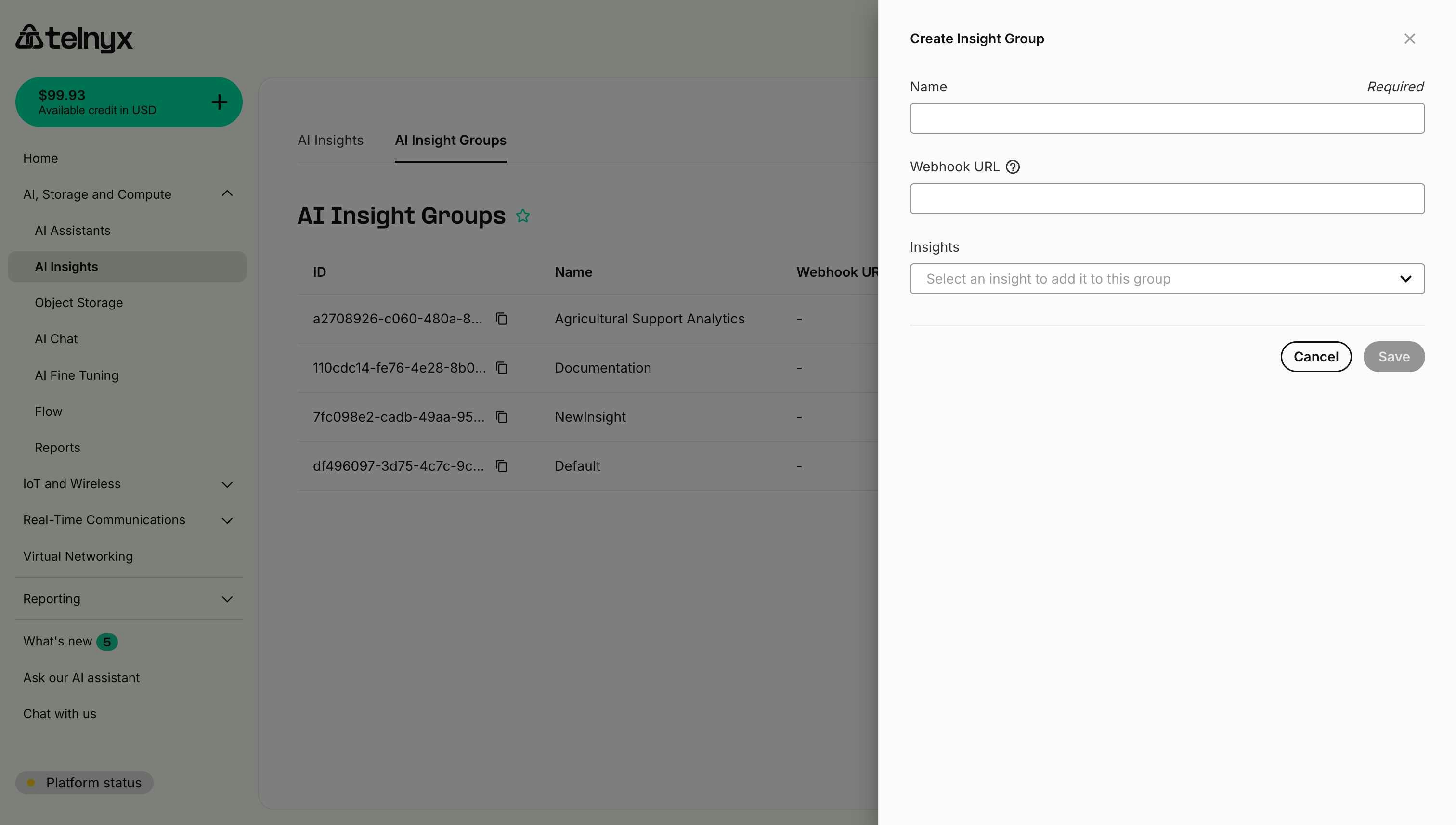
1. Navigate to [AI Insight Groups](https://portal.telnyx.com/#/ai/insights-groups).
2. Click **Create Insight Group** or edit an existing group.
3. Enter your webhook URL in the **Webhook URL** field.
4. Save the group.
1. **Name** (Required) - A descriptive identifier for your insight.
* Example: "Conversation Summary", "Customer Sentiment", "Issue Classification".
2. **Instructions** - Detailed prompt describing what to analyze and extract.
* Be specific about what information you want.
* Include output format expectations.
* Reference conversation elements (transcript, metadata, etc.).
### Step 3: Write effective instructions
Good instructions are clear, specific, and actionable. Here are some examples:
**Example 1: Conversation summary**
```
Summarize the conversation for use as future context. Include:
- Key facts mentioned.
- Decisions made.
- User preferences expressed.
- Action items or follow-ups needed.
Keep the summary concise (2-3 sentences) and focus on information that would be useful in future conversations with this user.
```
**Example 2: Sentiment analysis**
```
Measure the positivity & negativity of the call and rate it from 1-5 in ascending order.
Positivity: How positive, satisfied, or happy was the customer? (1=very negative, 5=very positive)
Negativity: How frustrated, angry, or dissatisfied was the customer? (1=no negativity, 5=very negative)
Provide your ratings and a brief explanation of why you assigned those scores.
```
**Example 3: Issue categorization**
```
Analyze the conversation and identify the primary issue or request. Categorize it into one of the following:
- Technical Support.
- Billing Question.
- Feature Request.
- General Inquiry.
- Complaint.
- Other.
Also provide a brief description of the specific issue within that category.
```
### Step 4: Use variables (optional)
You can include dynamic variables in your instructions to provide context about the specific conversation. Click the **Add a variable** dropdown to see available options.
**System variables:**
* `{{telnyx_current_time}}` - Date and time of the conversation.
* `{{telnyx_conversation_channel}}` - Channel type (phone\_call, web\_call, sms\_chat).
* `{{telnyx_agent_target}}` - Assistant's phone number or identifier.
* `{{telnyx_end_user_target}}` - User's phone number or identifier.
**Example with variables:**
```
Analyze this {{telnyx_conversation_channel}} conversation from {{telnyx_current_time}}.
Identify if the user at {{telnyx_end_user_target}} expressed interest in any of our products or services.
If so, list the products mentioned and their level of interest (high/medium/low).
```
You can also reference [custom dynamic variables](https://developers.telnyx.com/docs/inference/ai-assistants/dynamic-variables) that you've configured for your assistant.
### Step 5: Save the insight
1. Review your configuration.
2. Click **Save**.
3. The insight will appear in your insights list.
## Managing insights
### Editing an insight
1. Find the insight in the list.
2. Click the **edit icon** (pencil) on the right side of the row.
3. Modify the name or instructions.
4. Click **Save**.
### Copying an insight ID
Each insight has a unique ID that you can use with the Memory API or for programmatic access:
1. Click the **copy icon** next to the insight ID.
2. The ID will be copied to your clipboard.
3. Use this ID in API calls or memory queries.
Example ID format: `cfcc865c-d3d4-4823-8a4b-f0df57d9f56f`
## Configuring webhook delivery
You can configure webhook URLs to automatically receive insight results when conversations complete.
### Via Insight Groups
Set a webhook URL when creating or editing an Insight Group:
1. Navigate to [AI Insight Groups](https://portal.telnyx.com/#/ai/insights-groups).
2. Click **Create Insight Group** or edit an existing group.
3. Enter your webhook URL in the **Webhook URL** field.
4. Save the group.
 **Example:**
```
Webhook URL: https://api.mycompany.com/webhooks/ai-insights
```
All assistants using this group will send insights to this URL unless overridden.
### Per assistant override
Override the group's webhook URL for a specific assistant:
1. Navigate to your AI Assistant configuration.
2. Go to the **Analysis** tab and select **Insights**.
3. Select an Insight Group.
4. Click **Edit selected** to modify the group settings.
5. Enter a different webhook URL for this assistant.
6. Save the assistant configuration.
This is useful when different assistants need insights delivered to different systems or for testing with staging webhooks.
## Best practices
### Writing clear instructions
1. **Be Specific** - Clearly state what you want to extract.
* ❌ "Analyze the call".
* ✅ "Identify the customer's main complaint and rate the urgency from 1-5".
2. **Define Output Format** - Specify how you want the response structured.
* ❌ "Tell me about sentiment".
* ✅ "Rate sentiment from 1-10 and provide a one-sentence explanation".
3. **Provide Context** - Explain why the information matters.
* ❌ "List products mentioned".
* ✅ "List products the customer showed interest in purchasing, noting their budget concerns".
4. **Use Examples** - Show the format you expect
```
Categorize the issue as one of:
- Billing (e.g., incorrect charges, payment questions).
- Technical (e.g., service not working, setup help).
- Account (e.g., upgrades, cancellations).
```
### Testing your insights
1. **Start with Test Conversations** - Try your insight on a few sample conversations first.
2. **Review Results** - Check if the extracted information matches your expectations.
3. **Refine Instructions** - Adjust wording based on the results.
4. **Validate Accuracy** - Ensure consistent, reliable extraction across different conversation types.
### Naming conventions
Use clear, descriptive names that indicate:
* **What** is being analyzed: "Customer Sentiment", "Product Interest", "Issue Type".
* **Why** it matters: "Escalation Needed", "Follow-up Required", "Compliance Check".
* **Scope**: "Healthcare Compliance", "Sales Qualification", "Support Quality".
## Next steps
* **[Use Structured Data](https://developers.telnyx.com/docs/inference/ai-insights/structured-insights)** - Create insights with consistent JSON schemas.
* **[Create Insight Groups](https://developers.telnyx.com/docs/inference/ai-insights/insight-groups)** - Organize insights for your assistants.
* **[Explore Use Cases](https://developers.telnyx.com/docs/inference/ai-insights/use-cases)** - Industry-specific examples.
## Related resources
* [Dynamic Variables](https://developers.telnyx.com/docs/inference/ai-assistants/dynamic-variables) - Custom variables for your insights.
* [Memory](https://developers.telnyx.com/docs/inference/ai-assistants/memory) - Using insight IDs in memory queries.
* [Voice Assistant Configuration](https://developers.telnyx.com/docs/inference/ai-assistants/no-code-voice-assistant#insights) - Assigning insights to assistants.
**Example:**
```
Webhook URL: https://api.mycompany.com/webhooks/ai-insights
```
All assistants using this group will send insights to this URL unless overridden.
### Per assistant override
Override the group's webhook URL for a specific assistant:
1. Navigate to your AI Assistant configuration.
2. Go to the **Analysis** tab and select **Insights**.
3. Select an Insight Group.
4. Click **Edit selected** to modify the group settings.
5. Enter a different webhook URL for this assistant.
6. Save the assistant configuration.
This is useful when different assistants need insights delivered to different systems or for testing with staging webhooks.
## Best practices
### Writing clear instructions
1. **Be Specific** - Clearly state what you want to extract.
* ❌ "Analyze the call".
* ✅ "Identify the customer's main complaint and rate the urgency from 1-5".
2. **Define Output Format** - Specify how you want the response structured.
* ❌ "Tell me about sentiment".
* ✅ "Rate sentiment from 1-10 and provide a one-sentence explanation".
3. **Provide Context** - Explain why the information matters.
* ❌ "List products mentioned".
* ✅ "List products the customer showed interest in purchasing, noting their budget concerns".
4. **Use Examples** - Show the format you expect
```
Categorize the issue as one of:
- Billing (e.g., incorrect charges, payment questions).
- Technical (e.g., service not working, setup help).
- Account (e.g., upgrades, cancellations).
```
### Testing your insights
1. **Start with Test Conversations** - Try your insight on a few sample conversations first.
2. **Review Results** - Check if the extracted information matches your expectations.
3. **Refine Instructions** - Adjust wording based on the results.
4. **Validate Accuracy** - Ensure consistent, reliable extraction across different conversation types.
### Naming conventions
Use clear, descriptive names that indicate:
* **What** is being analyzed: "Customer Sentiment", "Product Interest", "Issue Type".
* **Why** it matters: "Escalation Needed", "Follow-up Required", "Compliance Check".
* **Scope**: "Healthcare Compliance", "Sales Qualification", "Support Quality".
## Next steps
* **[Use Structured Data](https://developers.telnyx.com/docs/inference/ai-insights/structured-insights)** - Create insights with consistent JSON schemas.
* **[Create Insight Groups](https://developers.telnyx.com/docs/inference/ai-insights/insight-groups)** - Organize insights for your assistants.
* **[Explore Use Cases](https://developers.telnyx.com/docs/inference/ai-insights/use-cases)** - Industry-specific examples.
## Related resources
* [Dynamic Variables](https://developers.telnyx.com/docs/inference/ai-assistants/dynamic-variables) - Custom variables for your insights.
* [Memory](https://developers.telnyx.com/docs/inference/ai-assistants/memory) - Using insight IDs in memory queries.
* [Voice Assistant Configuration](https://developers.telnyx.com/docs/inference/ai-assistants/no-code-voice-assistant#insights) - Assigning insights to assistants.