> ## Documentation Index
> Fetch the complete documentation index at: https://developers.telnyx.com/llms.txt
> Use this file to discover all available pages before exploring further.
# Importing Assistants from another Provider
> Import AI assistants from OpenAI, ElevenLabs, Vapi, and other providers into Telnyx. Migrate prompts, voices, tools, and knowledge bases in a few steps.
If you have voice assistants with another provider, you can import them to Telnyx in the portal or [via API](https://developers.telnyx.com/api-reference/assistants/import-assistants-from-external-provider#import-assistants-from-external-provider).
## Supported Providers
Telnyx currently supports importing assistants from:
* **Vapi** - Import your Vapi voice assistants with all configurations.
* **ElevenLabs** - Import your ElevenLabs conversational AI agents.
* **Retell** - Import your single- and multi-prompt Retell agents.
***
## Video Tutorial
Watch this quick demonstration of importing a Vapi assistant to Telnyx:
***
## Import Walkthrough
### Importing from Vapi
#### Viewing your Assistants
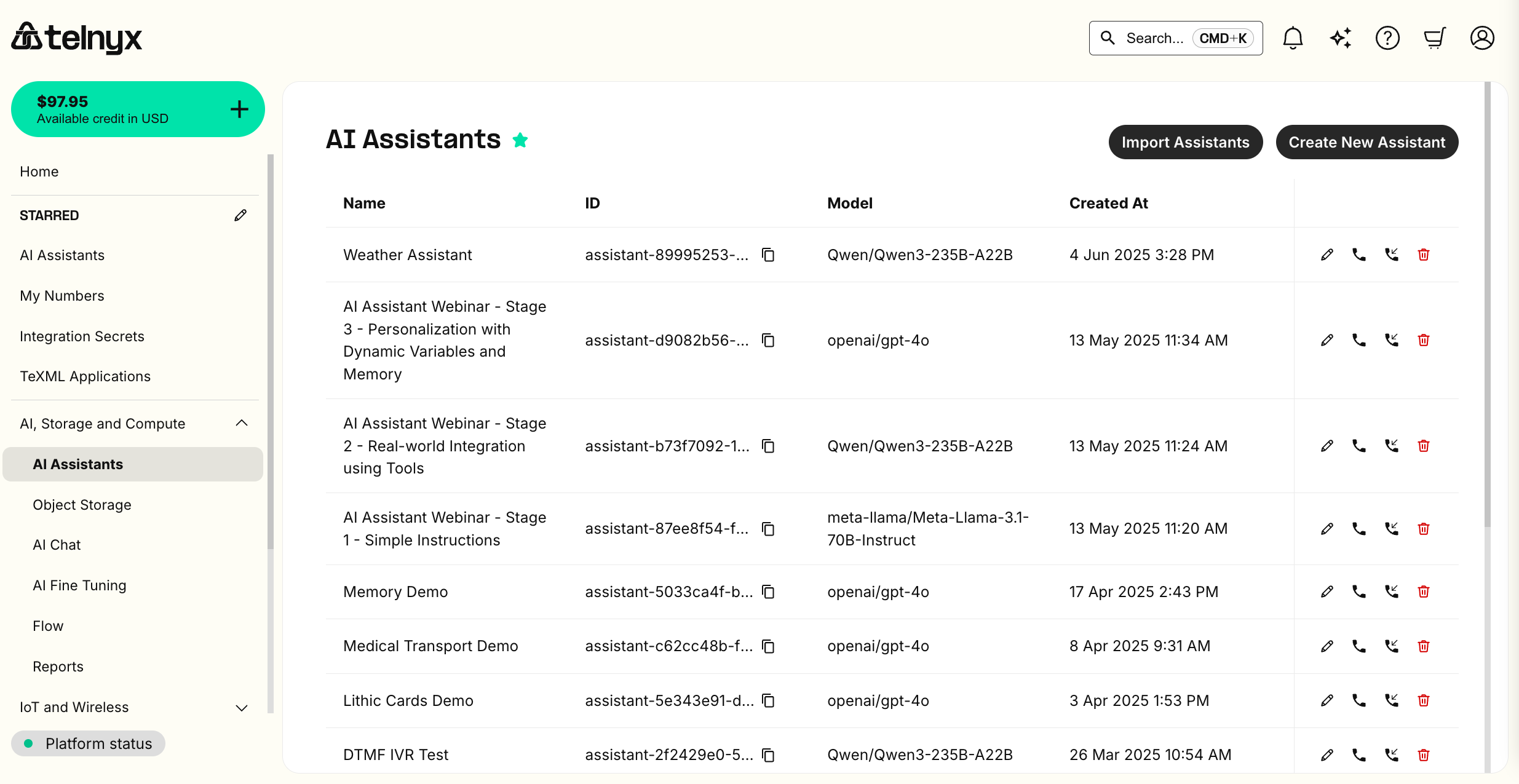
From the [assistants page](https://portal.telnyx.com/#/ai/assistants), you can select **Import Assistants**.
#### Selecting your Provider
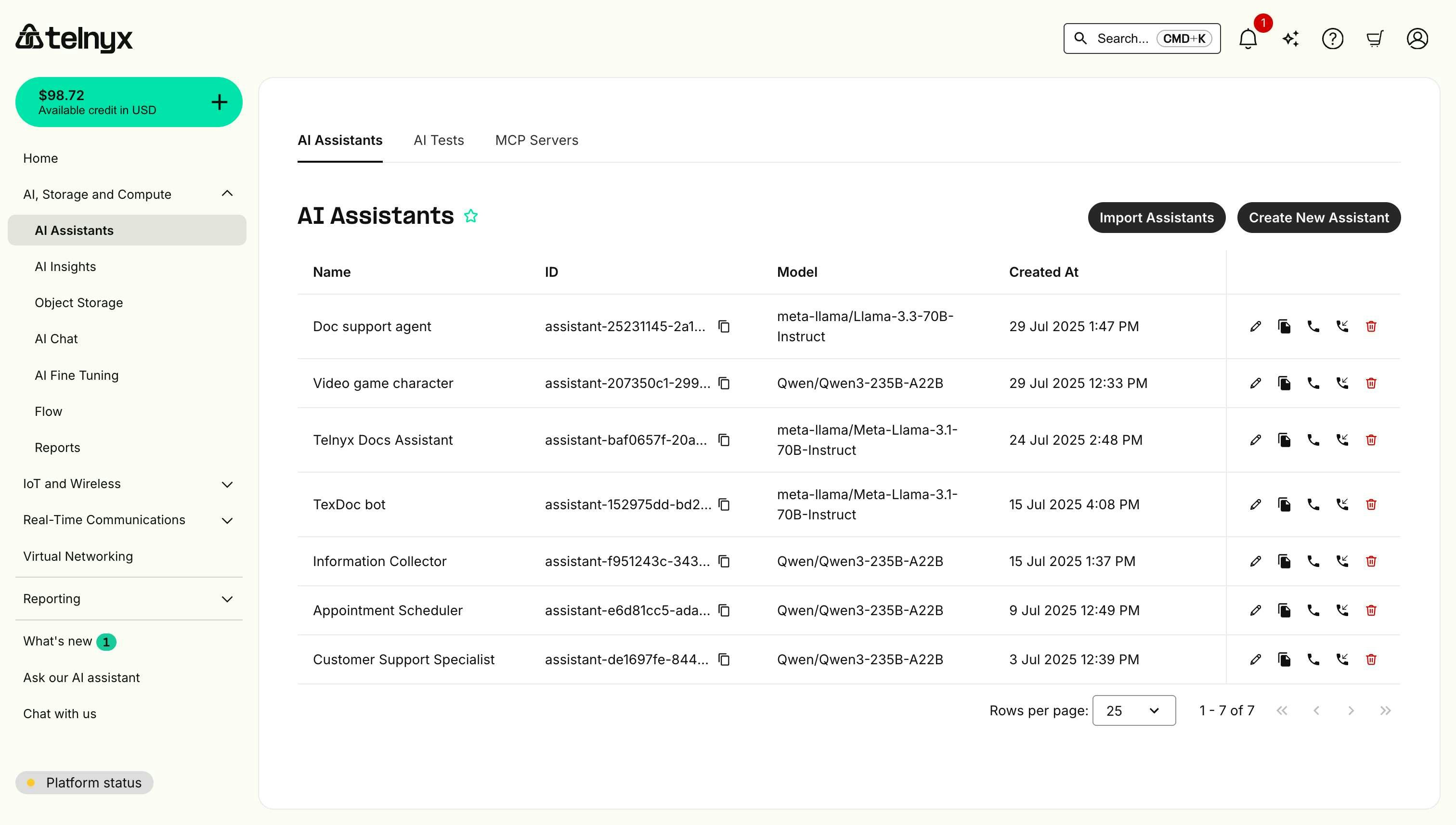
On the next page, select **Vapi** from the provider list and securely store your Vapi API Key with Telnyx to initiate the import.
*Any assistant that has already been imported will be overwritten with its latest version from Vapi.*
#### Selecting your Assistants
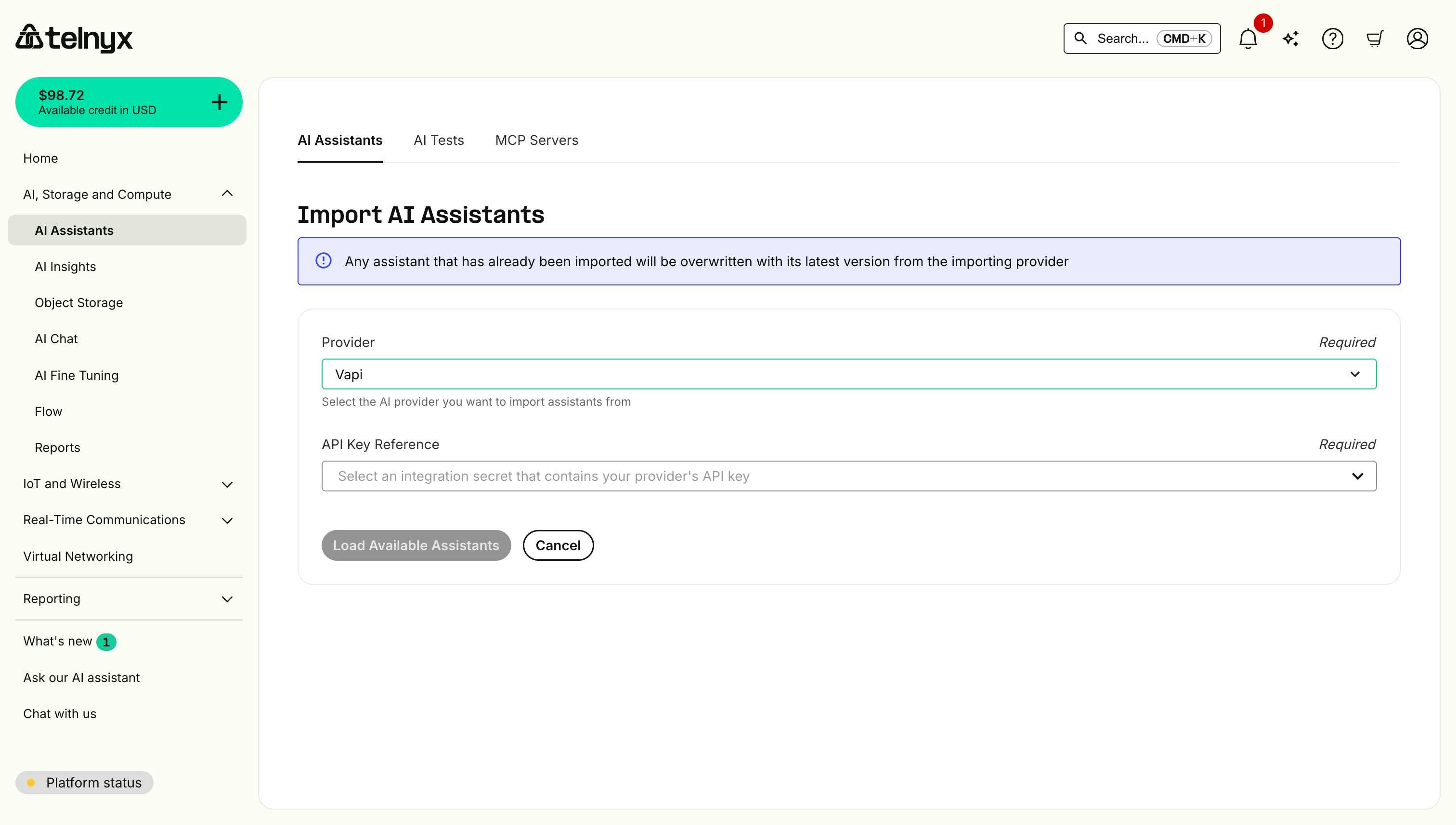
You can then select which Vapi assistants to import.
*[Trial accounts](https://developers.telnyx.com/docs/account-setup/account-upgrade) have a limit of 1 AI Assistant.*
#### Testing your imported Assistant
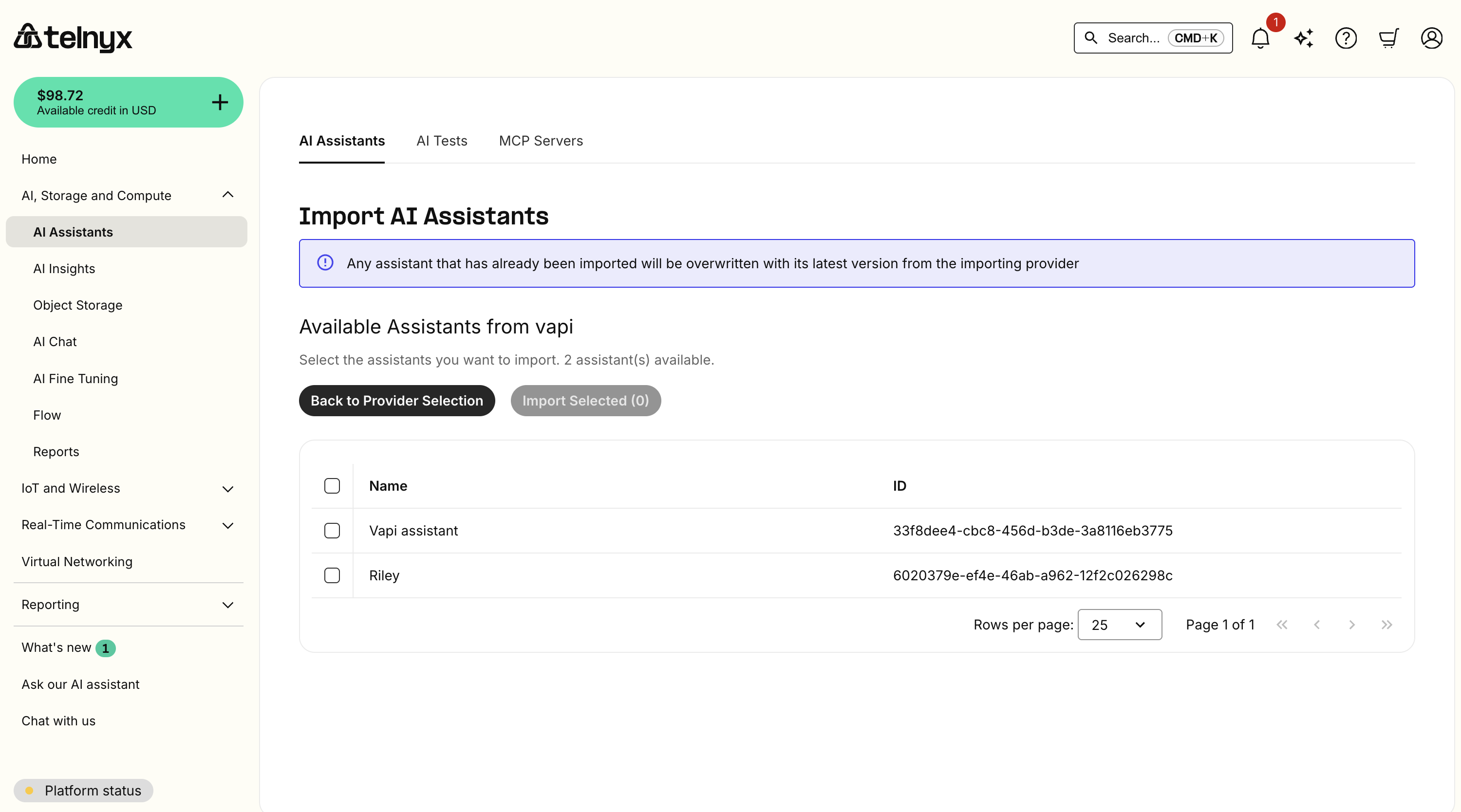
You should now see your new assistants listed and can click the pencil icon to edit or the telephone icon to test them in the portal.
Check out the [quickstart tutorial](https://developers.telnyx.com/docs/inference/ai-assistants/no-code-voice-assistant) for more information on editing or creating our Assistants.
### Importing from ElevenLabs
#### Viewing your Assistants
From the [assistants page](https://portal.telnyx.com/#/ai/assistants), you can select **Import Assistants**.
#### Selecting your Provider
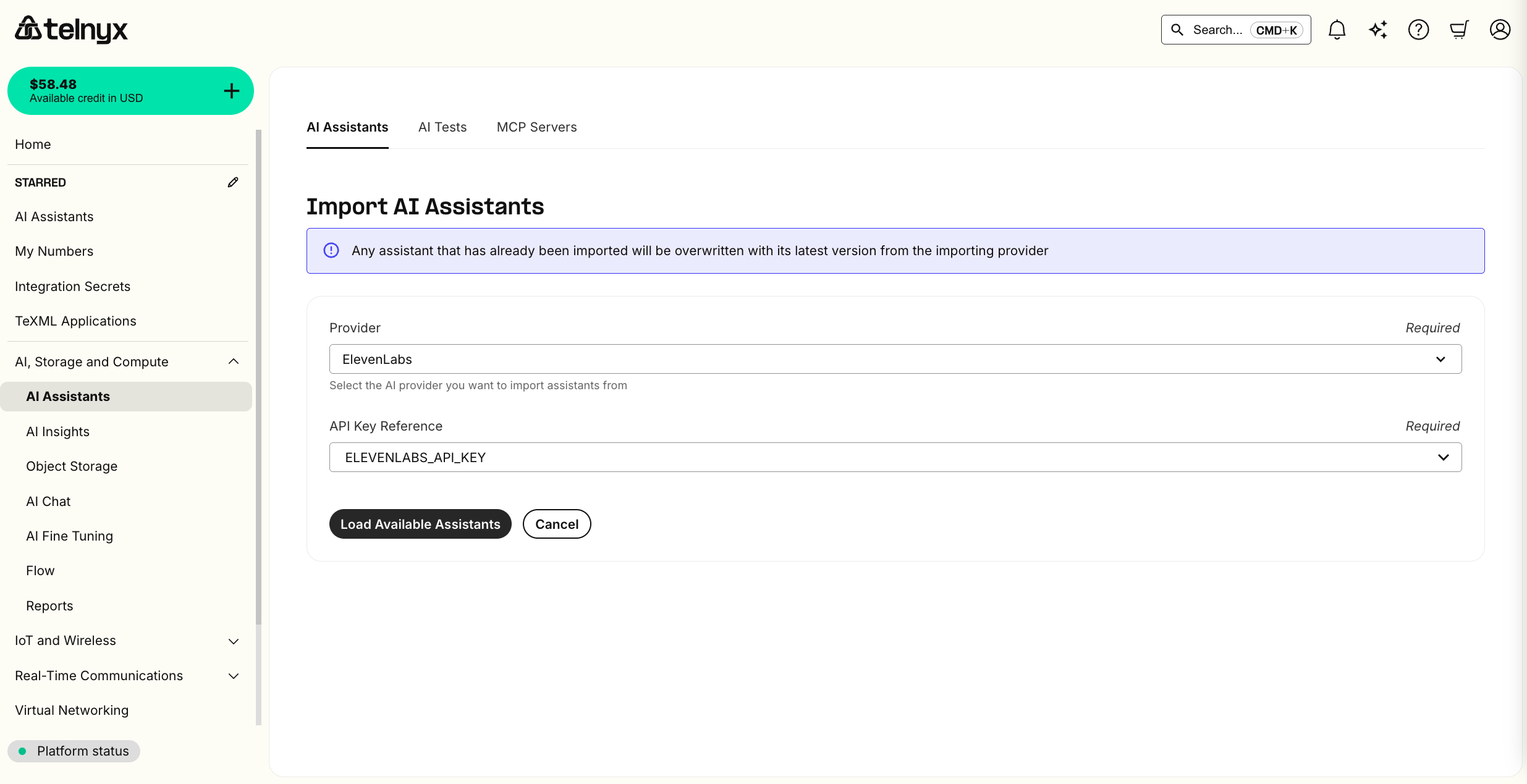
On the next page, select **ElevenLabs** from the provider list and securely store your ElevenLabs API Key with Telnyx to initiate the import.
*Any assistant that has already been imported will be overwritten with its latest version from ElevenLabs.*
#### Selecting your Assistants
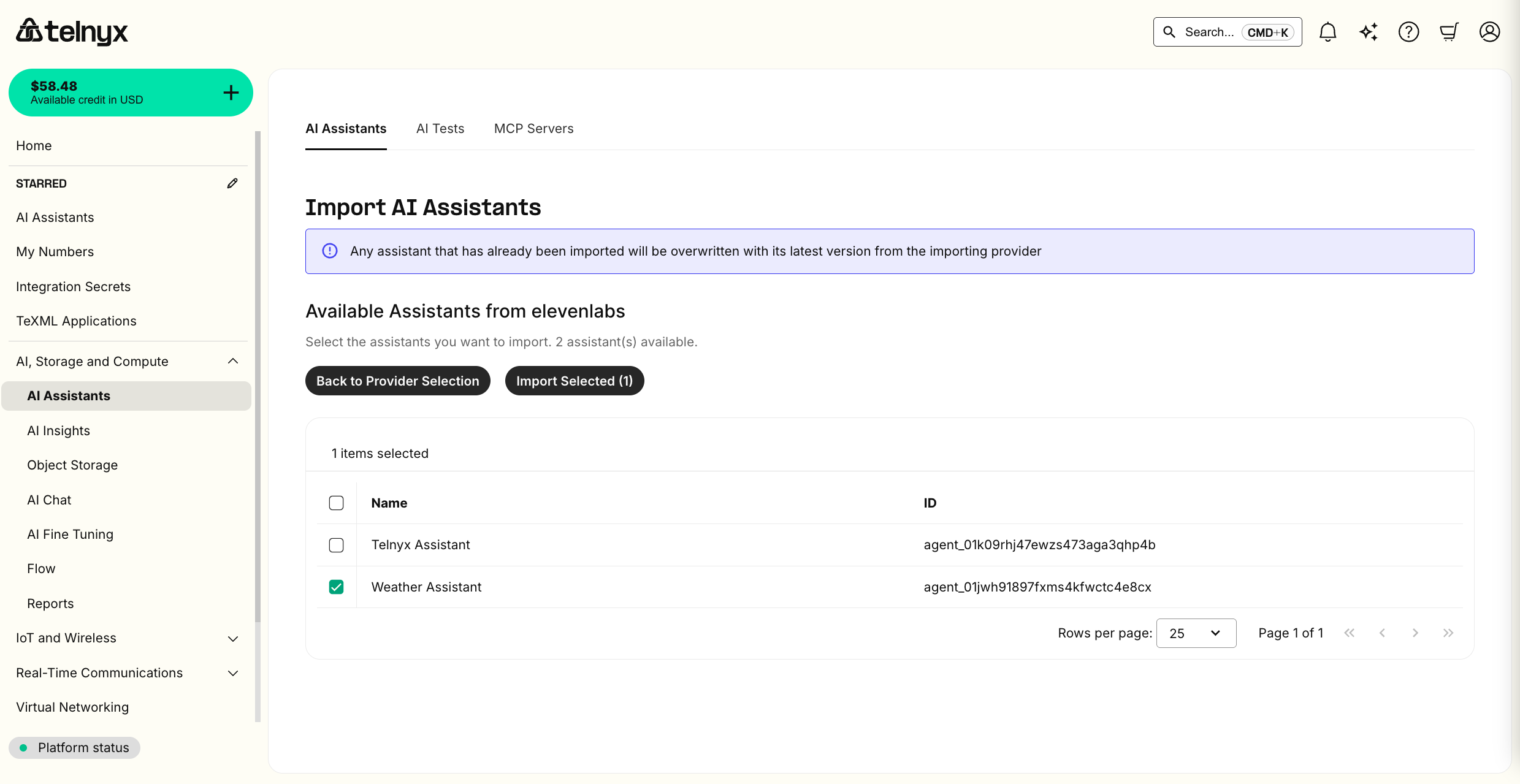
You can then select which ElevenLabs agents to import.
*[Trial accounts](https://developers.telnyx.com/docs/account-setup/account-upgrade) have a limit of 1 AI Assistant.*
#### Testing your imported Assistant
You should now see your new assistants listed and can click the pencil icon to edit or the telephone icon to test them in the portal.
Check out the [quickstart tutorial](https://developers.telnyx.com/docs/inference/ai-assistants/no-code-voice-assistant) for more information on editing or creating our Assistants.
***
# Supported Import Functionality
### Instructions
Your assistant's instructions will be imported as is.
### Greeting (a.k.a. first message)
Your assistant's greeting will be imported as is.
### LLM
By default, the LLM assistant will be set to our flagship on-prem LLM, which provides optimal latency, cost, and intelligence. You can BYO LLM with third-party providers by storing an API Key.
### Voice
When importing from Vapi or ElevenLabs, the voice will be imported as is.
Otherwise, the LLM assistant will be set to our flagship on-prem TTS, which provides optimal latency, cost, and realism. You can BYO TTS with other third-party providers by storing an API Key.
### Dynamic Variables
References to dynamic variables and their defaults will be imported as is. See our [guide](https://developers.telnyx.com/docs/inference/ai-assistants/dynamic-variables) on how to set these values per call.
### Tools
Hangup, transfer, and webhook tools will be imported as is.
### MCP Servers (a.k.a. Integrations)
Integrations with MCP Servers will be imported as is.
### Insights (a.k.a. analysis, success criteria, structured data...)
Structured and unstructured call analysis configuration is imported as is.
### Data Retention
If you have disabled data retention with another provider, this setting will be imported as is.
### Knowledge Bases
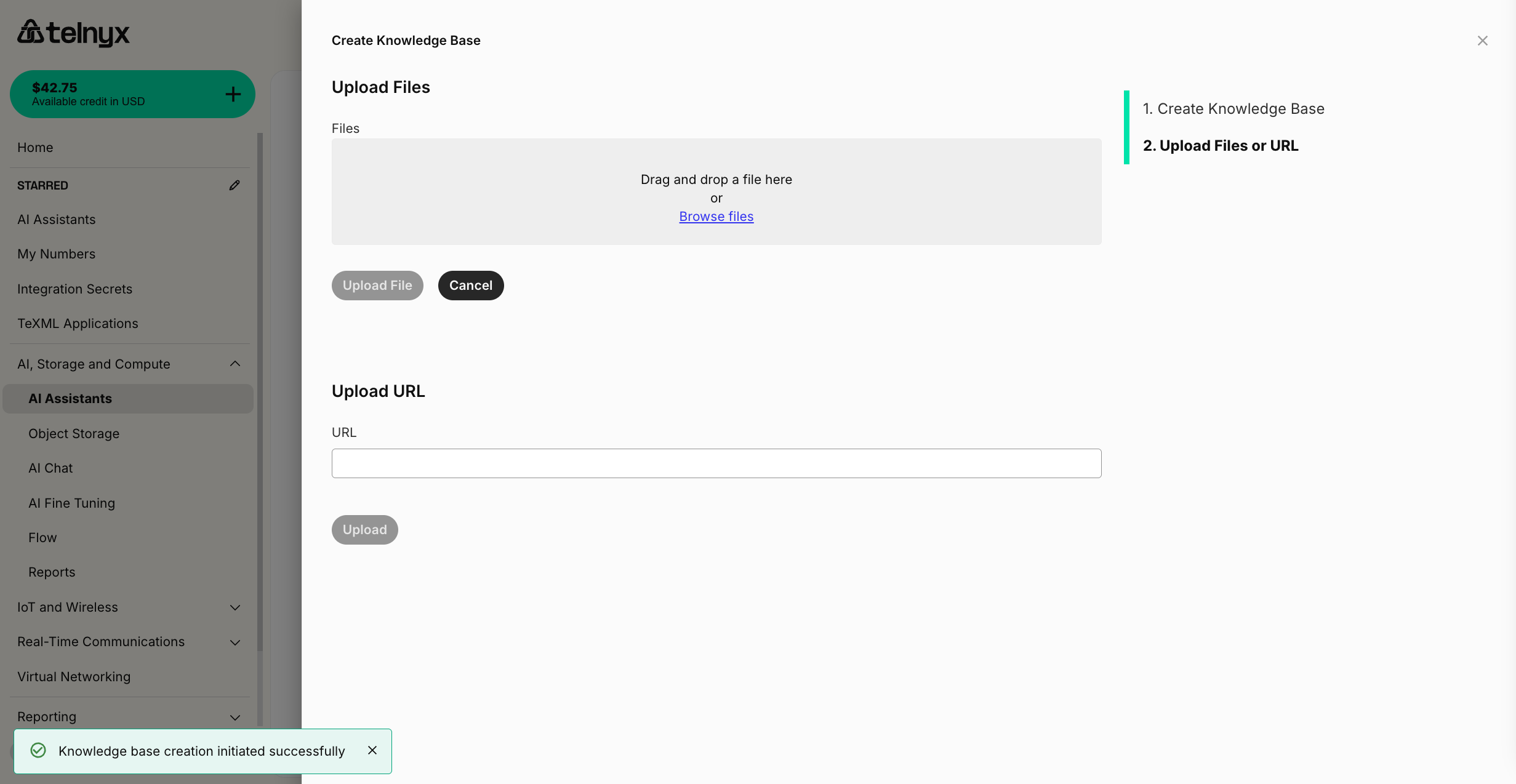
Telnyx will not import your knowledge base by default. You can easily drag and drop files or import website content for your assistant in the assistant builder.
### Secrets
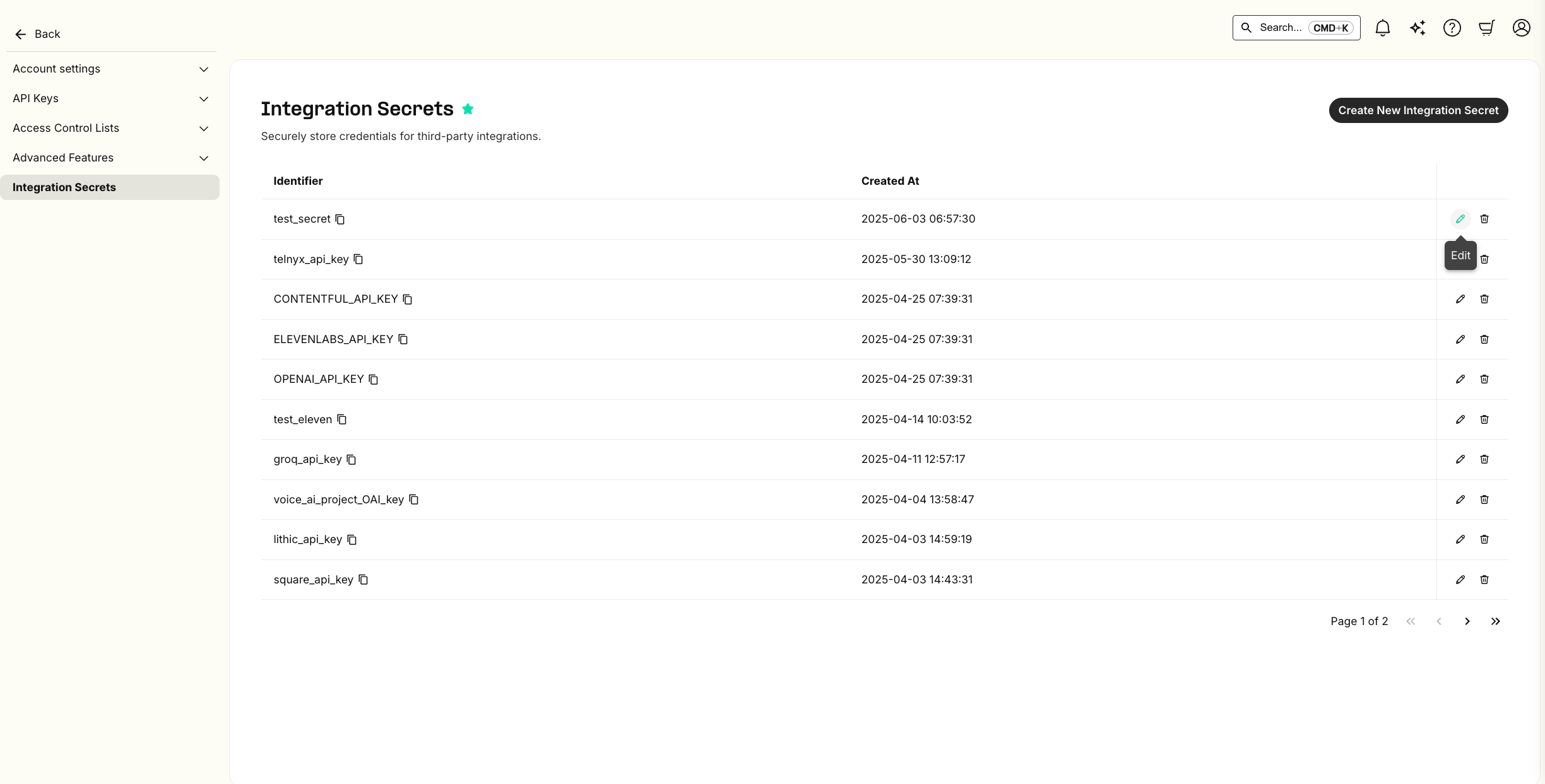
Telnyx will create placeholder integration secrets for you with the same name as they are configured in the importing provider. You will need to resupply the value of the secret on the Telnyx [integration secrets page](https://portal.telnyx.com/#/integration-secrets).
 #### Selecting your Provider
On the next page, select **Vapi** from the provider list and securely store your Vapi API Key with Telnyx to initiate the import.
#### Selecting your Provider
On the next page, select **Vapi** from the provider list and securely store your Vapi API Key with Telnyx to initiate the import.
 #### Selecting your Assistants
You can then select which Vapi assistants to import.
#### Selecting your Assistants
You can then select which Vapi assistants to import.
 #### Testing your imported Assistant
You should now see your new assistants listed and can click the pencil icon to edit or the telephone icon to test them in the portal.
Check out the [quickstart tutorial](https://developers.telnyx.com/docs/inference/ai-assistants/no-code-voice-assistant) for more information on editing or creating our Assistants.
#### Testing your imported Assistant
You should now see your new assistants listed and can click the pencil icon to edit or the telephone icon to test them in the portal.
Check out the [quickstart tutorial](https://developers.telnyx.com/docs/inference/ai-assistants/no-code-voice-assistant) for more information on editing or creating our Assistants.
 #### Selecting your Provider
On the next page, select **ElevenLabs** from the provider list and securely store your ElevenLabs API Key with Telnyx to initiate the import.
#### Selecting your Provider
On the next page, select **ElevenLabs** from the provider list and securely store your ElevenLabs API Key with Telnyx to initiate the import.
 #### Selecting your Assistants
You can then select which ElevenLabs agents to import.
#### Selecting your Assistants
You can then select which ElevenLabs agents to import.
 #### Testing your imported Assistant
You should now see your new assistants listed and can click the pencil icon to edit or the telephone icon to test them in the portal.
Check out the [quickstart tutorial](https://developers.telnyx.com/docs/inference/ai-assistants/no-code-voice-assistant) for more information on editing or creating our Assistants.
#### Testing your imported Assistant
You should now see your new assistants listed and can click the pencil icon to edit or the telephone icon to test them in the portal.
Check out the [quickstart tutorial](https://developers.telnyx.com/docs/inference/ai-assistants/no-code-voice-assistant) for more information on editing or creating our Assistants.
 ### Secrets
Telnyx will create placeholder integration secrets for you with the same name as they are configured in the importing provider. You will need to resupply the value of the secret on the Telnyx [integration secrets page](https://portal.telnyx.com/#/integration-secrets).
### Secrets
Telnyx will create placeholder integration secrets for you with the same name as they are configured in the importing provider. You will need to resupply the value of the secret on the Telnyx [integration secrets page](https://portal.telnyx.com/#/integration-secrets).