> ## Documentation Index
> Fetch the complete documentation index at: https://developers.telnyx.com/llms.txt
> Use this file to discover all available pages before exploring further.
# Add MCP servers to an AI assistant
> Connect an MCP server, store API keys as secret references, choose tools, and test the connection in the Telnyx portal.
Connect a Model Context Protocol (MCP) server to let your Telnyx AI assistant use external tools during a conversation. Depending on the server, those tools can search documentation, retrieve records, or perform actions in another application.
This guide walks through configuring a server, attaching it to an assistant, and checking its connection in the Mission Control Portal. Each step includes a screenshot from the portal.
## Before you begin
You need:
* A Telnyx account with access to the [Mission Control Portal](https://portal.telnyx.com/).
* An existing [AI assistant](https://portal.telnyx.com/#/ai/assistants). To create one, follow the [Voice Assistant Quickstart](https://developers.telnyx.com/docs/inference/ai-assistants/no-code-voice-assistant).
* Your MCP server's endpoint, transport, and authentication requirements.
* Permission to access the tools and data exposed by the server.
Use a test assistant for your first integration, especially when tools can create, update, or delete records.
### About the example
The screenshots use **Telnyx Docs - MCP Guide Demo**, connected to `https://developers.telnyx.com/mcp`, and an assistant named **MCP Documentation Demo**. The selected tool, `search_telnyx`, searches Telnyx documentation.
The public documentation MCP endpoint does **not** require authentication. A dedicated secret named `my-assistant-mcp-api-key` was created with a nonfunctional demonstration value solely to illustrate secret-reference selection. For this public endpoint, you can leave **API Key** empty. For an authenticated MCP server, store and select a valid credential from that server's provider. Do not use a demonstration value for a real authenticated integration.
> Connecting a server to an assistant is different from connecting an external AI client to Telnyx's API tools. For the latter, see [Telnyx MCP Server](https://developers.telnyx.com/docs/development/mcp/remote-mcp).
## 1. Store your API key as a secret reference
Skip this step if your MCP server does not require an API key.
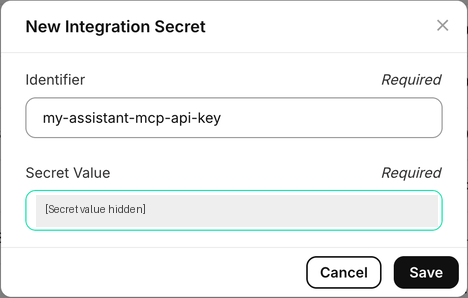
Open [Integration Secrets](https://portal.telnyx.com/#/integration-secrets) and select **Create New Integration Secret**. Enter:
* **Identifier:** a recognizable name, such as `my-assistant-mcp-api-key`.
* **Secret Value:** the API key supplied by your MCP provider.
Select **Save**. The identifier is a reference to the stored credential—not the credential itself.
 Confirm the identifier appears in the saved secrets list:
 > You cannot retrieve a secret's value after storing it. Keep the original credential in your approved secret manager. Never put raw keys in assistant instructions, greetings, screenshots, or documentation examples.
## 2. Open MCP Servers
In the portal's **AI Assistants** sidebar section, select **Tools**, then the **MCP Servers** tab. You can also open [MCP Servers directly](https://portal.telnyx.com/#/ai/mcp-servers).
Select **Create MCP Server**.
> You cannot retrieve a secret's value after storing it. Keep the original credential in your approved secret manager. Never put raw keys in assistant instructions, greetings, screenshots, or documentation examples.
## 2. Open MCP Servers
In the portal's **AI Assistants** sidebar section, select **Tools**, then the **MCP Servers** tab. You can also open [MCP Servers directly](https://portal.telnyx.com/#/ai/mcp-servers).
Select **Create MCP Server**.
 This page manages server configurations. You will attach the configured server to an individual assistant in step 6.
## 3. Configure the server connection
Enter the connection details supplied by your MCP provider:
| Field | What to enter |
| - | - |
| **Name** | A descriptive name you can recognize when attaching the server to an assistant. |
| **Type** | **HTTP** or **SSE**, matching the provider's transport. |
| **URL** | The MCP endpoint—not the provider's dashboard or website URL. |
| **Tool timeout (ms)** | Optional maximum time to wait for a single tool call. |
For the documentation example, use **HTTP** and `https://developers.telnyx.com/mcp`.
> **Connecting over VXC:** If your MCP server connects to Telnyx through a Virtual Cross Connect (VXC), contact [Telnyx Support](https://support.telnyx.com/) or your Telnyx sales representative to obtain the IP addresses to use when configuring the MCP server URL.
This page manages server configurations. You will attach the configured server to an individual assistant in step 6.
## 3. Configure the server connection
Enter the connection details supplied by your MCP provider:
| Field | What to enter |
| - | - |
| **Name** | A descriptive name you can recognize when attaching the server to an assistant. |
| **Type** | **HTTP** or **SSE**, matching the provider's transport. |
| **URL** | The MCP endpoint—not the provider's dashboard or website URL. |
| **Tool timeout (ms)** | Optional maximum time to wait for a single tool call. |
For the documentation example, use **HTTP** and `https://developers.telnyx.com/mcp`.
> **Connecting over VXC:** If your MCP server connects to Telnyx through a Virtual Cross Connect (VXC), contact [Telnyx Support](https://support.telnyx.com/) or your Telnyx sales representative to obtain the IP addresses to use when configuring the MCP server URL.
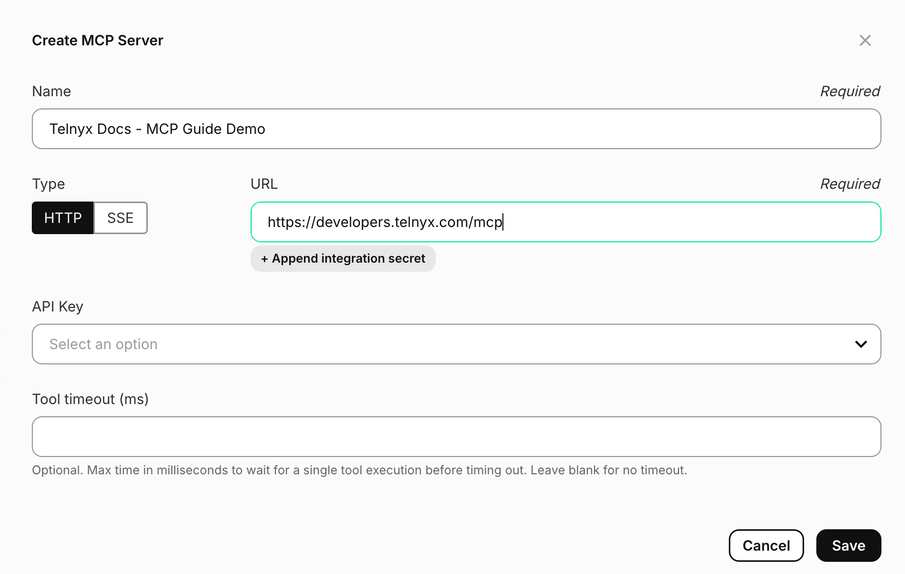 If the endpoint URL contains a credential or grants access on its own, store that URL as an [Integration Secret](https://portal.telnyx.com/#/integration-secrets). Use **+ Append integration secret** beneath the URL field to reference it. A URL secret belongs in **URL**; an API-key secret belongs in **API Key**.
## 4. Select the API-key reference
For an authenticated server, open the **API Key** selector and search for the identifier created in step 1. Select `my-assistant-mcp-api-key`, or the identifier you chose.
The selector displays the reference name without exposing its stored value.
If the endpoint URL contains a credential or grants access on its own, store that URL as an [Integration Secret](https://portal.telnyx.com/#/integration-secrets). Use **+ Append integration secret** beneath the URL field to reference it. A URL secret belongs in **URL**; an API-key secret belongs in **API Key**.
## 4. Select the API-key reference
For an authenticated server, open the **API Key** selector and search for the identifier created in step 1. Select `my-assistant-mcp-api-key`, or the identifier you chose.
The selector displays the reference name without exposing its stored value.
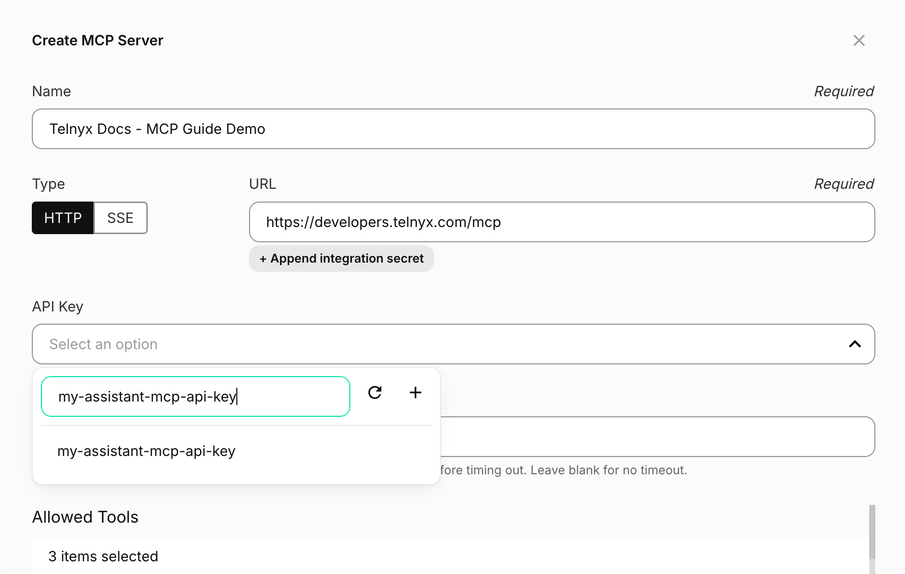 For the public documentation MCP endpoint, authentication is unnecessary and this field may remain empty. The selection shown above illustrates the reference workflow, not a requirement for that endpoint.
## 5. Choose allowed tools and save
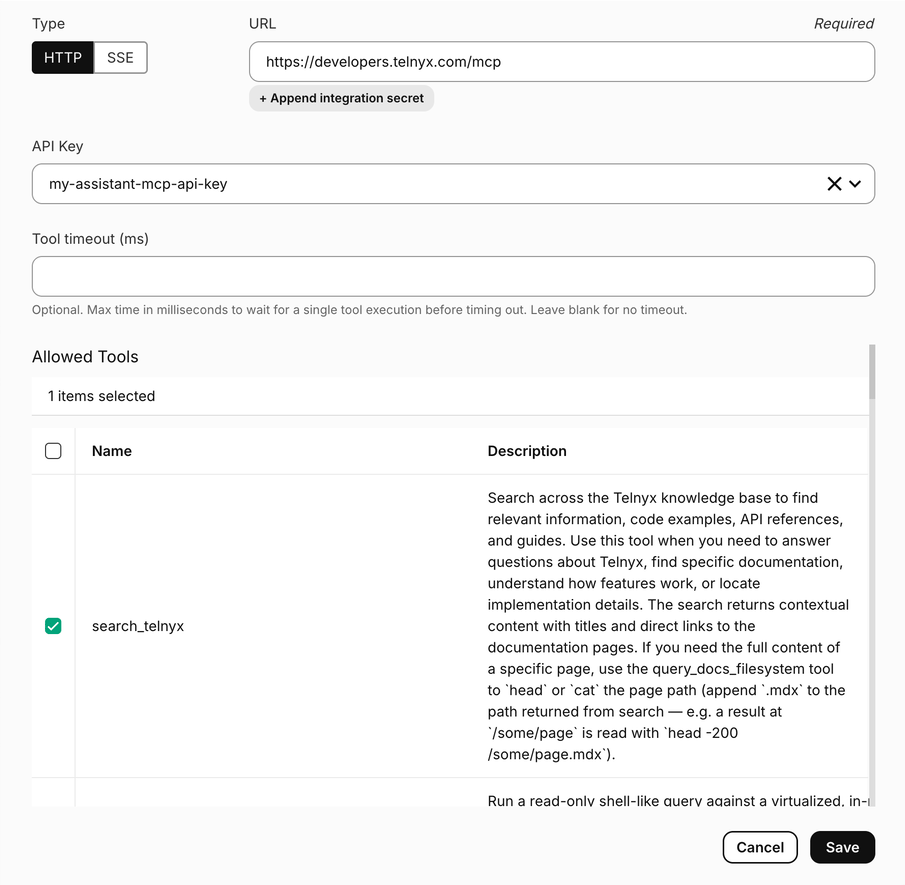
Once the server's tools are listed, review their names and descriptions. Select only the tools this assistant needs. For a first test, prefer a read-only tool.
In this example, select **search\_telnyx**. Leave unrelated tools unselected, then select **Save**.
For the public documentation MCP endpoint, authentication is unnecessary and this field may remain empty. The selection shown above illustrates the reference workflow, not a requirement for that endpoint.
## 5. Choose allowed tools and save
Once the server's tools are listed, review their names and descriptions. Select only the tools this assistant needs. For a first test, prefer a read-only tool.
In this example, select **search\_telnyx**. Leave unrelated tools unselected, then select **Save**.
 Confirm your server appears in the MCP Servers list:
 > Tool selection limits what you expose to the assistant. It does not replace authorization enforced by the MCP server and the external application.
## 6. Attach the server to an assistant
Open [AI Assistants](https://portal.telnyx.com/#/ai/assistants) and select your test assistant. In the assistant editor's section selector, choose **Integrations**.
> Tool selection limits what you expose to the assistant. It does not replace authorization enforced by the MCP server and the external application.
## 6. Attach the server to an assistant
Open [AI Assistants](https://portal.telnyx.com/#/ai/assistants) and select your test assistant. In the assistant editor's section selector, choose **Integrations**.
 Scroll to **MCP Servers**, select **Add MCP server**, and choose your configured server. Review the server entry and its **Allowed tools** list.
 The distinction is important:
* **AI Assistants → Tools → MCP Servers** manages the server configuration.
* **An individual assistant → Integrations → MCP Servers** attaches that server to the assistant.
Configuring a server at the account level does not automatically attach it to an assistant.
## 7. Explain when to use the tool, then save
Return to the assistant's **Agent** section. Update **Instructions** to describe when the assistant should call the tool, how to use its response, and what to do if the tool fails.
For the documentation-search example:
```text theme={null}
You help users find answers in the Telnyx developer documentation.
Use search_telnyx for questions about Telnyx features or setup steps.
Base your answer on the tool results and include relevant documentation links.
If a tool fails, say so. Do not invent results. Keep answers concise.
```
The distinction is important:
* **AI Assistants → Tools → MCP Servers** manages the server configuration.
* **An individual assistant → Integrations → MCP Servers** attaches that server to the assistant.
Configuring a server at the account level does not automatically attach it to an assistant.
## 7. Explain when to use the tool, then save
Return to the assistant's **Agent** section. Update **Instructions** to describe when the assistant should call the tool, how to use its response, and what to do if the tool fails.
For the documentation-search example:
```text theme={null}
You help users find answers in the Telnyx developer documentation.
Use search_telnyx for questions about Telnyx features or setup steps.
Base your answer on the tool results and include relevant documentation links.
If a tool fails, say so. Do not invent results. Keep answers concise.
```
 Use the actual tool names exposed by your server. If a tool changes external data, instruct the assistant to collect the required information and obtain confirmation before taking the action. Enforce access permissions in the external service as well.
Select **Save** at the bottom of the editor. Reopen the assistant and confirm the instructions and attached MCP server remain configured.
Use the actual tool names exposed by your server. If a tool changes external data, instruct the assistant to collect the required information and obtain confirmation before taking the action. Enforce access permissions in the external service as well.
Select **Save** at the bottom of the editor. Reopen the assistant and confirm the instructions and attached MCP server remain configured.
 ## 8. Test the MCP connection with the play button
In the assistant's **Integrations → MCP Servers** section, click the **play** button on the server entry. This initiates the MCP connection and discovers its tools without starting an assistant conversation.
A successful test displays **MCP server connected successfully**. Review the tools listed on the entry and confirm the intended tool is available.
## 8. Test the MCP connection with the play button
In the assistant's **Integrations → MCP Servers** section, click the **play** button on the server entry. This initiates the MCP connection and discovers its tools without starting an assistant conversation.
A successful test displays **MCP server connected successfully**. Review the tools listed on the entry and confirm the intended tool is available.
 If the connection fails or tools are missing, check the endpoint URL, transport, and credential reference before continuing.
> Connection and tool discovery are not the same as executing a tool. A successful play-button test does not prove that the assistant can complete a particular task or that the credential has every permission needed by that task.
## 9. Test the assistant's use of the tool
Open **Test assistant** in the assistant editor and choose an appropriate testing option. The captured menu shows **Inbound call** and **Outbound call**. For voice testing setup, see the [Voice Assistant Quickstart](https://developers.telnyx.com/docs/inference/ai-assistants/no-code-voice-assistant#test-it-out).
If the connection fails or tools are missing, check the endpoint URL, transport, and credential reference before continuing.
> Connection and tool discovery are not the same as executing a tool. A successful play-button test does not prove that the assistant can complete a particular task or that the credential has every permission needed by that task.
## 9. Test the assistant's use of the tool
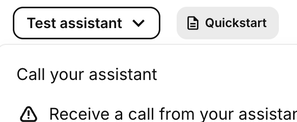
Open **Test assistant** in the assistant editor and choose an appropriate testing option. The captured menu shows **Inbound call** and **Outbound call**. For voice testing setup, see the [Voice Assistant Quickstart](https://developers.telnyx.com/docs/inference/ai-assistants/no-code-voice-assistant#test-it-out).
 For this example, ask: “Search the Telnyx documentation for how to add an MCP server to an AI assistant.”
During validation:
* Confirm the assistant actually invokes the intended tool; a plausible answer alone is not proof.
* Review the conversation in **Conversation History** and inspect MCP-server logs if you operate the server.
* Compare the answer with the documentation returned by the tool.
* Check that errors are handled honestly rather than reported as successful actions.
For tools that modify data, use disposable test records and verify the result in the external application.
## Troubleshooting
| Problem | What to check |
| - | - |
| The server is configured but the assistant cannot use it | Confirm it is attached under the individual assistant's **Integrations → MCP Servers** section, then save the assistant. |
| The play-button connection test fails | Check the endpoint, HTTP/SSE transport, credential reference, and whether the MCP server is reachable. |
| The tool list is empty or incomplete | Check the tools exposed by the server, the credential's permissions, and allowed-tool selections. |
| A tool returns an authentication error | Confirm the selected secret contains the credential required by this MCP server. A demonstration value is not a valid API key. |
| The assistant does not call the tool | Confirm the tool is allowed and make the instructions explicit about when to use it. Supply any required information. |
| The assistant claims success without a result | Inspect the tool response and target system. Instruct the assistant to report success only after the operation succeeds. |
## Related documentation
* [Voice Assistant Quickstart](https://developers.telnyx.com/docs/inference/ai-assistants/no-code-voice-assistant)
* [AI Assistant Integrations](https://developers.telnyx.com/docs/inference/ai-assistants/integrations)
* [Telnyx MCP Server](https://developers.telnyx.com/docs/development/mcp/remote-mcp)
For this example, ask: “Search the Telnyx documentation for how to add an MCP server to an AI assistant.”
During validation:
* Confirm the assistant actually invokes the intended tool; a plausible answer alone is not proof.
* Review the conversation in **Conversation History** and inspect MCP-server logs if you operate the server.
* Compare the answer with the documentation returned by the tool.
* Check that errors are handled honestly rather than reported as successful actions.
For tools that modify data, use disposable test records and verify the result in the external application.
## Troubleshooting
| Problem | What to check |
| - | - |
| The server is configured but the assistant cannot use it | Confirm it is attached under the individual assistant's **Integrations → MCP Servers** section, then save the assistant. |
| The play-button connection test fails | Check the endpoint, HTTP/SSE transport, credential reference, and whether the MCP server is reachable. |
| The tool list is empty or incomplete | Check the tools exposed by the server, the credential's permissions, and allowed-tool selections. |
| A tool returns an authentication error | Confirm the selected secret contains the credential required by this MCP server. A demonstration value is not a valid API key. |
| The assistant does not call the tool | Confirm the tool is allowed and make the instructions explicit about when to use it. Supply any required information. |
| The assistant claims success without a result | Inspect the tool response and target system. Instruct the assistant to report success only after the operation succeeds. |
## Related documentation
* [Voice Assistant Quickstart](https://developers.telnyx.com/docs/inference/ai-assistants/no-code-voice-assistant)
* [AI Assistant Integrations](https://developers.telnyx.com/docs/inference/ai-assistants/integrations)
* [Telnyx MCP Server](https://developers.telnyx.com/docs/development/mcp/remote-mcp)